Stocky SaaS · version 1.4
Run Stocky as a subscription platform
One installation, many businesses. Every customer who signs up on your landing page gets a workspace of their own — its own subdomain, its own database, its own point of sale, stock, online store and books — on the plan they chose and paid for. You run the platform from the super admin panel: plans, tenants, subscriptions, payments, support, the public website and the emails. This guide covers installing the platform, operating it, and everything a tenant can do inside a workspace.
In a hurry? Upload the files, point a wildcard subdomain at the server, open your domain and follow the five-step installer. Then read Your first hour — the shortest path from an empty install to a landing page that takes sign-ups and a plan that provisions a workspace.
Welcome
Stocky SaaS is the multi-tenant edition of Stocky. The application a tenant sees — the register, the catalogue, the online store, accounting, HRM, the business modules and the reports — is the same product described in the second half of this guide. What the SaaS edition adds is everything around it: a public landing page with pricing, self-service registration, plans with usage limits and module switches, subscription billing through seventeen payment gateways, a support desk, automatic provisioning of isolated databases, and a super admin panel to run it all from.
What is in the box
Landing page & CMS
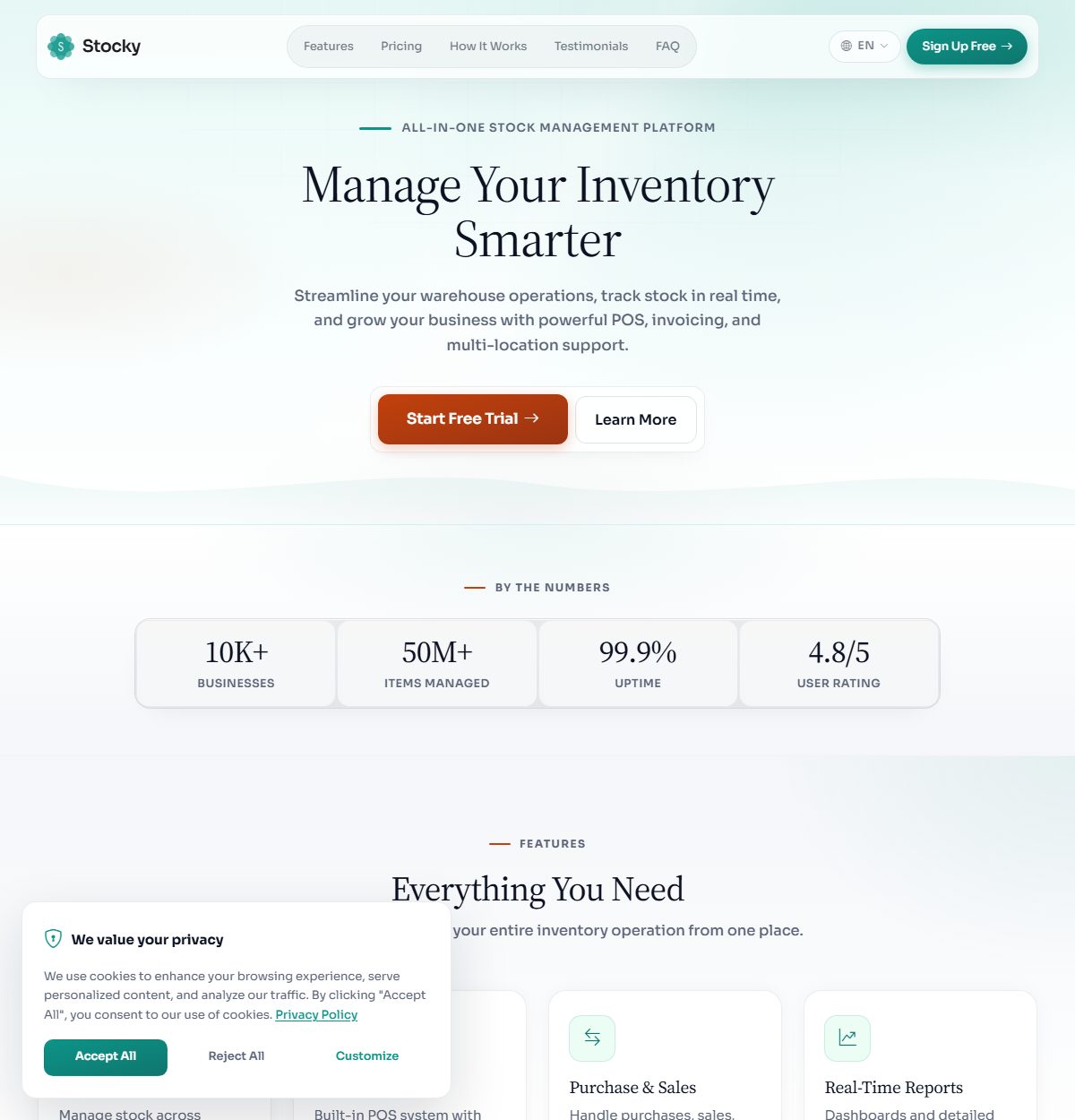
Six layouts on one set of content: hero, features, pricing from your plans, trust bar, how-it-works steps, testimonials, FAQ, call to action, footer, SEO, a blog, privacy and terms pages — translated into ten languages from the panel.
Plans & subscriptions
Monthly and yearly prices, free trials, usage limits (users, products, customers, suppliers, warehouses, WhatsApp messages) and a switch per module. Private plans for custom deals. Expiry and trial reminders by email, SMS and in-app banner.
Tenants
Each workspace on its own subdomain — or the tenant's own domain, verified by DNS — with an isolated database. Provisioned automatically on a VPS, or approved by hand on shared hosting. Suspend, reactivate, cancel, reset, reseed, migrate or delete from one page.
Payments
Stripe, PayPal, Paystack, Flutterwave, Mollie, Razorpay, PayFast, LigdiCash, Dodo Payments, WaafiPay, bKash, SSLCommerz, Paymob, MyFatoorah, Moyasar, XPay and bank transfer with proof upload. Webhook-verified, with invoices as PDF.
Support desk
Tenants open tickets from their workspace; you answer them, add private notes, assign agents and set priorities from the panel. Email on every step.
Monitoring
Logs and system health across every tenant — DNS, SSL, database, provisioning and exceptions — an impersonation audit trail, platform reports with MRR and churn, and central database backups.
The workspace
Everything in Stocky: touch-first POS with offline mode, multi-warehouse stock with batches and serials, sales, quotations, purchases, returns, an online store with five themes, double-entry accounting, HRM, and the projects, bookings, service, manufacturing, fleet, hospital and school modules.
Integrations
WooCommerce, Shopify, Salla, Jumia, PrestaShop, QuickBooks, Xero, Google Sheets, Mailchimp, Zapier, Slack, Telegram, WhatsApp, ZATCA, FBR and webhooks — each one a plan feature you can sell.
How to read this guide
The first part is for you, the platform owner: install it, configure the panel, publish
the landing page, watch tenants arrive. The second part — from Signing
up onward — is written for a tenant and describes the workspace screen by screen; hand
it to your customers as is, or point them at the knowledge base you publish from the
panel. Paths such as Settings → General Settings refer to the panel sidebar
at /super; paths in the workspace chapters refer to the sidebar a tenant
sees.
The shape of every screen
The panel is a classic admin: a sidebar of sections on the left, a search-and-filter bar at the top of each list, a table, paging, and a detail page with the actions in the header. The workspace is Stocky's Vue application: lists with search, filters, export and paging; record pages with a header that carries the reference, the status pills and the buttons that change state; and the POS as a full-screen application of its own.
How the platform is shaped
One code base answers on two kinds of address, and which one decides what it does.
| Address | What answers there |
|---|---|
yourdomain.com (the central domain) | The public landing page, blog, privacy and terms pages, the registration form and checkout, the super admin panel at /super, the installer at /setup, the platform updater at /update, and the payment-gateway webhooks. |
shop.yourdomain.com (a tenant subdomain) | One workspace: its login page, the admin, the POS, the online store at /online_store, the client portal at /portal, the customer display and the billing pages. The subdomain is chosen by the tenant at registration. |
www.shop-of-theirs.com (a custom domain) | The same workspace on a domain the tenant owns, once its DNS is verified from the panel. See Custom domains. |
Behind the addresses sit two kinds of database. The central database holds the platform: super admins, plans, tenants and their domains, subscriptions, payments and invoices, support tickets, the landing-page content, email and SMS templates, logs. Each tenant then has a database of its own, created when the workspace is provisioned and holding only that business — products, sales, customers, everything. A tenant can never read another tenant's rows because they are not in the same database; the credentials are stored encrypted on the tenant record and loaded per request.
Three things follow from that. Backups are two jobs — the central database from Settings → General Settings → Backup, each tenant's from its own Settings → Backup. An update migrates the central schema and then every tenant schema, which the platform updater does for you. And the MySQL user the platform connects with must be allowed to create databases on a VPS, or you approve each tenant by hand with a database you created — the two hosting modes.
Server requirements
The platform runs on ordinary PHP hosting; a VPS is strongly recommended because automatic provisioning needs to create databases and answer on any subdomain. Nothing has to be compiled — the front-end assets ship built.
| What | Needs | Notes |
|---|---|---|
| PHP | 8.2 or newer | The installer shows the version it found and names any missing extension. |
| Database | MySQL 8.0+ or MariaDB 10.6+ | One empty database for the platform. On a VPS the MySQL user also needs CREATE rights so tenant databases can be created for you; on shared hosting you create each one in the hosting panel. |
| Extensions | openssl, pdo, pdo_mysql, mbstring, curl, tokenizer, xml, ctype, fileinfo, gd, json, bcmath, zip | All standard. The installer checks each one. |
| Web server | Apache with mod_rewrite, or Nginx | Point the document root at public/, and make the same virtual host answer for the apex domain and every subdomain (ServerAlias *.yourdomain.com, or server_name yourdomain.com *.yourdomain.com;). |
| DNS | An A record for yourdomain.com and a wildcard *.yourdomain.com to the same server | The wildcard is what lets a new tenant's subdomain work the moment it is registered. Without it (typical shared hosting) you create each subdomain by hand — see Hosting modes. The Server setup chapter walks through DNS, certificate, virtual host and database user for each control panel. |
| HTTPS | A wildcard certificate, or a proxy such as Cloudflare that terminates TLS | Let's Encrypt issues wildcards through the DNS challenge. Required anyway for the POS camera scanner, the PWA install prompt and every payment gateway's redirect. |
| Writable | .env, storage/, bootstrap/cache/, public/images/ | Usually 755 on folders, 644 on files. Uploads land in public/images, in a folder per tenant. |
| Cron | One entry running php artisan schedule:run every minute | Optional for a demo; needed in production for expiry reminders, tenant cleanup, queued emails and syncs. See Cron & queue. |
| Memory | 256 MB PHP memory_limit recommended | Provisioning a tenant runs a full set of migrations and seeders in one request. |
Point the domain at public/, not at the folder above it.
If the document root is the project folder, anyone can download your .env
— which holds the central database password and the application key that encrypts every
tenant's database credentials and every gateway secret. On cPanel this is
Domains → Document Root.
Installing
The platform installs itself in a browser. You do not need shell access or a command
line; the installer writes .env, builds the central database and seeds the
super admin, the plans, the landing page and the templates.
-
Upload and unzip
Put the contents of the ZIP on the server and point the domain at the
public/folder. Add the wildcard DNS record and the wildcard on the virtual host now, so that subdomains work by the time the first tenant registers. -
Open
/setupBrowse to
https://yourdomain.com/setup. The first screen, Server requirements, checks the PHP version and each extension on your server. Every card must be green before Continue appears. Nothing has been written yet. -
Application settings
The application name, the environment (Production for a live platform), debug mode (Off on a live server), an application key — press Generate — and the application URL exactly as people will type it, with
https://and without a trailing slash. The URL matters more than usual here: its host is the central domain, and every tenant subdomain is derived from it. -
Central database
Host, port, database name, username and password for an empty MySQL database. Press Test connection; you can only continue once the test passes. Use a user that may create databases if you intend to run in VPS mode.
-
Review and install
Check the summary and press Install. This writes
.env, creates the central tables, generates the API keys, and seeds the super admin, three starter plans (Starter free, Professional and Enterprise), the landing-page content with its translations, the notification email templates and the ten panel languages. Keep the tab open. -
Sign in
The Installation successful page shows the super admin email, the password and the login link,
/super/login. Unless you setAPP_SUPER_ADMIN_EMAILandAPP_SUPER_ADMIN_PASSWORDin.envbefore installing, the account issuperadmin@stockysaas.sitewith the passwordpassword.
Change the super admin password right after your first login. It is printed in this guide and on the installer's finish page. Open the user menu (top right) → My Profile → Change Password, and change the email address as well.
The installer seals itself. Once it finishes, every
/setup address answers 403, and the landing page takes over the
root of the domain. The seal is a file: storage/app/public/installed.
While it is missing, every visitor is sent to the installer — so if the landing page
ever shows the installer on a live site, that file is the first thing to check.
If the install fails
| Message mentions | What to do |
|---|---|
| Access denied for user | Wrong database username or password. Go back a step and re-test. |
| Unknown database | The central database does not exist. Create an empty one and use that name. |
| Permission denied / failed to open stream | .env, storage/ or bootstrap/cache/ is not writable. Set folders to 755 and files to 644, owned by the web server user. |
| Maximum execution time | Raise max_execution_time to 300 for the install. |
| Setup ran but the expected schema is missing | The migration was interrupted. Drop the tables (or the database) and run the installer again; it refuses to seal itself until the schema is verifiably present. |
| A blank page or 500 after Install | Turn debug on in .env (APP_DEBUG=true) to see the reason, or read storage/logs/laravel.log. Turn it off again afterwards. |
Command-line install
If you have shell access and would rather not use the wizard:
cp .env.example .env            # APP_URL, APP_KEY, DB_* — and optionally APP_SUPER_ADMIN_EMAIL / _PASSWORD
php artisan key:generate
php artisan migrate --database=central --force
php artisan db:seed --class="Database\Seeders\Central\CentralUsersSeeder" --force
php artisan db:seed --class="Database\Seeders\Central\PlansSeeder" --force
php artisan db:seed --class="Database\Seeders\Central\LandingPageSeeder" --force
php artisan db:seed --class="Database\Seeders\Central\CmsTranslationSeeder" --force
php artisan db:seed --class="Database\Seeders\Central\EmailTemplatesSeeder" --force
php artisan db:seed --class="Database\Seeders\Central\CentralLanguagesSeeder" --force
php artisan passport:keys

# tell the installer it has nothing left to do
echo 1 > storage/app/public/installed
Tenant databases are never created by these commands; they come into being when a
workspace is provisioned. To provision a tenant from the shell, use
php artisan tenant:provision {tenantId} with the ID shown on the tenant's
page.
Updating
An update has two halves: the files, which you replace by hand, and the databases — the central one and every tenant's — which the platform migrates for you from one page. Settings → General Settings → Update App carries the step-by-step guide; this is the same procedure.
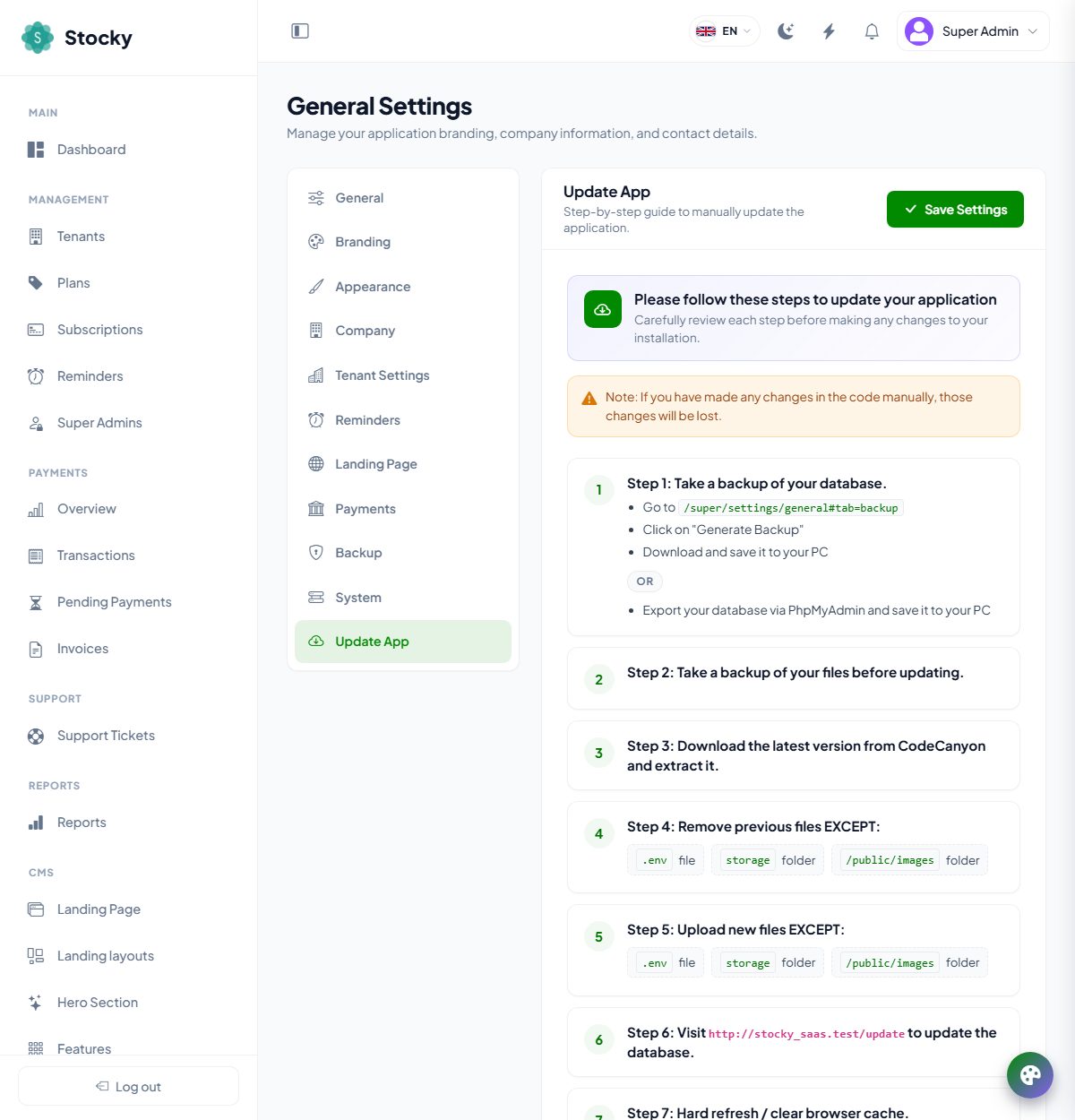
.env, storage, public/images — are the files that hold your configuration and uploads.-
Back up
Take a central database backup from General Settings → Backup, and a backup of the files. Tenant databases are not touched by file replacement, but a dump of each is cheap insurance before a migration.
-
Replace the files
Download the new version from CodeCanyon, remove the old files except
.env, thestorage/folder andpublic/images/, and upload the new ones without overwriting those three. They hold your configuration, the installed marker, sessions and logs, and every tenant's uploaded images. -
Open
/updateSigned in as a super admin, browse to
https://yourdomain.com/update. The Platform Update page lists the targets: the central database and every tenant that is active, suspended or cancelled (pending, provisioning and failed tenants have no schema to migrate). Press Start: the platform goes into maintenance mode, migrates the central schema — re-seeding the panel languages and syncing plan limits — then runs each tenant's migrations one by one, showing the result per tenant. Finish lifts maintenance mode. -
Hard-refresh
Press Ctrl + Shift + R in the panel and in a workspace so the browser loads the new assets. If a page is blank, clear the browser cache; if a workspace was installed as a PWA, close and reopen it. Check the version in the panel footer.
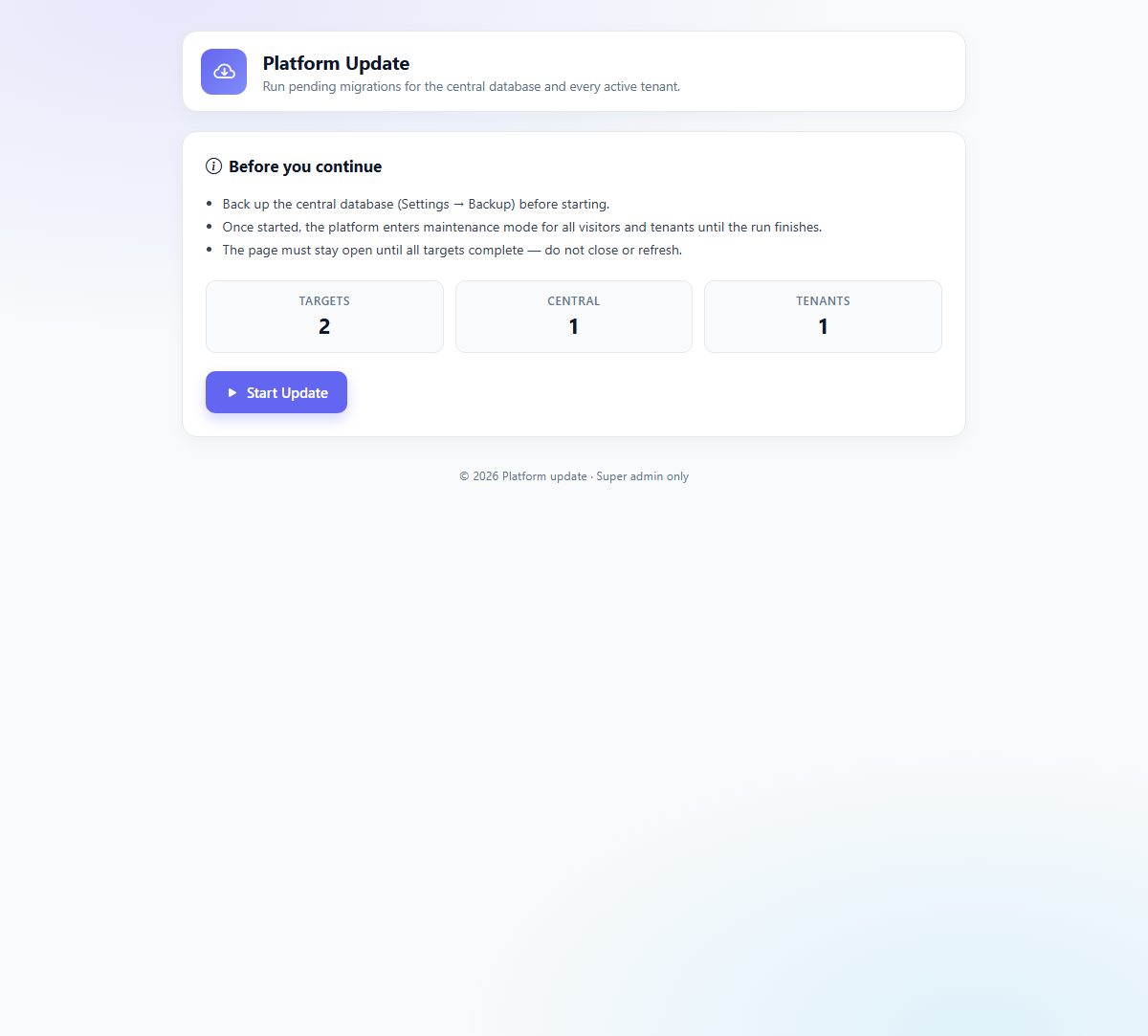
If a tenant's migration fails, the page says so and the rest continue; fix the cause (usually a database that cannot be reached — check Logs & System Health) and use Re-run Migrations on that tenant's page. A tenant that failed to migrate keeps working on the old schema until you do.
Custom work is overwritten by an update. If you or a developer have changed any files, those changes are lost when the files are replaced. Keep customisations in a separate branch and re-apply them.
Your first hour
A fresh install already has a landing page, three plans and a super admin. This is the shortest route from there to a platform that takes a sign-up, charges for it and hands the customer a working workspace.
-
Brand the platform
Settings → General Settings. The app name, logo and favicon (Branding), your company details (Company) and the billing currency (General). The currency must be one your payment gateways accept; it prints on every invoice.
-
Choose the hosting mode
General Settings → System → Hosting Mode. VPS if the server has wildcard DNS and a MySQL user that may create databases — tenants then provision themselves. Shared Hosting if not — every registration waits for you. See Hosting modes.
-
Set the plans
Plans. Edit the three seeded plans or create your own: monthly and yearly prices, a free trial, usage limits, and the modules each plan unlocks. Only active, non-private plans show on the landing page.
-
Connect a payment gateway
Settings → Payment Gateways. Enter the keys for at least one gateway, start in sandbox mode, and paste the webhook URL the page shows into the gateway's dashboard. Bank transfer needs no keys — fill in the bank details under General Settings → Payments instead.
-
Mail
Settings → Mail Settings. SMTP host, port, credentials and sender. Send a test. Every notification — new tenant, approval, payment, expiry reminder, support reply — goes through this.
-
The landing page
CMS. Pick a layout, write the hero, list your features, add testimonials and FAQs, set the SEO title and description. Preview landing page shows it live. Turn on Load plans from database in the pricing section so the cards follow your plans.
-
Defaults for new workspaces
General Settings → Tenant Settings. The name, logo, currency, language and footer every new workspace starts with, and the Demo Tenant Generator switch if you want new workspaces pre-filled with sample data.
-
Register a test tenant
Open the landing page in a private window and sign up on the free plan. Watch the Preparing your workspace page, sign in at the subdomain it gives you, and look around. Then, back in the panel, open Tenants and see it listed.
-
Cron
Add the one-line cron entry from Cron & queue. Expiry reminders, the daily cleanup of abandoned tenants and every queued job depend on it.
Everything else — the blog, the knowledge base for tenants, SMS and WhatsApp, custom domains, extra admins with restricted sections — can wait. How It Works under Help in the panel repeats the provisioning flow for your current hosting mode and answers the questions tenants ask most.
VPS configuration
This chapter prepares a VPS or dedicated server so that the platform can
create a database and activate a new subdomain on its own every time
somebody signs up — with no admin intervention. It is the difference between the two
hosting modes: in Shared Hosting mode you create the
subdomain and the database by hand before approving each tenant; in VPS mode
the application issues CREATE DATABASE, runs the migrations and seeders, and
the subdomain is already served by the wildcard virtual host, so the customer is signed
in a minute after registering or paying.
What the server must provide
1. Wildcard DNS
A record *.yourdomain.com pointing at the server, so acme.yourdomain.com resolves without a record per tenant.
2. Wildcard virtual host
One Apache or Nginx virtual host that answers for yourdomain.com and *.yourdomain.com and serves the same public/ folder.
3. Wildcard certificate
A certificate covering both names — Let's Encrypt through the DNS-01 challenge, or a commercial wildcard.
4. A MySQL user that may create databases
The user in DB_USERNAME creates a database per tenant and migrates inside it, so it needs CREATE and DROP on all databases.
Software
- A Linux VPS — Ubuntu 22.04 or 24.04, Debian 12, AlmaLinux or Rocky 9 — with at least 2 GB of RAM and root access.
- A registered domain and access to its DNS zone (Cloudflare, Route 53, your registrar).
- PHP 8.2 or newer with the extensions from Server requirements; MySQL 8 or MariaDB 10.6; Composer only if you install from source.
- One of: plain Nginx or Apache, cPanel/WHM, Plesk, Webmin/Virtualmin, CyberPanel or DirectAdmin. Each has a section below.
The setup path
- Point
yourdomain.comand*.yourdomain.comat the server. - Create one virtual host with the document root at
…/stocky_saas/publicand the wildcard alias. - Issue a wildcard certificate through DNS-01 and bind it to that host.
- Create a server-level MySQL user with the privileges to create databases.
- Run the installer with the apex domain as the URL and that MySQL user.
- Switch Hosting Mode to VPS in General Settings → System.
- Add the cron entry and, for production, a queue worker.
Install on the root domain. The platform must live at
yourdomain.com, not at app.yourdomain.com/stocky or in a
sub-folder. Tenants are subdomains of whatever host APP_URL names, and a
subdomain of a subdomain would need a second-level wildcard that most certificate
authorities will not issue.
Wildcard DNS
Tenants are created as subdomains of your base domain, dynamically, so you must
not create an A record per tenant. One wildcard record catches them
all. In the DNS zone of yourdomain.com, create:
; Name   Type  Value             TTL
@        A     203.0.113.10      300
* A 203.0.113.10 300- Replace
203.0.113.10with the server's public IPv4 address. If it has an IPv6 address, add matchingAAAArecords for@and*. - Do not use a
CNAMEat the apex; most registrars refuse it. - Keep the TTL low (300–600 seconds) while setting up, then raise it.
- Cloudflare: a wildcard record is only proxied (orange cloud) on paid plans. On the free plan set the wildcard to DNS only. If you do proxy, set SSL/TLS to Full (strict) once the wildcard certificate is on the origin.
Before going on, check that the apex and any random subdomain resolve to the same address:
dig +short yourdomain.com
dig +short anything.yourdomain.com
dig +short random-test.yourdomain.com
# all three print the same IP
Wildcard SSL certificate
A Let's Encrypt certificate issued through the usual HTTP-01 challenge only covers
names you list. To cover *.yourdomain.com you need the
DNS-01 challenge, which lets Certbot add a temporary
_acme-challenge TXT record through your DNS provider's API.
Option A — Certbot with a DNS plugin (recommended)
The example uses Cloudflare; the same approach works for Route 53, DigitalOcean, OVH and Google Cloud DNS with their plugins.
# Install certbot and the Cloudflare DNS plugin
sudo apt update
sudo apt install -y certbot python3-certbot-dns-cloudflare

# Store a Cloudflare API token with Zone:DNS:Edit
sudo mkdir -p /etc/letsencrypt
sudo tee /etc/letsencrypt/cloudflare.ini > /dev/null <<EOF
dns_cloudflare_api_token = YOUR_CLOUDFLARE_TOKEN
EOF
sudo chmod 600 /etc/letsencrypt/cloudflare.ini

# Issue the wildcard certificate
sudo certbot certonly \
  --dns-cloudflare \
  --dns-cloudflare-credentials /etc/letsencrypt/cloudflare.ini \
  -d yourdomain.com \
  -d "*.yourdomain.com" \
  --email admin@yourdomain.com \
  --agree-tos --non-interactive
The files land under /etc/letsencrypt/live/yourdomain.com/:
fullchain.pem (certificate and chain) and privkey.pem (the key).
Certbot installs a systemd timer that renews them; check it with:
sudo systemctl list-timers | grep certbot
sudo certbot renew --dry-run
Option B — acme.sh
curl https://get.acme.sh | sh -s email=admin@yourdomain.com
export CF_Token="YOUR_CLOUDFLARE_TOKEN"
~/.acme.sh/acme.sh --issue --dns dns_cf \
  -d yourdomain.com -d "*.yourdomain.com" --server letsencrypt
Commercial wildcards from Sectigo, DigiCert and the like work just
as well — import them in your panel. The application does not care who issued the
certificate, only that *.yourdomain.com is covered.
MySQL user & privileges
In VPS mode the platform runs CREATE DATABASE for each new tenant and
then migrates inside it, using the credentials from .env. That user needs
more than an ordinary application user:
CREATEandDROPon all databases, so tenant databases can be created and — when a tenant is deleted — removed.ALTER,INDEX,REFERENCES,CREATE ROUTINE,ALTER ROUTINE,EXECUTE,TRIGGER, so migrations can run.- The usual
SELECT,INSERT,UPDATE,DELETE,LOCK TABLES.
Creating the user
-- run as root or another admin user
CREATE USER 'stocky_admin'@'localhost' IDENTIFIED BY 'StrongPassword!2026';
GRANT ALL PRIVILEGES ON *.* TO 'stocky_admin'@'localhost' WITH GRANT OPTION;
FLUSH PRIVILEGES;
Stricter alternative
Full rights on the central database and on databases whose name starts with
tenant, plus the right to create and drop:
CREATE USER 'stocky_admin'@'localhost' IDENTIFIED BY 'StrongPassword!2026';
GRANT ALL PRIVILEGES ON stocky_central.* TO 'stocky_admin'@'localhost';
GRANT ALL PRIVILEGES ON `tenant%`.*      TO 'stocky_admin'@'localhost';
GRANT CREATE, DROP ON *.*                TO 'stocky_admin'@'localhost';
FLUSH PRIVILEGES;
Verify by signing in as the new user and running
CREATE DATABASE tenant_probe; DROP DATABASE tenant_probe;. If both
succeed, provisioning will work.
This user is powerful. Bind it to localhost or
127.0.0.1 so it cannot connect from outside, and keep MySQL itself bound
to 127.0.0.1 — port 3306 has no business on the public internet. The
password is stored in .env, which is why the document root must be
public/.
Option 1 — No panel (Ubuntu with Nginx or Apache)
The lightest setup and the one to prefer for a dedicated server: full control over the stack, no per-panel quirks.
1. Install the stack
sudo apt update && sudo apt -y upgrade

# PHP 8.2 and extensions
sudo apt install -y software-properties-common
sudo add-apt-repository -y ppa:ondrej/php
sudo apt update
sudo apt install -y php8.2 php8.2-fpm php8.2-mysql php8.2-mbstring php8.2-xml \
  php8.2-curl php8.2-bcmath php8.2-gd php8.2-zip php8.2-intl

# MySQL, Nginx, unzip
sudo apt install -y mysql-server nginx unzip
2. Deploy the application
sudo mkdir -p /var/www/stocky_saas
# upload and extract the package into /var/www/stocky_saas
cd /var/www/stocky_saas

# permissions
sudo chown -R www-data:www-data /var/www/stocky_saas
sudo find storage bootstrap/cache public/images -type d -exec chmod 775 {} \;
sudo find storage bootstrap/cache public/images -type f -exec chmod 664 {} \;
3. Nginx wildcard virtual host
Create /etc/nginx/sites-available/stocky_saas.conf:
# HTTP -> HTTPS
server {
    listen 80;
    listen [::]:80;
    server_name yourdomain.com *.yourdomain.com;
    return 301 https://$host$request_uri;
}

# HTTPS wildcard host
server {
    listen 443 ssl http2;
    listen [::]:443 ssl http2;
    server_name yourdomain.com *.yourdomain.com;

    root  /var/www/stocky_saas/public;
    index index.php index.html;

    ssl_certificate     /etc/letsencrypt/live/yourdomain.com/fullchain.pem;
    ssl_certificate_key /etc/letsencrypt/live/yourdomain.com/privkey.pem;

    client_max_body_size 64M;
    add_header X-Frame-Options "SAMEORIGIN";
    add_header X-Content-Type-Options "nosniff";

    location / {
        try_files $uri $uri/ /index.php?$query_string;
    }

    location ~ \.php$ {
        fastcgi_pass unix:/run/php/php8.2-fpm.sock;
        fastcgi_param SCRIPT_FILENAME $realpath_root$fastcgi_script_name;
        include fastcgi_params;
    }

    location = /favicon.ico { access_log off; log_not_found off; }
    location = /robots.txt  { access_log off; log_not_found off; }
    location ~ /\.(?!well-known).* { deny all; }
}
sudo ln -s /etc/nginx/sites-available/stocky_saas.conf /etc/nginx/sites-enabled/
sudo nginx -t
sudo systemctl reload nginx4. Apache wildcard virtual host (alternative)
Create /etc/apache2/sites-available/stocky_saas.conf:
<VirtualHost *:80>
    ServerName  yourdomain.com
    ServerAlias *.yourdomain.com
    Redirect permanent / https://yourdomain.com/
</VirtualHost>

<VirtualHost *:443>
    ServerName  yourdomain.com
    ServerAlias *.yourdomain.com
    DocumentRoot /var/www/stocky_saas/public

    SSLEngine on
    SSLCertificateFile    /etc/letsencrypt/live/yourdomain.com/fullchain.pem
    SSLCertificateKeyFile /etc/letsencrypt/live/yourdomain.com/privkey.pem

    <Directory /var/www/stocky_saas/public>
        Options FollowSymLinks
        AllowOverride All
        Require all granted
    </Directory>

    ErrorLog  ${APACHE_LOG_DIR}/stocky_saas_error.log
    CustomLog ${APACHE_LOG_DIR}/stocky_saas_access.log combined
</VirtualHost>
sudo a2enmod rewrite ssl headers
sudo a2ensite stocky_saas.conf
sudo apache2ctl configtest
sudo systemctl reload apache2The key line in both files is ServerAlias *.yourdomain.com
(Apache) or server_name yourdomain.com *.yourdomain.com (Nginx). That single
directive is what makes every new tenant subdomain reach the application without any
manual virtual-host work. The redirect to HTTPS keeps $host, so a tenant
who types the plain address lands on their own subdomain.
Option 2 — cPanel / WHM
On a cPanel server, VPS mode is a combination of WHM (server-wide) and cPanel (per-account) settings.
-
Create the account
WHM → Account Functions → Create a New Account for
yourdomain.com, with a package whose quota allows the central database and every future tenant database — or unlimited. Upload and extract the package into/home/cpuser/public_html/and set the document root of the domain topublic_html/public. -
Enable the wildcard subdomain
cPanel does not create a wildcard host by default. In cPanel → Domains → Subdomains create a subdomain named
*onyourdomain.comand set its document root to the same folder as the main domain. cPanel then addsServerAlias *.yourdomain.comto the virtual host and rebuildshttpd.conf. -
Wildcard DNS in WHM
WHM → DNS Functions → Edit DNS Zone, open the zone and add an
Arecord named*with the server's IP. If the nameservers are external, add the same record there. -
Wildcard SSL
AutoSSL cannot issue wildcards with the default HTTP-01 provider. Either install the Let's Encrypt AutoSSL provider (
/scripts/install_lets_encrypt_autossl_provider) and switch it to DNS-01, or issue the wildcard off-box with Certbot or acme.sh and import it under cPanel → SSL/TLS → Install and Manage SSL — certificate, key and chain. Make sure it is installed on both the domain and the wildcard alias. -
A database user that can create databases
Normal cPanel users cannot run
CREATE DATABASEfrom a script because cPanel prefixes every database withcpuser_. Open a root SSH session and createstocky_adminas in MySQL user & privileges; use that user in the installer, not the account's own user. In WHM → SQL Services → Manage MySQL Profiles confirm you are on a local MySQL, not a managed instance that restrictsCREATE. -
PHP
WHM → MultiPHP Manager: PHP 8.2 or newer for the domain. In EasyApache 4 make sure
bcmath,curl,gd,mbstring,mysqlnd,pdo_mysql,xml,zip,intlandopcacheare installed.
Option 3 — Plesk
Plesk has first-class support for wildcard aliases, which makes VPS mode easy.
-
Create the website
Websites & Domains → Add Domain for
yourdomain.com. Upload and extract the package intohttpdocs/, then change the document root tohttpdocs/publicunder Hosting Settings, and pick PHP 8.2 or newer. -
Wildcard domain alias
yourdomain.com → Hosting & DNS → Domain Aliases → Add Domain Alias, name
*.yourdomain.com, tick Synchronize DNS zone with the primary domain and Web service, leave Mail service unticked. Plesk generates the wildcard host on the same document root. -
Wildcard DNS
Plesk adds
*.yourdomain.com. A 203.0.113.10to its zone when the alias is created. If Plesk does not run your DNS, add the record at your provider. -
Wildcard SSL
Install the free Let's Encrypt extension, then SSL/TLS Certificates → Install, tick Issue a wildcard certificate and Include www. Plesk uses DNS-01; with external DNS it shows the
_acme-challengeTXT record to add, then Reload. The certificate binds to both names and renews itself. -
Database user
Per-domain Plesk users are limited to their own databases. Connect as the Plesk MySQL admin —
sudo mysql -uadmin -p"$(sudo cat /etc/psa/.psa.shadow)"— and createstocky_adminas in MySQL user & privileges. Do not put theadminaccount itself in.env; it belongs to Plesk. -
Nginx in front of Apache
Plesk proxies through Nginx by default. Under Apache & nginx Settings either keep proxy mode on, or turn it off for pure Nginx with PHP-FPM. Do not add extra
locationoverrides; the platform relies on the standard Laraveltry_filesrule.
Option 4 — Webmin / Virtualmin
-
Create the virtual server
Create Virtual Server, domain
yourdomain.com, with Apache SSL website and MySQL database enabled. Extract the package into/home/yourdomain/public_htmland set Server Configuration → Website Options → Website documents sub-directory topublic_html/public. -
Wildcard through a server alias
Server Configuration → Edit Virtual Server → Configurable settings, add
*.yourdomain.comto Server alias. Virtualmin rewriteshttpd.confwith theServerAliasand reloads Apache. -
Wildcard DNS in Webmin
Webmin → Servers → BIND DNS Server, open the zone, add an Address (A) record named
*with the server's IP, then Apply Configuration. With external DNS, add it at the provider. -
Wildcard SSL
Virtualmin's built-in Let's Encrypt uses HTTP-01 and will not issue a wildcard. Issue it from the shell with Certbot (see Wildcard SSL) and upload
fullchain.pemandprivkey.pemunder Server Configuration → Manage SSL Certificate → Update Certificate; or configure a DNS hook so the Let's Encrypt tab can request the wildcard itself. -
MySQL user
A virtual server's own MySQL user can only create databases matching its prefix. Create a server-wide user as in MySQL user & privileges and use it in the installer; Webmin → Servers → MySQL Database Server → User Permissions shows its grants.
Option 5 — CyberPanel (OpenLiteSpeed)
-
Create the website
Websites → Create Website: package, owner, domain
yourdomain.com, PHP 8.2 or newer, with SSL ticked. Extract the package into/home/yourdomain.com/public_htmland change the document root to…/public_html/publicin List Websites → Manage → vHost Conf. -
Create the wildcard child domain
From the website's Manage page, Create Child Domain named
*.yourdomain.comwith the path left blank so it reuses the parent's document root. -
Wildcard DNS
DNS → Add/Delete Records, an
Arecord named*with the server's IP; replicate it at an external provider if you use one. -
Wildcard SSL
SSL → Manage SSL → Issue SSL in wildcard mode uses acme.sh with DNS-01 and asks for your Cloudflare or Route 53 API credentials. Or run acme.sh yourself and import the result under Add Custom SSL.
-
MySQL user
CyberPanel's MariaDB root password is in
/etc/cyberpanel/mysqlPassword. Sign in with it and createstocky_adminas in MySQL user & privileges; do not put the root account in.env.
Option 6 — DirectAdmin
-
Create the user and domain
Admin Level → Create User for
yourdomain.comwith a package that allows wildcard subdomains and enough databases for your tenants. As that user, extract the package underdomains/yourdomain.com/public_htmland set the Custom DocumentRoot in Domain Setup topublic_html/public. -
Wildcard subdomain
Account Manager → Subdomains, create a subdomain named
*. DirectAdmin addsServerAlias *.yourdomain.comon the same document root. -
Wildcard DNS
Account Manager → DNS Management, add an
Arecord named*with the server's IP. -
Wildcard SSL
Account Manager → SSL Certificates → Free & automatic certificate from Let's Encrypt, tick Wildcard. With DNS on the same server the DNS-01 challenge runs itself; otherwise DirectAdmin prints the TXT record to add.
-
MySQL user
The server-level credentials are in
/usr/local/directadmin/conf/mysql.conf. Use them to createstocky_adminas in MySQL user & privileges; avoid usingda_adminitself in.env.
Switching to VPS mode
With DNS, the certificate, the virtual host and the database user in place, the
installer writes everything else into .env for you — the application URL,
environment, key and the database credentials. Two things to get right in the wizard:
- In Application settings, the URL is the apex domain,
https://yourdomain.com, not a subdomain. Tenant subdomains are derived from it. - In Central database, use the server-level MySQL user
(
stocky_admin), not a cPanel or Plesk per-domain user — otherwiseCREATE DATABASEis denied at the first sign-up.
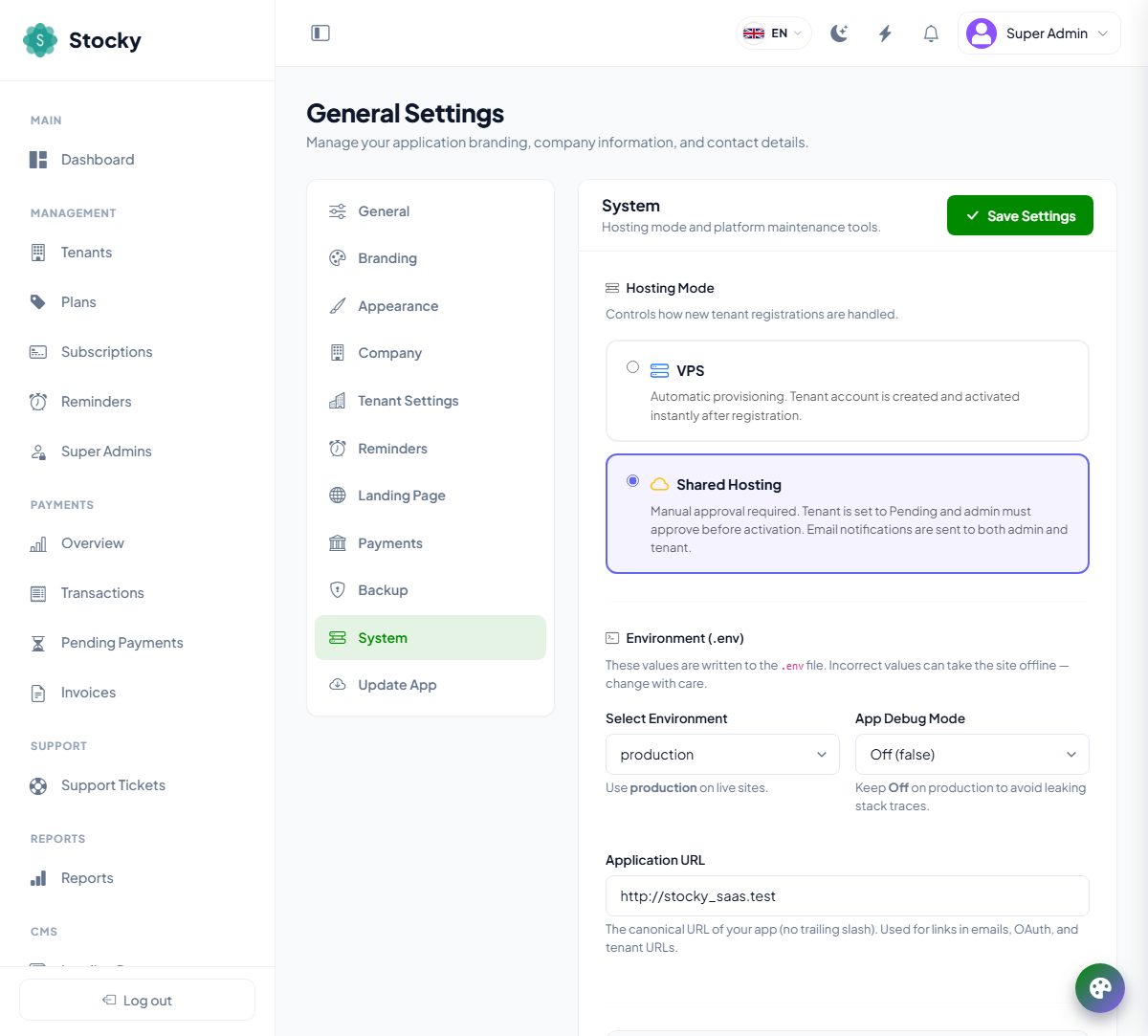
A fresh install starts in Shared Hosting mode. Sign in at
/super/login, open Settings → General Settings → System,
set Hosting Mode to VPS and save. From then on a sign-up creates
the database, migrates, seeds, creates the admin user and activates the workspace on its
own.
When you do need to touch .env
- Moving to another domain after installing — change
APP_URLand clear the caches below. - Several central domains (say
app.example.comandadmin.example.com) — setCENTRAL_DOMAINS=app.example.com,admin.example.com. Without this key the host ofAPP_URL(with and withoutwww) is the central domain. - A real queue —
QUEUE_CONNECTION=databasewith a worker (next section), orrediswith theREDIS_*values. - Debug left on after setup —
APP_DEBUG=false.
After any manual change to .env, rebuild the caches, or press
Clear Central Cache on the same settings tab:
cd /var/www/stocky_saas
php artisan config:clear && php artisan cache:clear
php artisan route:clear  && php artisan view:clear
# then, on production, cache them back
php artisan config:cache && php artisan route:cache && php artisan view:cache
Queue worker & scheduler
Expiry reminders, the cleanup of abandoned tenants, backups, emails, webhooks and the marketplace syncs run through the scheduler and the queue. The scheduler needs the cron entry from Cron & queue:
crontab -e        # as the user that owns the application files
* * * * * cd /var/www/stocky_saas && php artisan schedule:run >> /dev/null 2>&1- cPanel: Advanced → Cron Jobs, with the account's PHP
binary, for example
/usr/local/bin/ea-php82. - Plesk: Websites & Domains → Scheduled Tasks.
- Virtualmin: Webmin → System → Scheduled Cron Jobs.
- CyberPanel: Server Settings → Cron Jobs, or
crontab -eas root. - DirectAdmin: Account Manager → Cron Jobs.
Queued jobs run inline by default (QUEUE_CONNECTION=sync). For a busy
platform set QUEUE_CONNECTION=database and run a worker; the scheduler's
minute pass drains the queue as well, so cron alone is enough on a small server. With
database and no worker and no cron, nothing queued ever
runs — tenants whose provisioning was queued stay provisioning.
Worker as a systemd service (recommended)
Create /etc/systemd/system/stocky-worker.service:
[Unit]
Description=Stocky SaaS queue worker
After=network.target mysql.service

[Service]
User=www-data
Group=www-data
Restart=always
RestartSec=3
WorkingDirectory=/var/www/stocky_saas
ExecStart=/usr/bin/php artisan queue:work database --queue=default,webhooks,woocommerce-sync,woocommerce-stock --sleep=3 --tries=3 --timeout=1200 --max-time=3600
StandardOutput=append:/var/log/stocky-worker.log
StandardError=append:/var/log/stocky-worker.log

[Install]
WantedBy=multi-user.target
sudo systemctl daemon-reload
sudo systemctl enable --now stocky-worker
sudo systemctl status stocky-workerAlternative — Supervisor
Where systemd is not available, use Supervisor. A ready configuration ships in
deploy/supervisor/stocky-queue-worker.conf; in short:
# /etc/supervisor/conf.d/stocky-worker.conf
[program:stocky-worker]
process_name=%(program_name)s_%(process_num)02d
command=php /var/www/stocky_saas/artisan queue:work database --queue=default,webhooks,woocommerce-sync,woocommerce-stock --sleep=3 --tries=3 --timeout=1200
autostart=true
autorestart=true
user=www-data
numprocs=2
redirect_stderr=true
stdout_logfile=/var/log/stocky-worker.log
stopwaitsecs=1250
sudo supervisorctl reread
sudo supervisorctl update
sudo supervisorctl start stocky-worker:*Why --timeout=1200? The queue's retry window
(QUEUE_RETRY_AFTER) is 1200 seconds because a first tenant migration can take
a while. Keep the two in step so a long job is not killed mid-run and retried on top
of itself. Each tenant has its own jobs table; one worker process serves
them all.
Testing & troubleshooting the server
Run these checks in order; each one isolates a layer.
-
DNS
dig +short yourdomain.com
dig +short anything.yourdomain.com
dig +short zzz-not-a-tenant.yourdomain.com
All three must return the same IP. If the wildcard does not resolve, re-check the
*record. -
HTTPS on an arbitrary subdomain
curl -vk https://random-probe.yourdomain.com/ 2>&1 | grep -Ei "subject:|issuer:|alt"The subject should be
CN=yourdomain.comand the SAN list must include*.yourdomain.com. -
Database privileges
mysql -u stocky_admin -p -e "CREATE DATABASE tenant_probe_99; DROP DATABASE tenant_probe_99; SHOW GRANTS FOR CURRENT_USER;" -
Queue and scheduler
systemctl status stocky-worker # active (running) tail -n 50 /var/log/stocky-worker.log grep "schedule:run" /var/log/syslog | tail -n 5 -
End-to-end sign-up
From the landing page, register on the free or trial plan with the subdomain
probe1. Within a minute you should be onhttps://probe1.yourdomain.com/login;SHOW DATABASES LIKE 'tenant%'lists a new database; the tenant shows Active under Tenants. Delete it from the tenant page afterwards.
| Symptom | Cause and fix |
|---|---|
| Tenant stuck on Provisioning | The queue is set to database with no worker or cron, or the MySQL user lacks CREATE. Read Logs & System Health, storage/logs/laravel.log and the worker log; then Reprovision from the tenant page. |
HTTPS works on the apex but subdomains show ERR_CERT_COMMON_NAME_INVALID | The certificate is not a wildcard. Re-issue with -d "*.yourdomain.com". |
| 403 or the provider's default page on a subdomain | The virtual host does not carry the wildcard. Check ServerAlias *.yourdomain.com or server_name … *.yourdomain.com, and that no other virtual host on the same port comes first. |
| The workspace loads but every page is a 500 | storage/, bootstrap/cache/ or public/images/ is not writable by the web server user. |
| Sign-up succeeds but the subdomain 404s | APP_URL is not the apex domain, so the subdomain is not recognised as a tenant of it. |
cPanel rejects CREATE DATABASE | You are using the account's prefixed MySQL user. Switch to the server-level stocky_admin created over SSH. |
Shared hosting — tenant subdomains by hand
In Shared Hosting mode the application cannot create subdomains. Each time a tenant signs up, you create that tenant's subdomain in the hosting panel and point its document root at the same folder the platform is served from — the same document root as the main domain — then create the database and approve.
The golden rule. When you create the tenant's subdomain, set its
document root to exactly what the main domain uses — public_html/public,
httpdocs/public, whatever it is. Not a separate folder, not a fresh empty
directory, and never a second copy of the files. If the panel auto-fills
public_html/acme, change it back before saving.
The platform is one application that serves the landing page and every workspace; it
decides which tenant to load from the hostname. If acme.yourdomain.com points
at another folder, the request hits an empty directory or the panel's default page, and
the tenant sees a 404 or This site can't be reached.
-
The registration arrives
The tenant appears under Tenants as Pending; you and the registrant are emailed. The requested subdomain is on the tenant page.
-
Create the subdomain
In the panel's Subdomains (or Domain Aliases) section, add
acmeonyourdomain.comwith the main domain's document root. If your nameservers are external, add anArecord for it there too. Openhttps://acme.yourdomain.comin a private window: it must show the workspace login, not a folder listing. -
Certificate
Issue or extend the certificate to cover the new name — AutoSSL, Let's Encrypt or your wildcard. Without HTTPS the browser will warn on the login form.
-
Create the database
An empty MySQL database and a user with full rights on it, in the panel's database tool.
-
Configure & approve
On the tenant page press Configure & Approve, enter the host, name, user, password and port, and approve. The platform tests the connection, migrates, seeds and emails the tenant their login link.
| Panel | Where to add the subdomain |
|---|---|
| cPanel | Domains → Subdomains, document root = the main domain's. |
| Plesk | Websites & Domains → Add Subdomain, document root = the parent's httpdocs/public. |
| DirectAdmin | Account Manager → Subdomain Management, then edit the virtual host's DocumentRoot or symlink the folder to the main one. |
| CyberPanel | Websites → Create Child Domain, path = the parent's document root. |
| Virtualmin | Server Configuration → Website Aliases, add acme.yourdomain.com as an alias of the existing server. |
| No panel | Add ServerAlias acme.yourdomain.com (Apache) or append it to server_name (Nginx) and reload. |
Common mistakes: letting the panel create a new folder and uploading a second copy of the files there; approving before the subdomain answers, so the welcome email points at a 404; forgetting the database or the certificate; DNS not yet propagated at an external provider. Verify before approving:
curl -I https://yourdomain.com          # 200, the landing page
curl -I https://acme.yourdomain.com     # 200 or a redirect to /login — not 404
Local development — Laragon and XAMPP
To test multi-tenant flows on a workstation, the local web server must route wildcard subdomains to the application, and the operating system must resolve them.
Laragon (Windows)
Laragon serves each folder in www at folder.test but does
not route wildcards. Edit
C:/laragon/etc/apache2/sites-enabled/auto.stocky_saas.test.conf (Laragon
generates it on first start) so it serves public/ and accepts the
wildcard:
<VirtualHost *:80>
    DocumentRoot "C:/laragon/www/stocky_saas/public"
    ServerName  stocky_saas.test
    ServerAlias *.stocky_saas.test
    <Directory "C:/laragon/www/stocky_saas/public">
        AllowOverride All
        Require all granted
    </Directory>
</VirtualHost>
With Nginx instead, in etc/nginx/sites-enabled/auto.stocky_saas.test.conf
use server_name stocky_saas.test *.stocky_saas.test; and
root "C:/laragon/www/stocky_saas/public";. Then Reload from the
Laragon menu.
Windows' hosts file has no wildcard support. Either add one line per tenant you test
(127.0.0.1 demo.stocky_saas.test) in
C:\Windows\System32\drivers\etc\hosts, or install
Acrylic DNS Proxy, add 127.0.0.1 *.stocky_saas.test to its
hosts file, restart its service and set the system DNS to 127.0.0.1 for true
wildcard resolution.
XAMPP (Windows, macOS, Linux)
Uncomment Include conf/extra/httpd-vhosts.conf in httpd.conf,
then append to httpd-vhosts.conf — keeping the default
localhost block first, because Apache serves the first
virtual host on a port to any name it does not recognise:
<VirtualHost *:80>
    ServerName localhost
    DocumentRoot "C:/xampp/htdocs"
</VirtualHost>

<VirtualHost *:80>
    ServerName  stocky.local
    ServerAlias *.stocky.local
    DocumentRoot "C:/xampp/htdocs/stocky/public"
    <Directory "C:/xampp/htdocs/stocky/public">
        AllowOverride All
        Require all granted
    </Directory>
</VirtualHost>
Resolve the names with hosts-file lines, Acrylic on Windows, or dnsmasq on macOS and
Linux (address=/.stocky.local/127.0.0.1). Restart Apache and verify:
http://stocky.local shows the landing page, a tenant registered as
demo answers at http://demo.stocky.local/login, and an unknown
subdomain reaches the application rather than the XAMPP welcome page.
Locally, either hosting mode works: MySQL runs as root with full rights,
so VPS mode provisions automatically, and Shared Hosting mode lets you
rehearse the manual approval flow. HTTPS is optional on a workstation; the camera
scanner and PWA install will not appear over plain HTTP.
Around the panel
The super admin panel lives at /super on the central domain and signs in
at /super/login — a separate login from any workspace. A few things sit
outside the sections and are worth knowing before you start.
| Where | What it does |
|---|---|
| The sidebar | Eight groups: Main (dashboard), Management (tenants, plans, subscriptions, reminders, super admins), Payments (overview, transactions, pending payments, invoices), Support, Reports, CMS (every section of the landing page), Help (knowledge base, blog, how it works), Monitoring (logs and health, impersonation logs) and Settings. An admin with restricted permissions sees only the groups they were given. |
| Language, the flag | Switches the panel between the ten platform languages — English, French, Arabic, Spanish, Hindi, Bangla, Turkish, German, Portuguese and Urdu. Arabic and Urdu run right-to-left. Which of them are offered is set in General Settings → General. |
| Light / dark, the moon | Flips the panel theme for your browser. |
| Quick actions, the bolt | Tenants, new plan, subscriptions and the CMS in one click. |
| The bell | What needs you: registrations waiting for approval, offline payments waiting to be confirmed, tenants pending in shared-hosting mode. Each entry links to the page that resolves it. |
| The user menu | Dashboard, My Profile (name, email, password, avatar), the public home page and sign out. |
| The palette, bottom right | The theme customiser — change the panel's primary colour on the fly. It appears when Show theme customizer button is on in General Settings → Appearance. |
| The footer | Free text from General Settings → Appearance, and the platform version. |
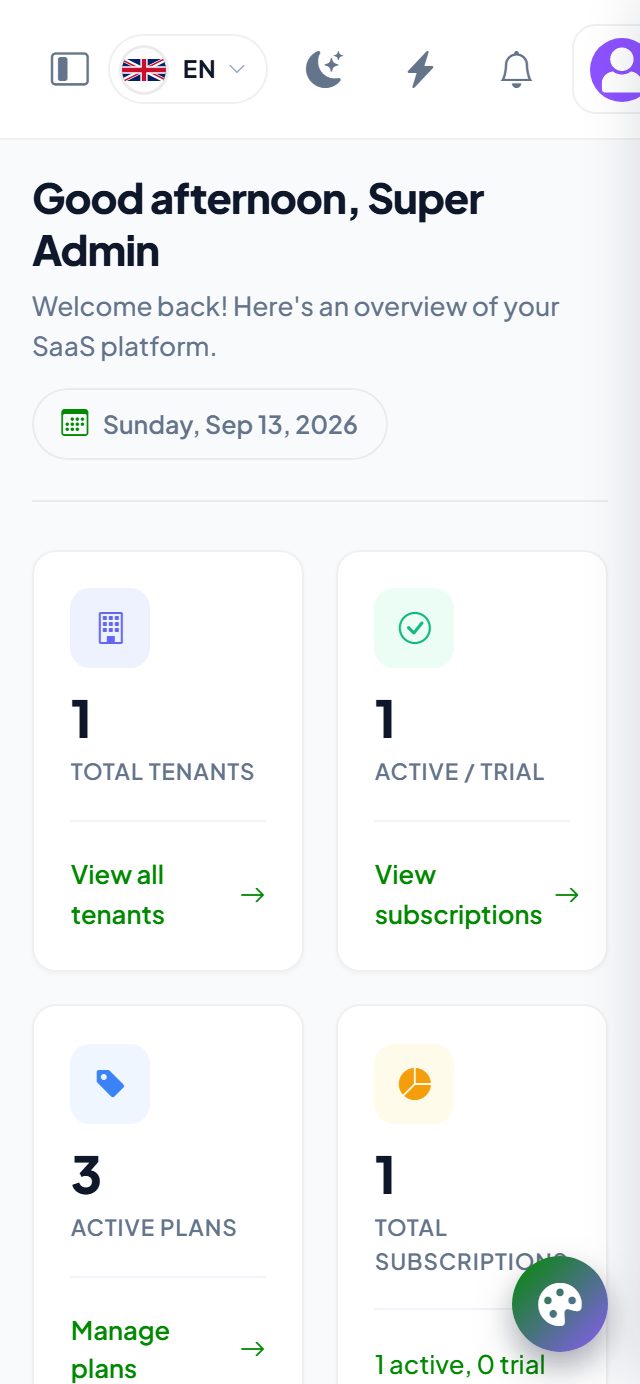
Dashboard
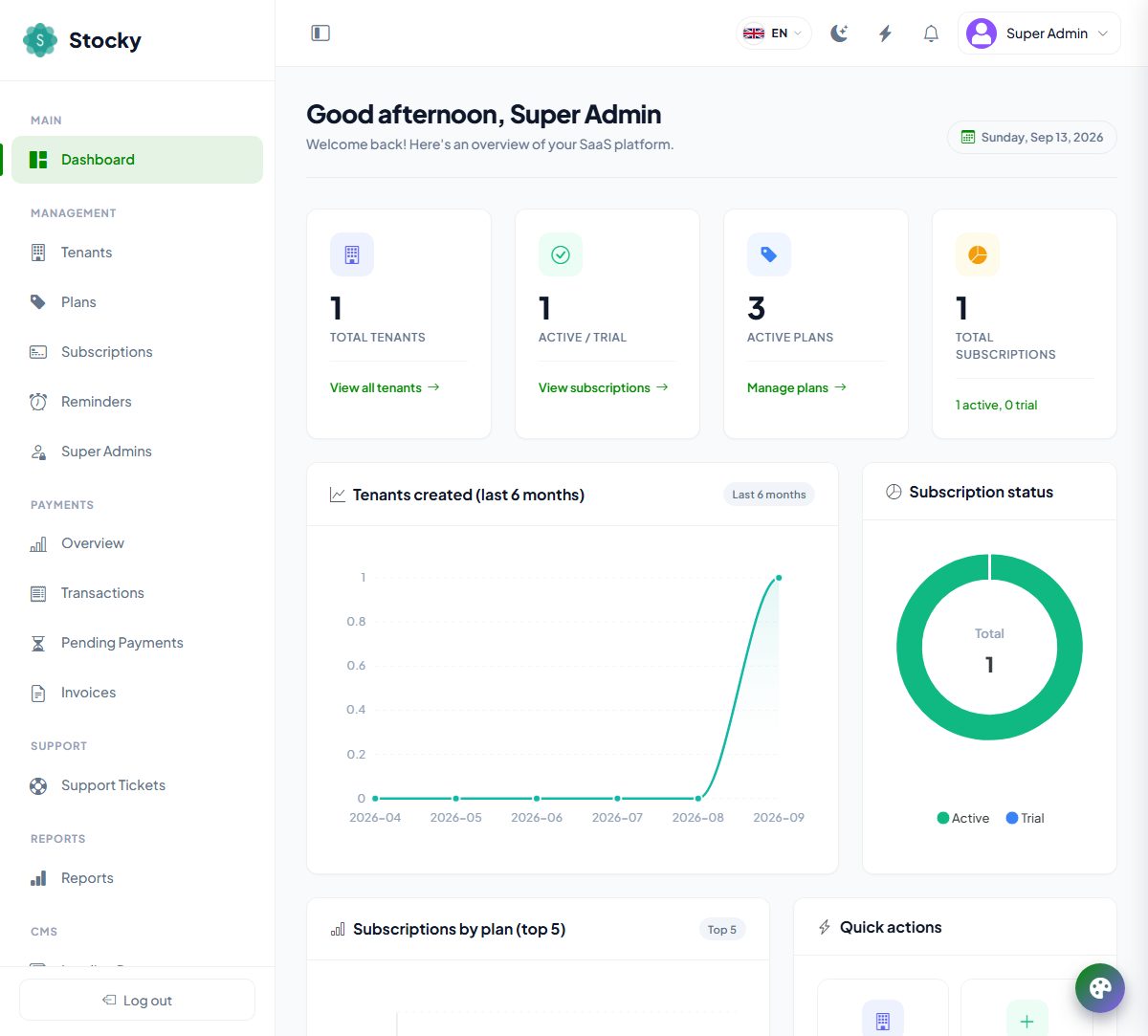
The first page after sign-in. Four tiles — total tenants, active and trial tenants, active plans, total subscriptions — each linking to its list. Below them, tenants created over the last six months, a donut of subscription statuses, subscriptions by plan, and the quick actions: manage tenants, create a plan, monitor subscriptions, visit the landing page.
The health alerts at the bottom are the part to read every morning: Inactive tenants (no activity for 30 days, or never used), Expired subscriptions and Suspended tenants, each with a link to the filtered list. In shared-hosting mode a pending banner also counts the registrations waiting for your approval; the same count sits on the bell.
Hosting modes
Settings → General Settings → System → Hosting Mode. One switch decides what happens between a sign-up and a working workspace. Help → How It Works in the panel draws the flow for whichever mode is active.
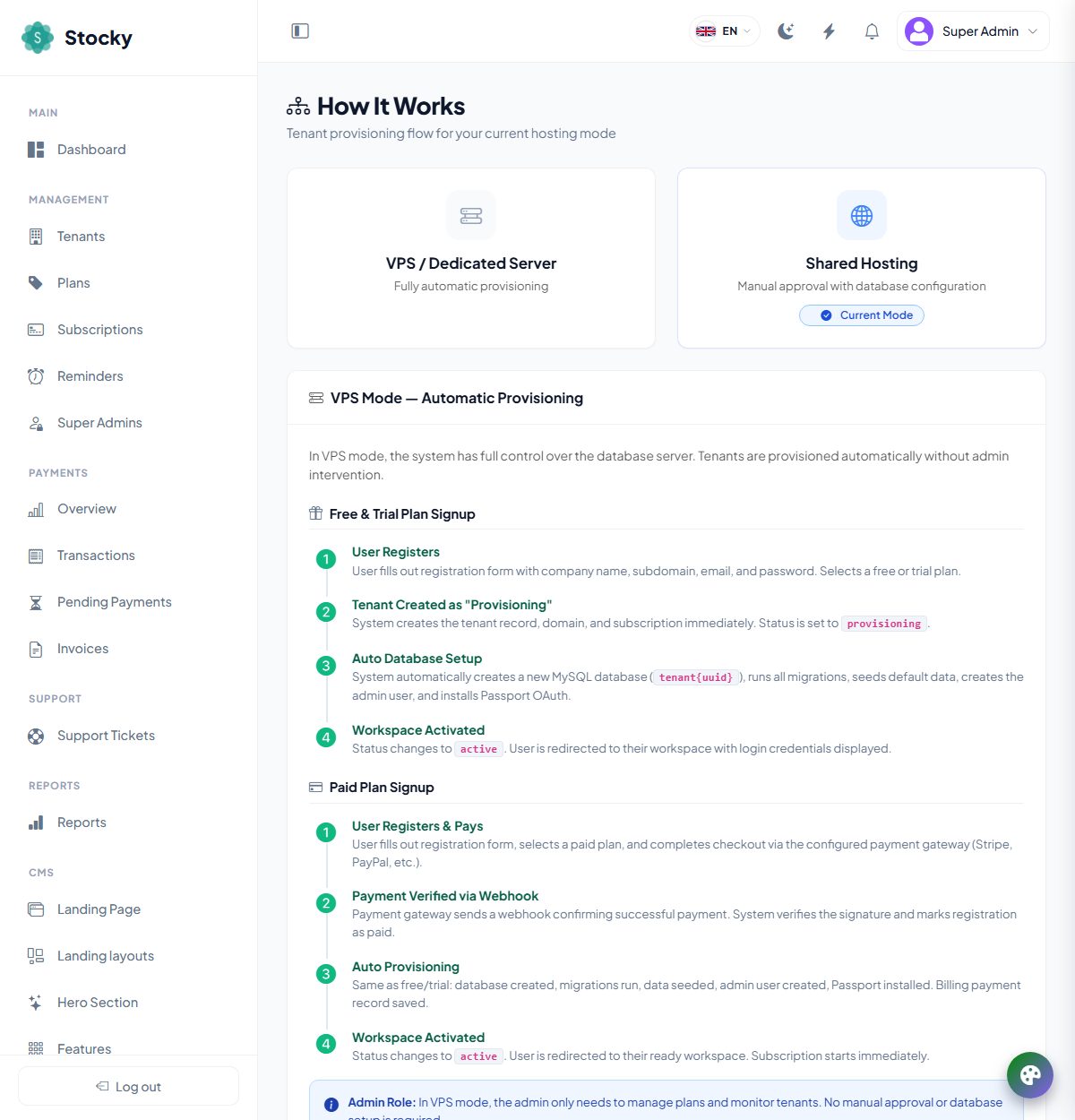
VPS — automatic
The server has wildcard DNS and a MySQL user that may create databases. A free or trial sign-up creates the tenant as provisioning, creates its database, runs the migrations and seeders, creates the admin user and installs the API keys — all in under a minute while the customer watches the Preparing your workspace page — then flips it to active and shows the login details. A paid sign-up does the same once the gateway's webhook confirms the payment. You manage plans and watch; nothing needs approval.
Shared hosting — manual approval
The host offers no wildcard DNS and no database creation from code. A sign-up creates the tenant as pending, emails you and shows the customer an Under review page. You create the subdomain and an empty MySQL database in cPanel or Plesk, open the tenant, press Configure & Approve, enter the database host, name, user, password and port, and the platform tests the connection, migrates, seeds and activates. The customer gets an approval email with their login link. Paid sign-ups are charged first and wait the same way.
The tenant lifecycle
| Status | Meaning |
|---|---|
| Pending | Registered, waiting for your approval. Only in shared-hosting mode. |
| Provisioning | The database is being created, migrated and seeded and the admin user made. |
| Active | Fully provisioned. The tenant can sign in and work, subject to its subscription. |
| Suspended | Disabled by you, or automatically seven days after a subscription expired. Every request to the workspace answers 403; the data stays intact and Reactivate restores it instantly. |
| Cancelled | The tenant or you ended it. Access is blocked the same way as suspended. |
| Failed | Provisioning hit an error — usually the database could not be created or reached. The error is in Logs & System Health; fix it and press Reprovision. |
In shared-hosting mode, create both the subdomain and the database before you approve. The platform connects to the database you name and routes traffic to the subdomain you created; it cannot create either on shared hosting. The credentials are encrypted with the application key before they are stored.
Plans
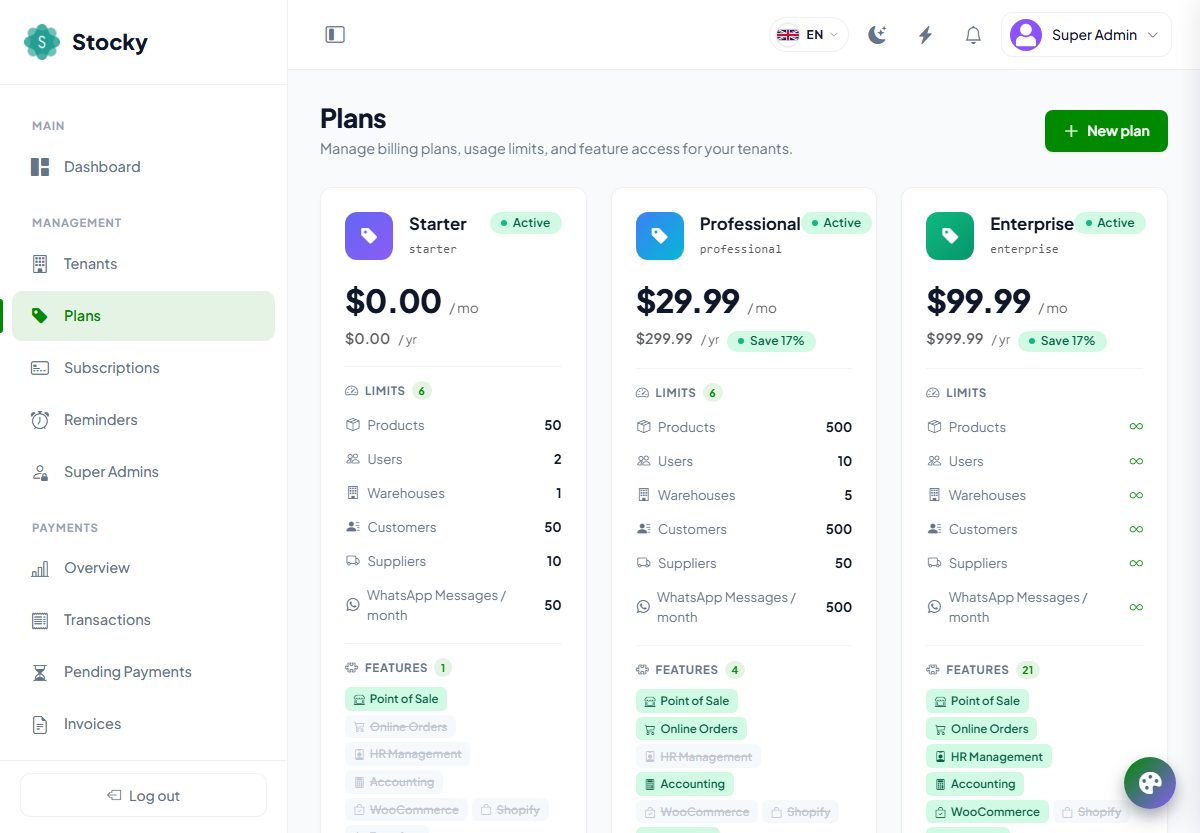
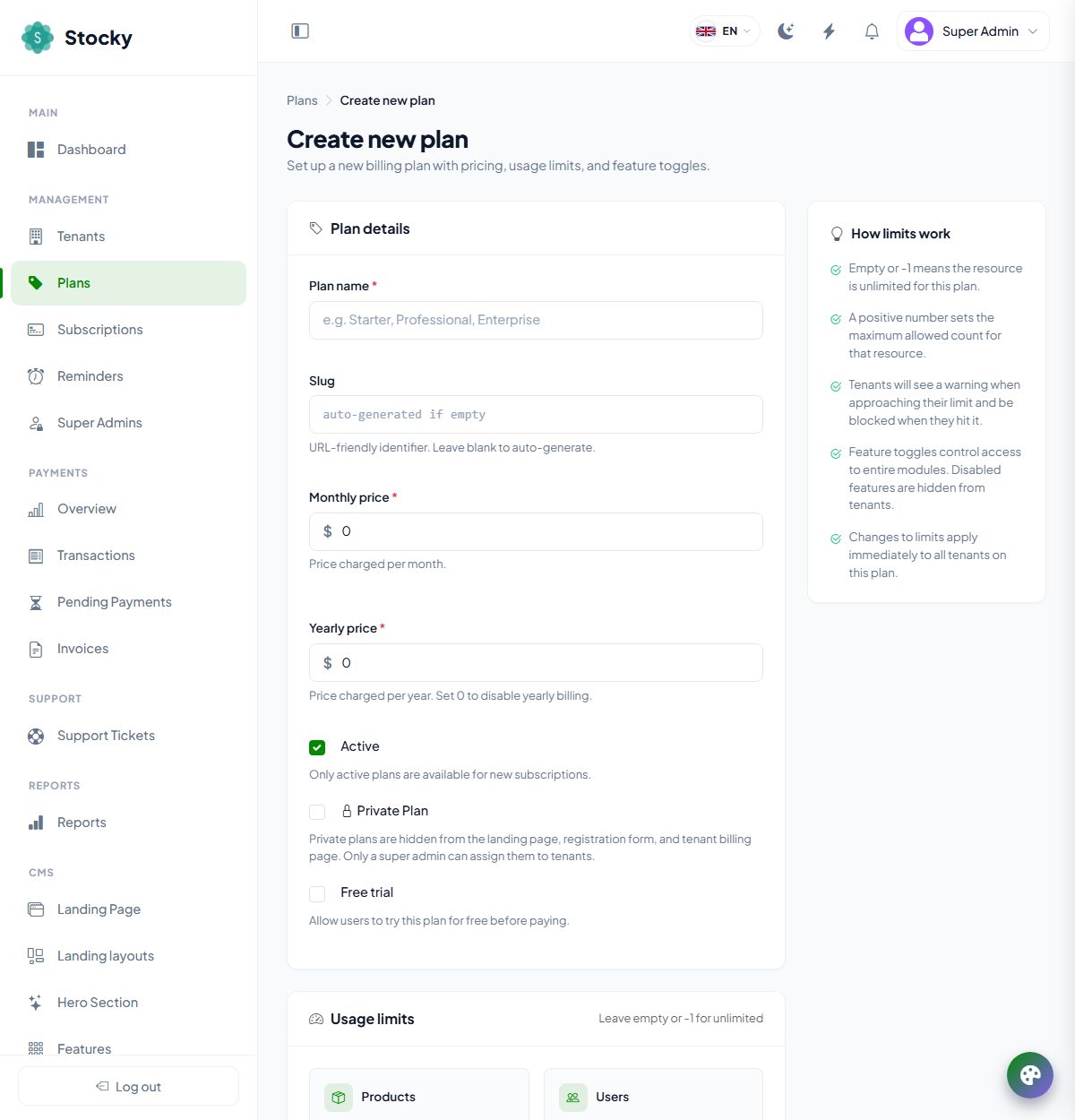
Plans. A plan is what a tenant buys: a price, a set of limits and a set of modules. The install seeds Starter (free), Professional and Enterprise; edit them or make your own.
| Field | What it does |
|---|---|
| Name, slug | The name shows on the landing page and the tenant's billing pages; the slug is generated if left blank. A public plan whose slug is starter is the default when a registrant picks none. |
| Monthly price, yearly price | Both in the platform currency. Set the yearly price to 0 to offer monthly only; when both are set the landing page shows the saving as a percentage. A price of 0 on both makes the plan free. |
| Free trial, trial days | No payment at sign-up; full access to the plan until the trial ends, then the tenant must subscribe to continue. Trial reminders go out on the days set in General Settings → Reminders. |
| Active | Only active plans can be subscribed to. An inactive plan keeps its existing subscribers. |
| Private | Hidden from the landing page and the registration form, but fully usable for the tenants you assign it to from Subscriptions. For custom deals, legacy plans and plans being phased out. |
| Usage limits | Maximum users, products, customers, suppliers and warehouses, and WhatsApp messages per month. Empty or -1 means unlimited. The tenant sees the usage against each limit on the current-plan page and is stopped — with a message — when a limit is reached. |
| Features | One switch per module. A module that is off does not appear in the tenant's sidebar and its pages and API answer forbidden. |
The modules a plan can switch
Point of sale · Online store · HRM · Accounting · Stock transfers · Quotations · Promotions · Commissions · Contracts · Projects · Bookings · Service & maintenance · Assets · Fleet · Manufacturing · Hospital · School · Recruitment · Meetings · Marketing · Knowledge base · Document archive · AI reports · Webhooks · ZATCA e-invoicing · FBR e-invoicing · WooCommerce · Shopify · Salla · Jumia · PrestaShop · QuickBooks · Xero · Google Sheets · Mailchimp · Zapier · Slack · Telegram. Core commerce — products, sales, purchases, returns, adjustments, people, settings and reports — is in every plan and cannot be switched off.
How changes to a plan behave
- Features and limits apply immediately to every tenant on the plan. Nothing is snapshotted; each request checks the live plan.
- Prices do not. The amount is locked into the subscription when it is taken; a new price applies to new subscriptions, renewals and plan changes.
- Lowering a limit deletes nothing. A tenant with 300 products on a plan cut to 100 keeps all 300 and cannot add more until they are under the limit.
- A plan with active subscribers cannot be deleted. Mark it private or inactive instead, or move its tenants to another plan first.
Tenants
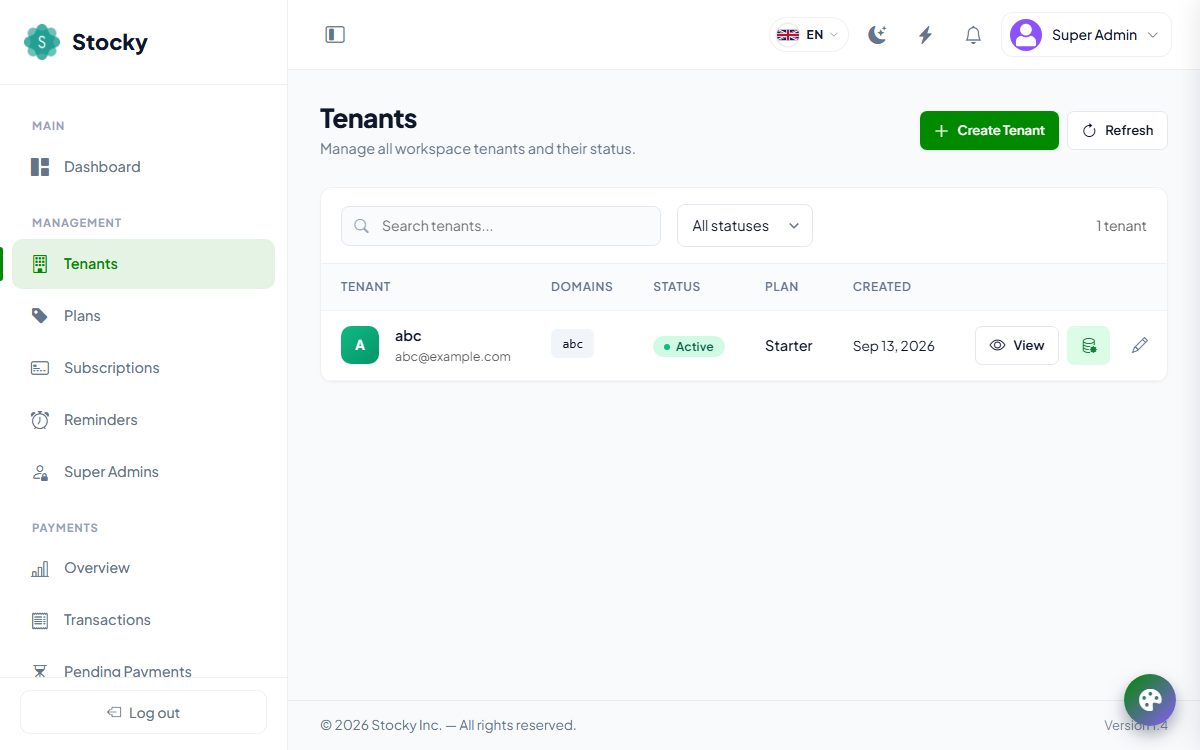
Tenants. Every workspace on the platform, with its domains, plan, status and registration date. Search by name or email; filter by status. The pending filter is the approval queue in shared-hosting mode.
Creating a tenant by hand
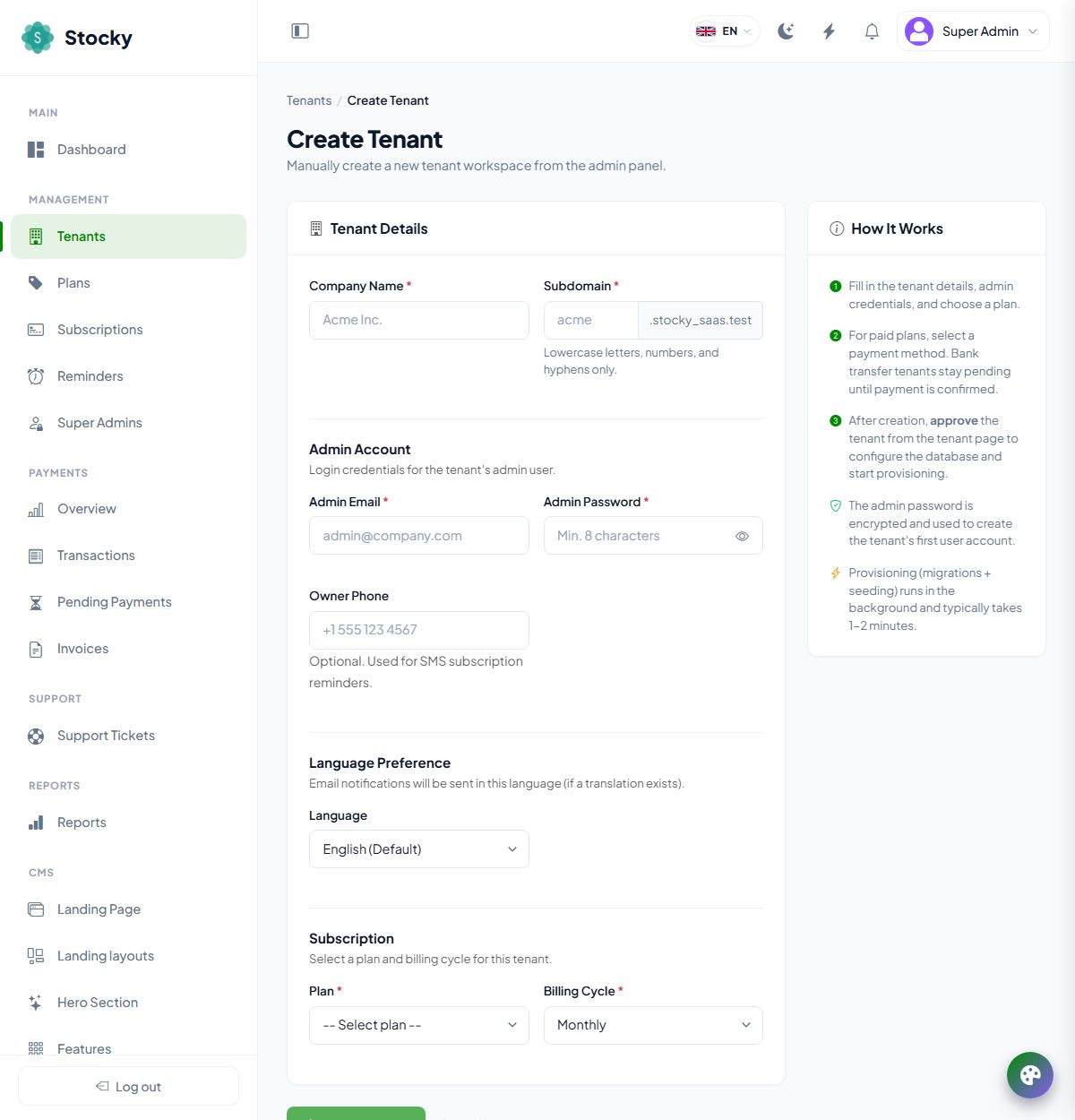
New tenant creates a workspace without the public form: company name, subdomain, the admin's email and password, the plan and billing cycle, and — in shared-hosting mode — the database credentials, with Test connection and Create database buttons that try them before anything is saved. The workspace is provisioned the same way a registration would be, and the tenant defaults from General Settings (name, logo, currency, language) are applied. If the Demo Tenant Generator is on, the new workspace is filled with sample categories, products, stock, customers, suppliers, purchases and sales.
The tenant page
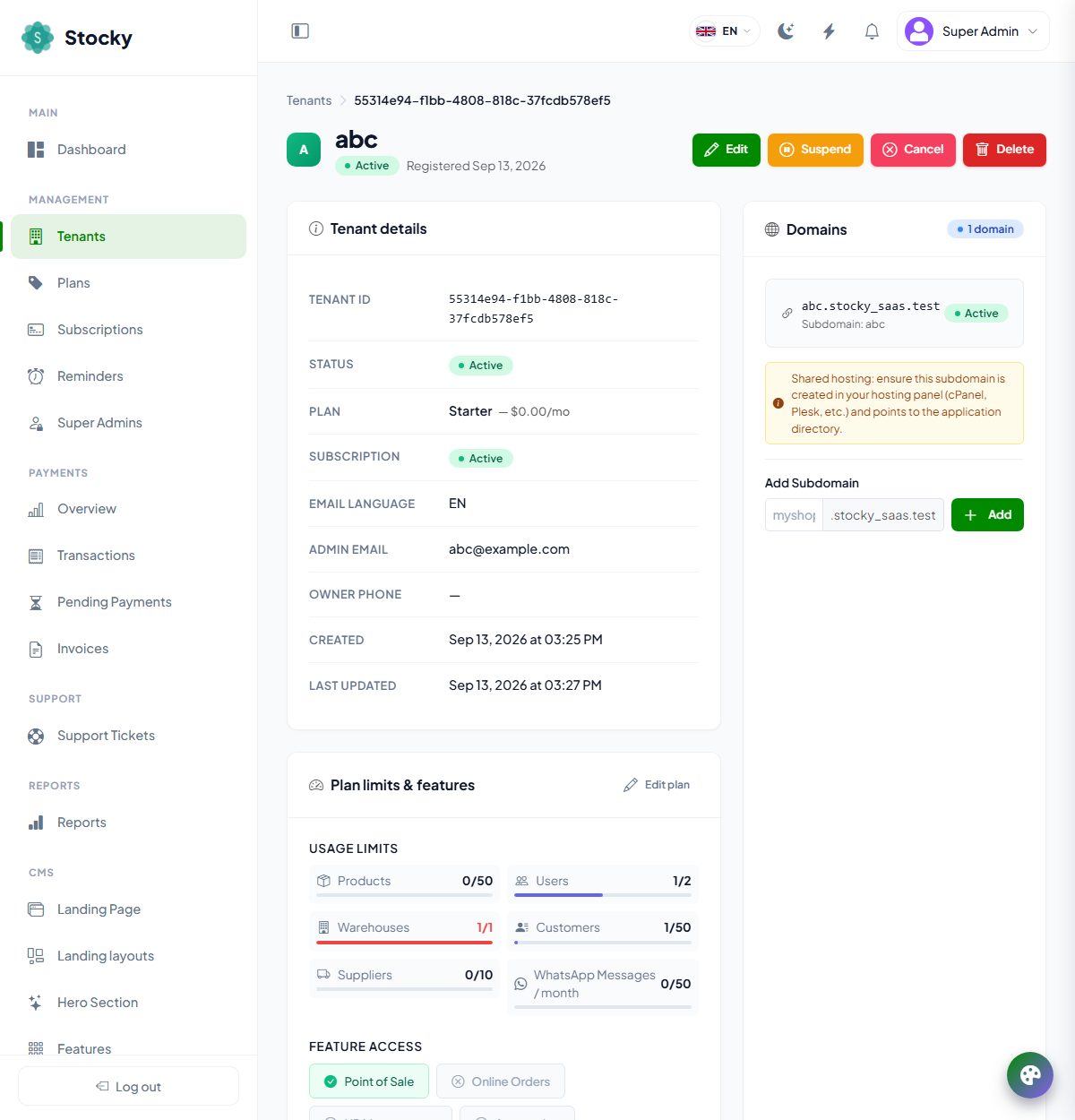
| Block or button | What it is for |
|---|---|
| Tenant details | The tenant ID (you will need it for support and for tenant:provision), status, plan, subscription status, email language, admin email, owner phone, dates. |
| Plan limits & features | Live usage against each limit — a bar turns red at the ceiling — and the modules the plan grants. Edit plan opens the subscription. |
| Domains | The subdomain(s) the workspace answers on. Add another subdomain, or remove one. The custom-domain panel below is described in Custom domains. |
| Edit | Change the status by hand and manage domains. A tenant that was never provisioned cannot be set to active from here — approve it first. |
| Suspend, Reactivate, Cancel | Suspend and cancel block the workspace at once (every request answers 403); reactivate restores it. The data is never touched. |
| Approve, Reject | For a pending tenant. Approve asks for the database credentials in shared-hosting mode, tests them and provisions; reject emails the registrant. |
| Test connection | Checks the stored database credentials against the server without changing anything. |
| Re-run migrations | Applies any migrations the tenant's database is missing — after an update that skipped it, or after you restored an old dump. |
| Reprovision | Runs the whole provisioning again on a failed tenant, dropping any half-built tables first. |
| Reset database, Reseed | Empties the workspace back to a fresh install, or re-runs the seeders (reference data and, if enabled, the demo data). Both are destructive to the tenant's data; the confirmation says so. |
| Update credentials | Point the tenant at a moved or renamed database. |
| Users | The people inside the workspace — see Tenant users & impersonation. |
| Delete | Drops the tenant database, deletes its files, subscriptions, payments and domains. It cannot be undone; the confirmation requires you to type it. |
Abandoned workspaces do not need you: a daily task suspends tenants whose subscription expired more than seven days ago, and deletes tenants that have been suspended, cancelled or failed and untouched for ninety days — database, domains, subscriptions and payments included. Activity is the tenant's last request, shown as last activity on the list. See Cron & queue.
Tenant users & impersonation
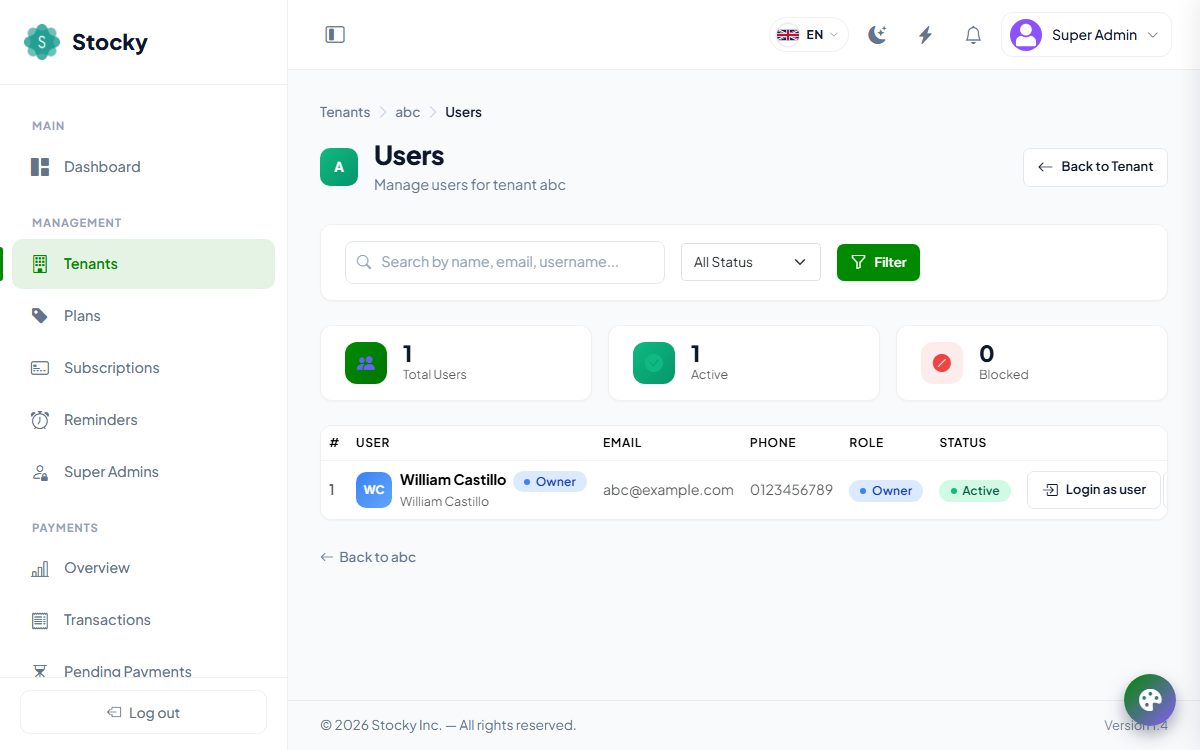
Tenant → Users lists everyone who can sign in to that workspace, with their role and status. Block stops a user signing in without deleting anything; Change password sets a new one when a customer is locked out; Impersonate — Login as User — opens the workspace in a new tab signed in as that person.
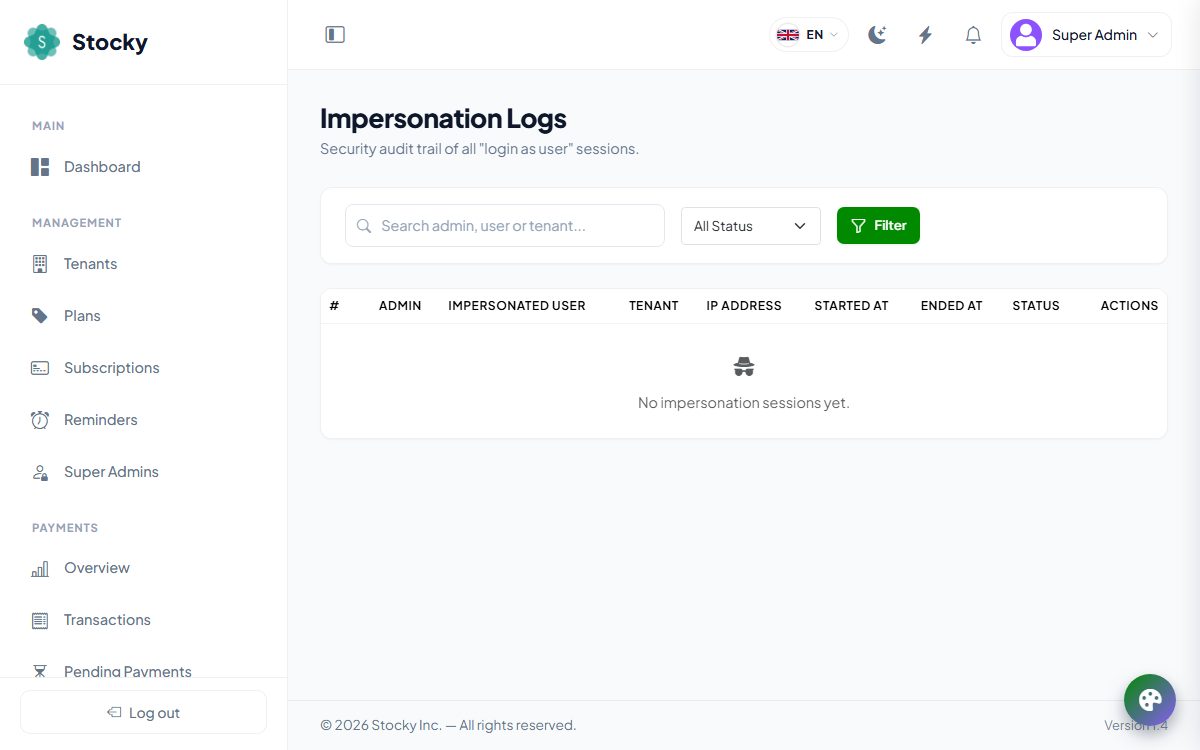
Impersonation is built for support and audited accordingly. The link the panel issues is single-use and expires after two minutes; the owner's role and permissions apply, so you see exactly what they see; every page you open and every change you make is written to Monitoring → Impersonation Logs against your admin account, with when the session started and ended. A banner in the workspace reminds you whose account you are in, and Leave returns you to the panel.
Custom domains
A tenant can serve their workspace — and their online store — from a domain they own,
such as shop.example.com, instead of shop.yourdomain.com. It is
added from the tenant page, verified by DNS, and then treated exactly like the
subdomain.
-
Add the domain
On the tenant page, Custom domain → Add custom domain. It is saved as Pending verification; the panel shows the DNS records to create.
-
The tenant sets up DNS
One record is enough: a CNAME from their domain to your central host (recommended); an A record to the same IP as your central host; or, as a fallback, a TXT record on
_saas-verify.their-domainwith the token the panel shows. -
Verify
Press Verify. The platform looks the records up and marks the domain Verified, with the last check time. No DNS records found yet means propagation has not finished — try again in a few minutes; DNS records found but they do not point to this server means the record exists with the wrong target.
-
SSL
The SSL badge reads pending, active or failed. Certificates are issued by Let's Encrypt on the server, or handled at a reverse proxy such as Cloudflare, after verification; the platform does not issue them itself. Make sure your web server answers for the custom host as well as the wildcard.
-
Make it primary
Make primary makes the custom domain the address the platform uses in emails and links for that tenant. A domain must be verified first. Remove stops it answering at once.
DNS and SSL problems on custom domains are also recorded under Logs & System Health with a suggested cause, and can be re-checked from there.
Subscriptions & reminders
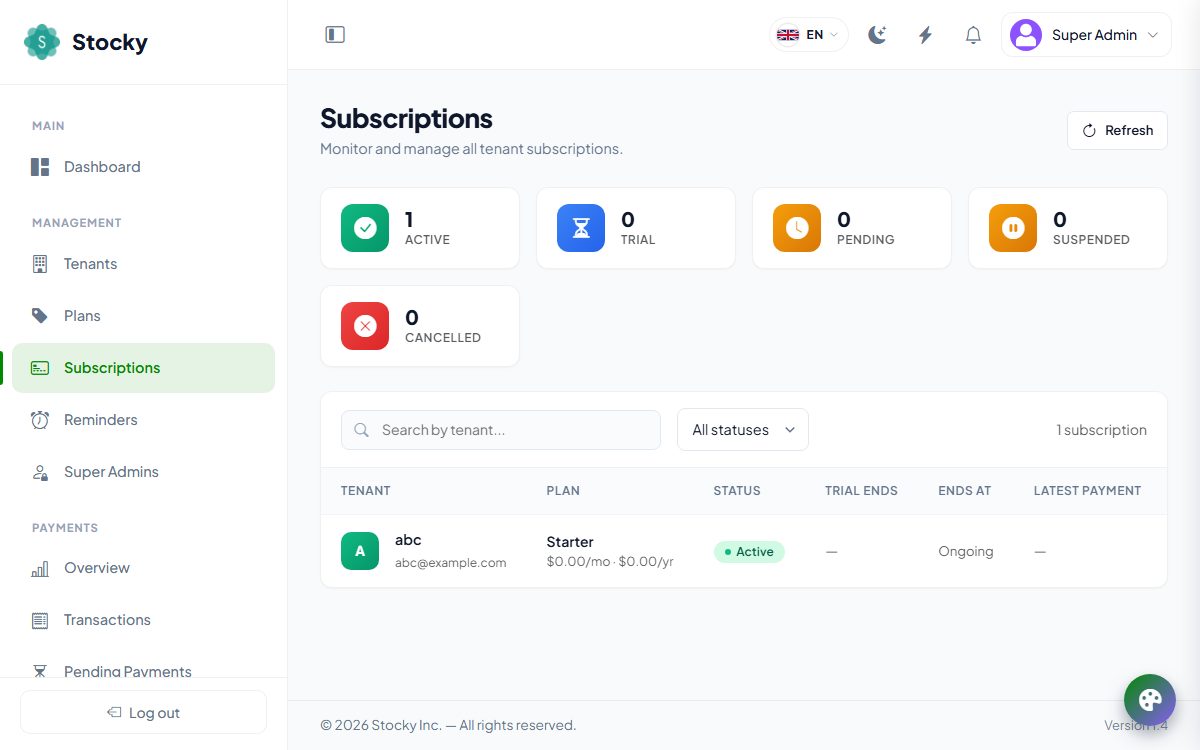
Subscriptions. One row per tenant: the plan, the billing cycle, the status (active, trial, pending, cancelled, suspended, expired), when the trial ends and when the period ends. Search by tenant; filter by status.
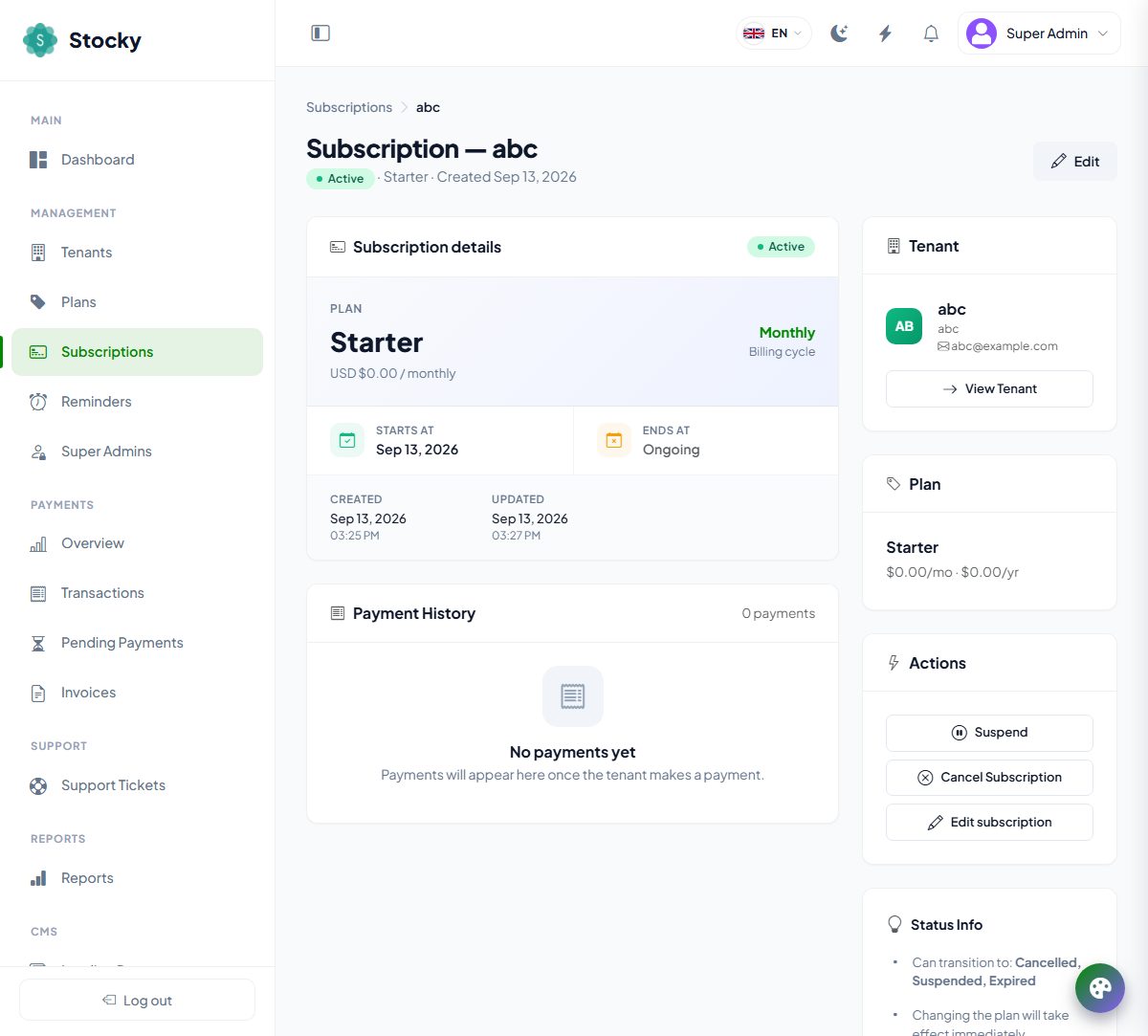
- Activate starts a new billing period from today — the manual way to renew a tenant you have been paid outside the platform. A pending subscription with an unapproved offline payment shows Approve Payment instead.
- Suspend blocks the workspace; Cancel lets the tenant keep access until the period ends, after which it expires.
- Edit changes the plan (immediately), the status, the trial end and the period end by hand. Leave the end date empty for an ongoing subscription.
Tenants do the routine part themselves from Billing in the workspace: upgrade, downgrade, renew, cancel and resume. An expired subscription does not lock the data: the workspace redirects every page to the plans page until a payment is made, and the daily cleanup suspends the tenant a week later.
Reminders
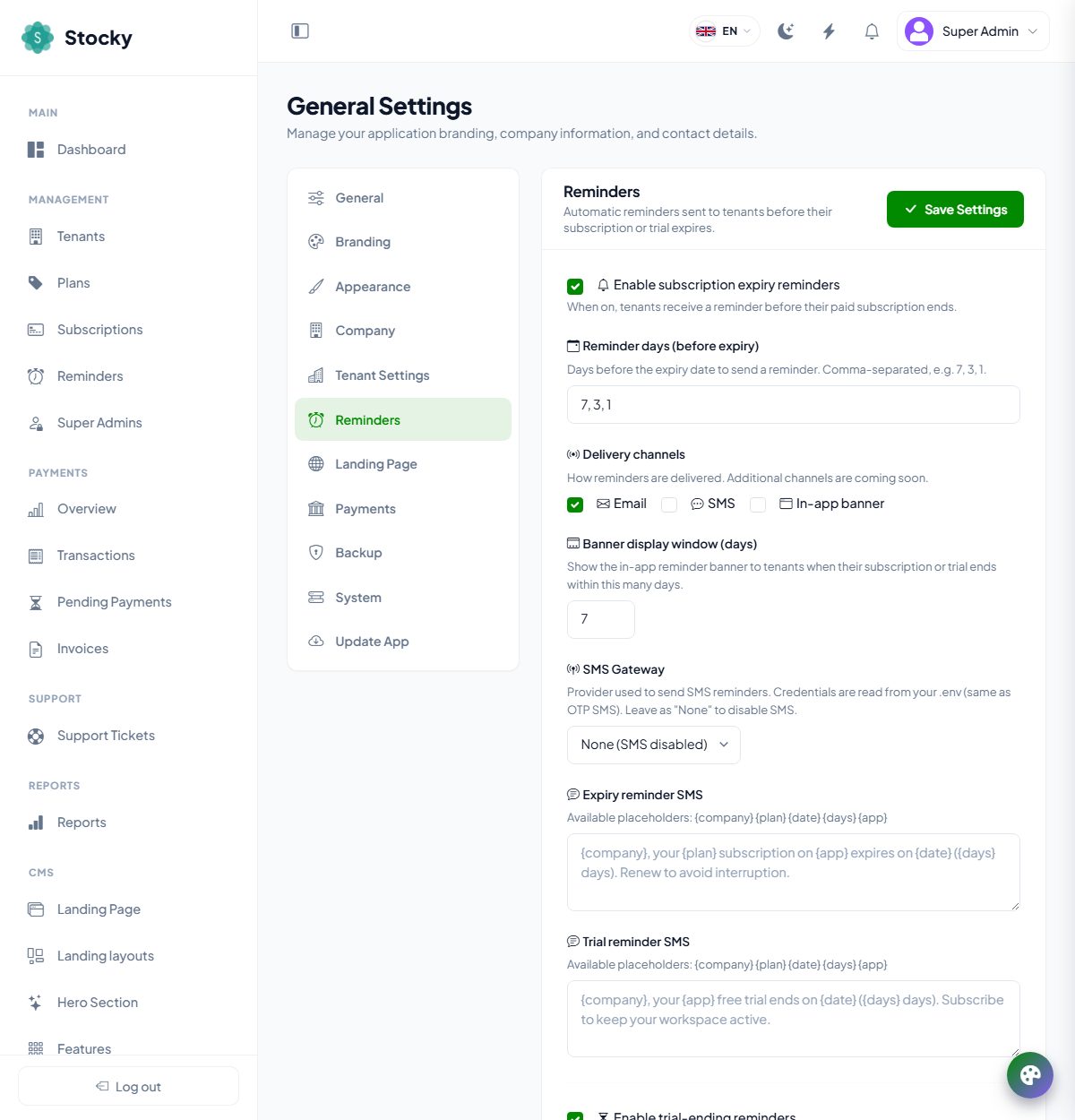
General Settings → Reminders switches on expiry reminders for paid
subscriptions and trial-ending reminders for trials, each with its own list of days
before the date (7, 3, 1 for example). Channels are email
(the Expiring soon and Trial ending templates), SMS
(through the gateway chosen here, with a text you write using {company} {plan}
{date} {days} {app}) and the in-app banner shown at the top of the
workspace when the end is within the window you set. The daily task sends them and
records every attempt — sent, failed or skipped — under Subscriptions →
Reminders, with the tenant, type, channel and recipient. On the expiry date itself
the subscription becomes expired and the Subscription expired email
goes out.
Payments & invoices
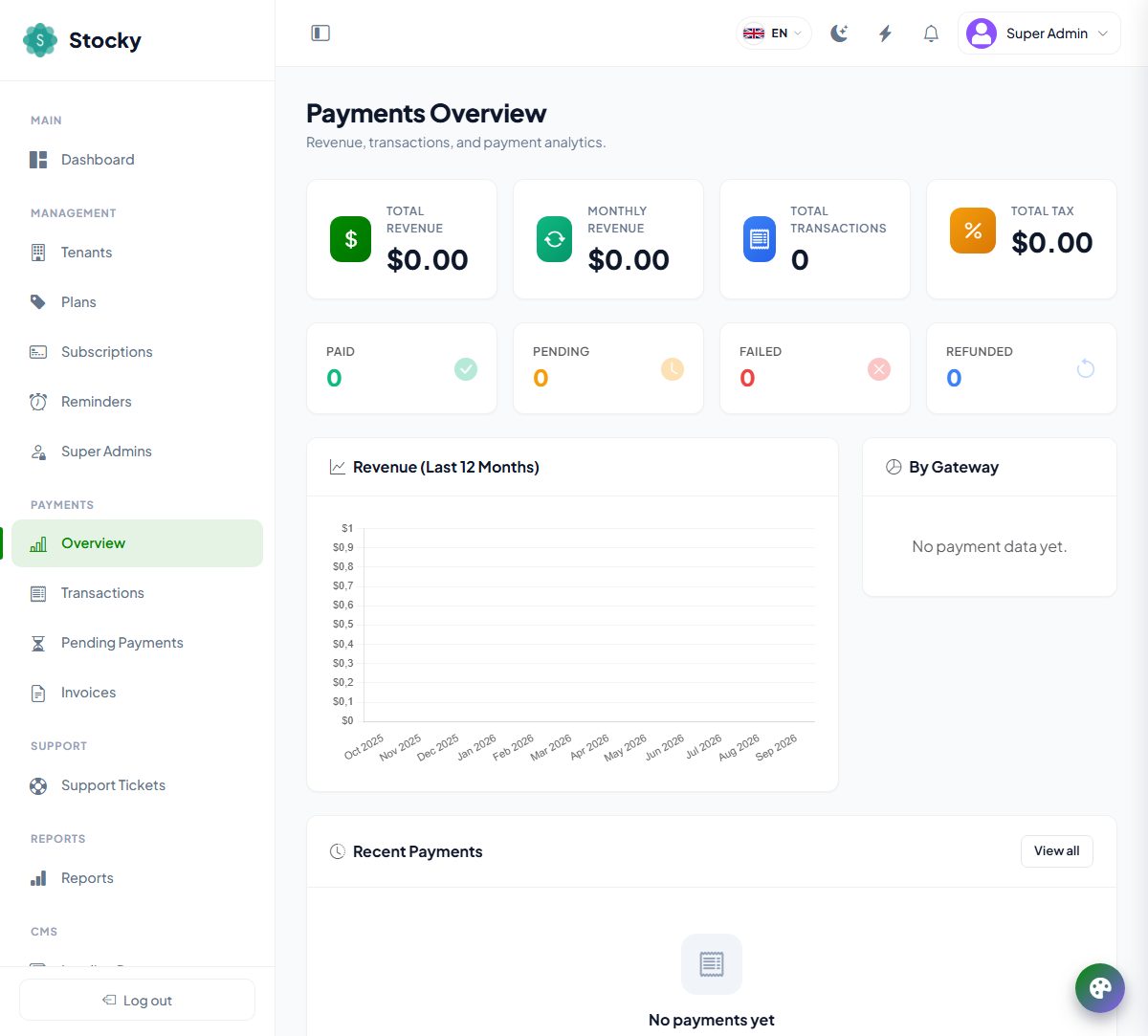
| Page | What is there |
|---|---|
| Overview | Total and monthly revenue, transaction count, tax collected, a twelve-month revenue chart, revenue by gateway and the most recent payments. |
| Transactions | Every subscription payment with its invoice number, tenant, plan, gateway, cycle, amount and status — paid, pending, failed, refunded. Filter by status, gateway and plan; search by invoice, tenant or transaction ID. |
| Pending payments | Bank-transfer registrations and renewals waiting for you. Each shows the uploaded proof of payment. Approve provisions the workspace (for a registration) or activates the subscription; Reject emails the tenant. |
| Invoices | One invoice per payment, generated automatically, as a list and as a PDF with your company details from General Settings, the tenant as Bill to, the plan, the cycle, subtotal, tax and total. |
A payment's page shows the gateway's own payment ID, the amount charged at the gateway and the exchange rate if the gateway charged in another currency, the raw payload it sent, and the buttons to mark it paid, failed or refunded by hand. Marking a pending gateway payment paid is the recovery path when a webhook never arrived; refunds themselves are issued in the gateway's dashboard, then recorded here.
Payment gateways
Settings → Payment Gateways. The gateways tenants can pay with at registration and from their billing page. Each has a card with an environment switch (sandbox or live), its credentials, the currencies it may charge in, and a setup guide with the webhook URL to paste into the gateway's dashboard.
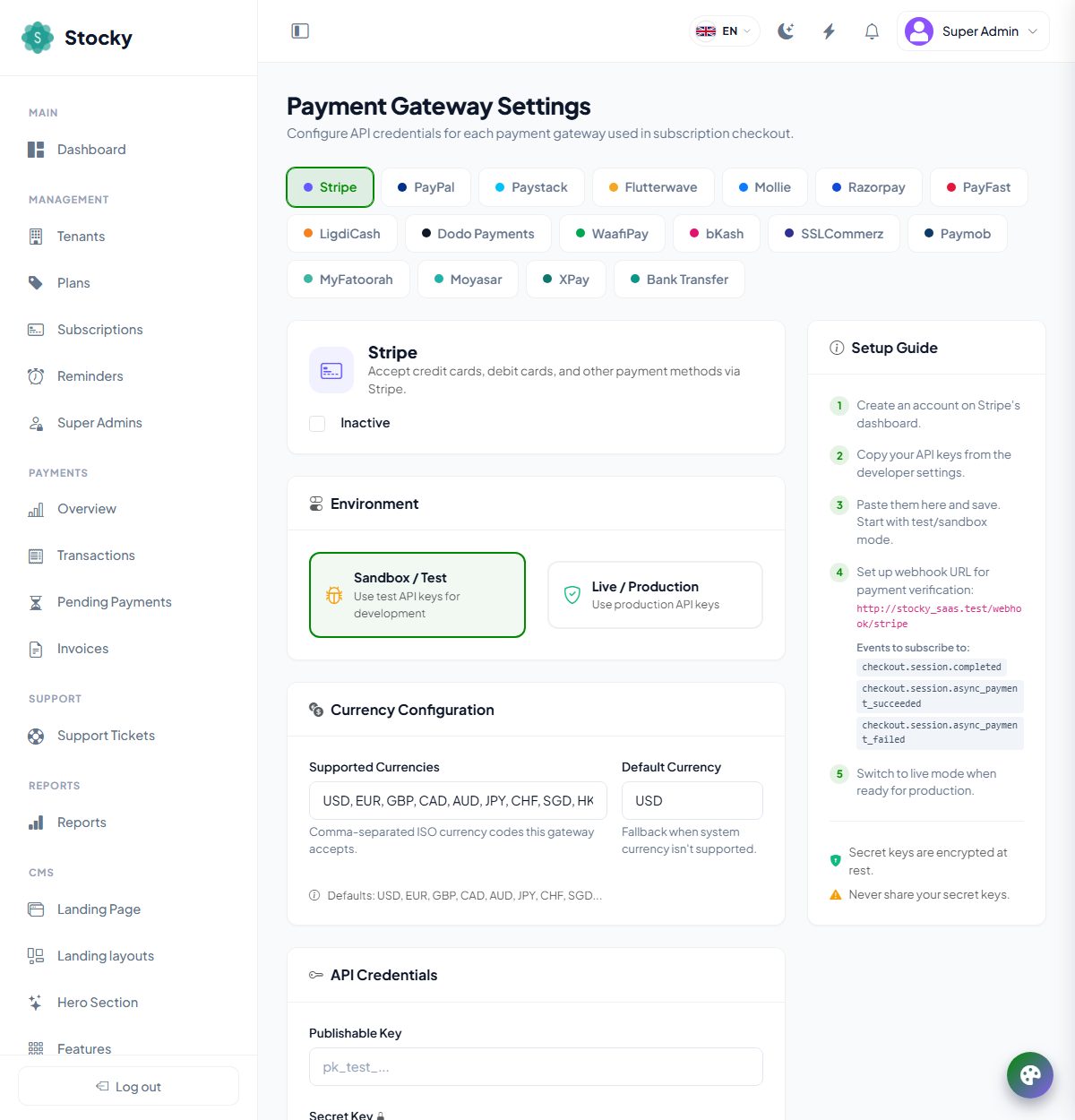
| Gateway | Credentials |
|---|---|
| Stripe | Publishable key, secret key, webhook secret |
| PayPal | Client ID, client secret, webhook ID |
| Paystack | Public key, secret key |
| Flutterwave | Public key, secret key, encryption key |
| Mollie | API key |
| Razorpay | Key ID, key secret, webhook secret |
| PayFast | Merchant ID, merchant key, passphrase |
| LigdiCash | API key, auth token |
| Dodo Payments | API key, product ID, webhook secret |
| WaafiPay | Merchant UID, store ID, HPP key, API user ID, API key, webhook secret |
| bKash | App key, app secret, username, password |
| SSLCommerz | Store ID, store password |
| Paymob | Region, public key, secret key, API key |
| MyFatoorah, Moyasar | API key (and, for MyFatoorah, the country base URL) |
| XPay | Account and API keys; the card form is embedded on a page of the platform rather than a redirect |
| Bank transfer (offline) | No keys. Fill the bank name, account holder, account number, IBAN, SWIFT, branch and instructions under General Settings → Payments; the tenant uploads a proof of payment and waits for your approval under Pending Payments. |
Create the account
On the gateway's dashboard, in test mode first.
Paste the keys
Into the card, save, leave Sandbox on.
Register the webhook
Copy the webhook URL from the card —
https://yourdomain.com/webhook/{gateway}— into the gateway's dashboard and subscribe to the events the card lists. The webhook is how a payment is verified: nothing is provisioned on the redirect alone.Test a sign-up
Register on a paid plan with the gateway's test card and watch Transactions.
Go live
Switch to Live, paste the live keys, register the webhook again in live mode.
The platform currency in General Settings is what plans are priced in. A gateway that cannot charge that currency is not offered at checkout; the supported currencies and default currency on each card let a regional gateway charge its own currency at the exchange rate recorded on the payment.
Support tickets
Support → Support Tickets. Tenants open tickets from Support in their workspace; they land here with the tenant, category, priority, assignee and last activity. Filter by status (open, pending, resolved, closed), category (bug, technical, billing, feature request, account), priority (low to urgent) and agent.
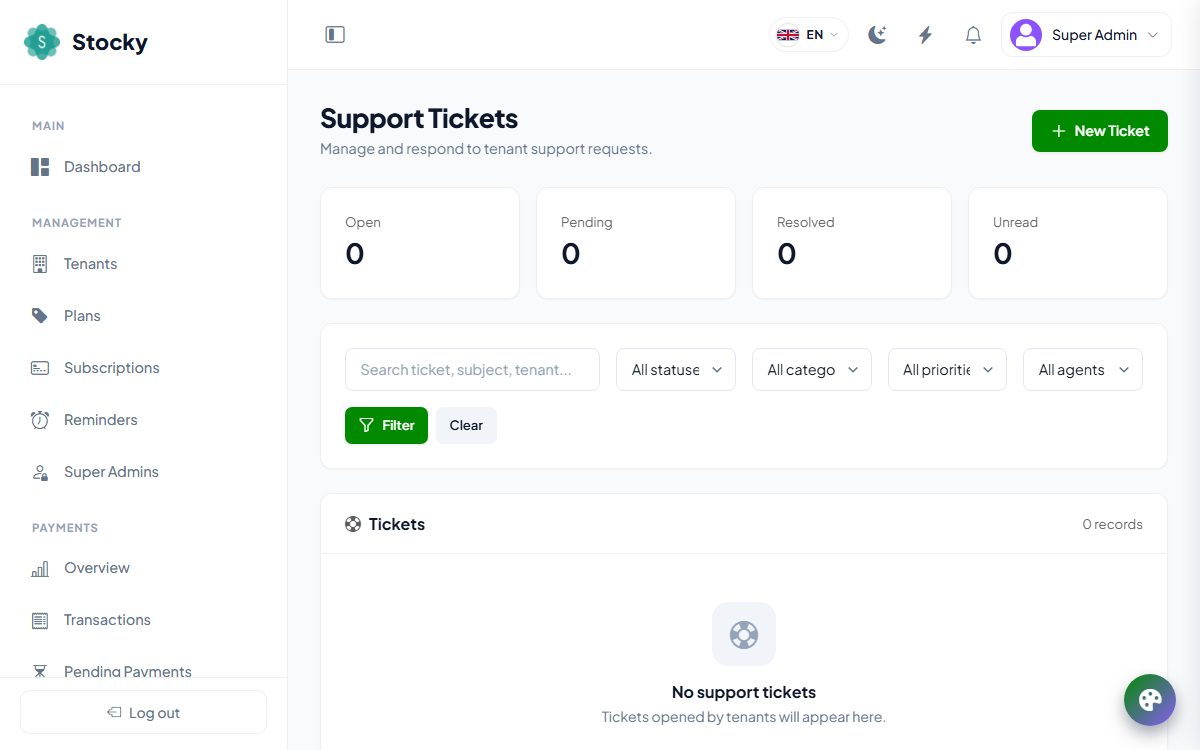
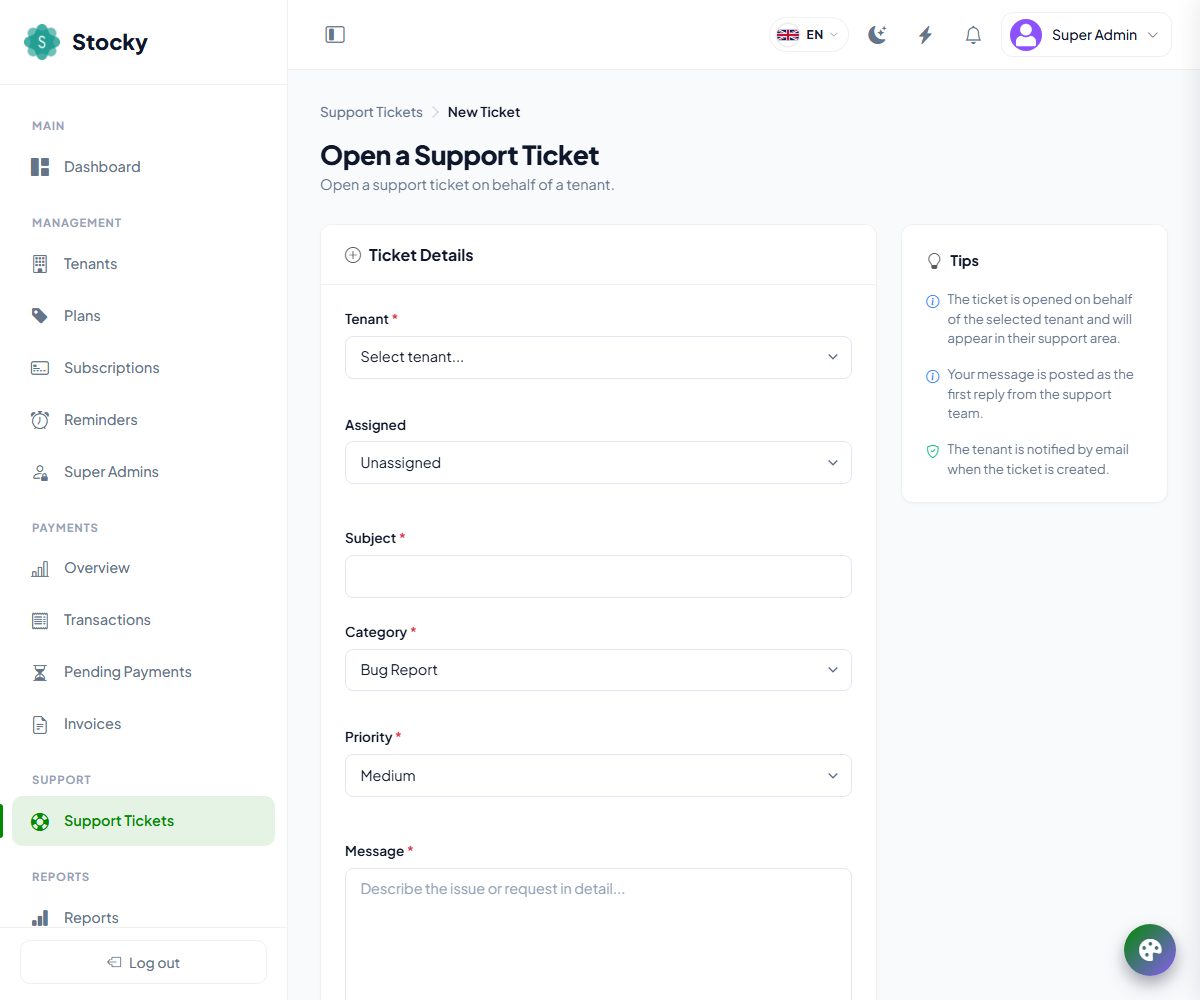
A ticket is a conversation. Reply goes to the tenant, who is emailed and sees it in their workspace; an internal note is visible only to admins. Change the status, assign the ticket to an admin, download attachments. You can also open a ticket for a tenant — your message becomes the first reply from the support team and the tenant is notified. The three support emails (created, reply, status changed) are editable under Email templates.
Reports
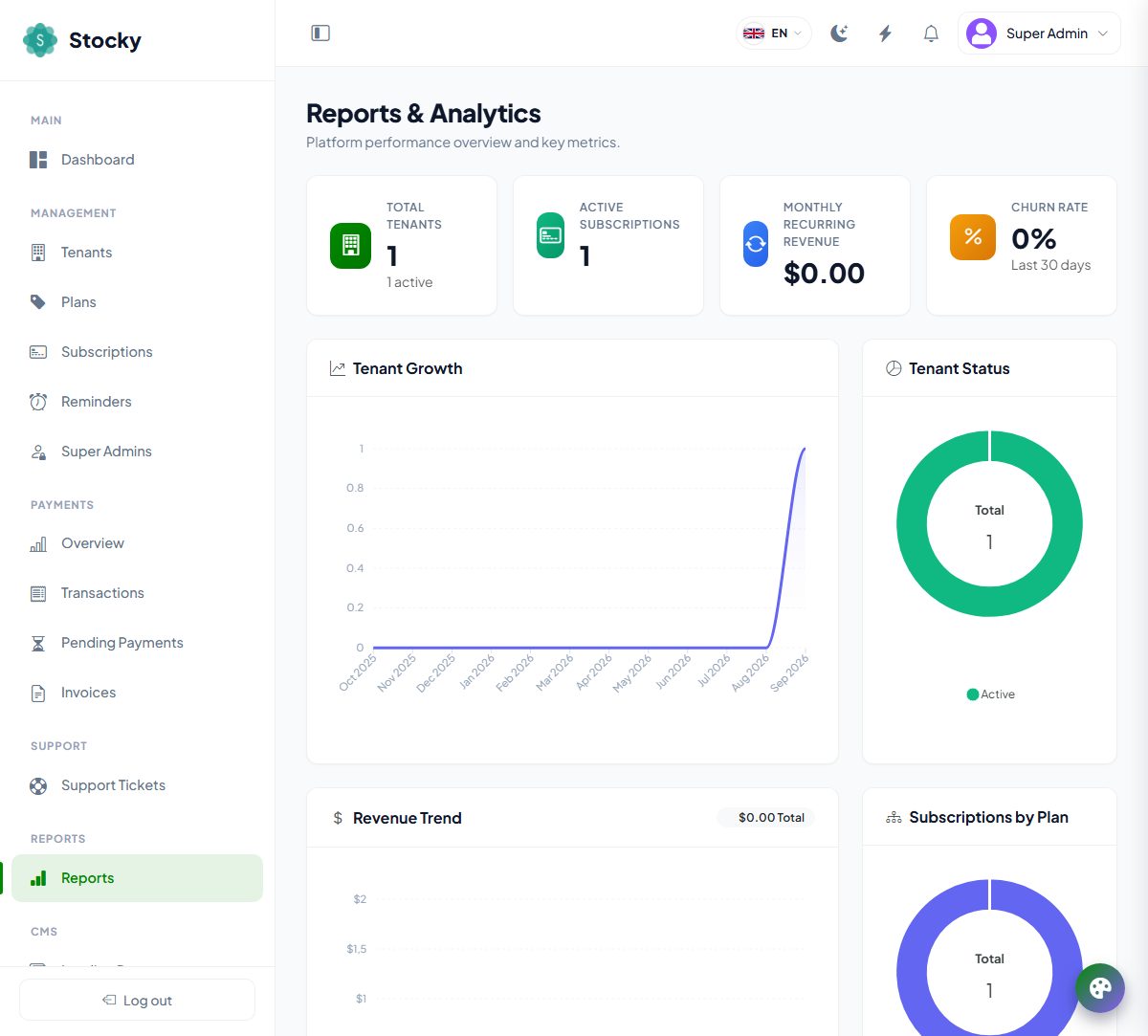
Reports. The platform in one page: total tenants and how many are active, active subscriptions, monthly recurring revenue, churn over the last thirty days, tenant growth and status, the revenue trend, subscriptions by plan, the top plans by revenue and the most recent tenants. The finance detail — every transaction, by gateway and by month — is under Payments.
Landing page & CMS
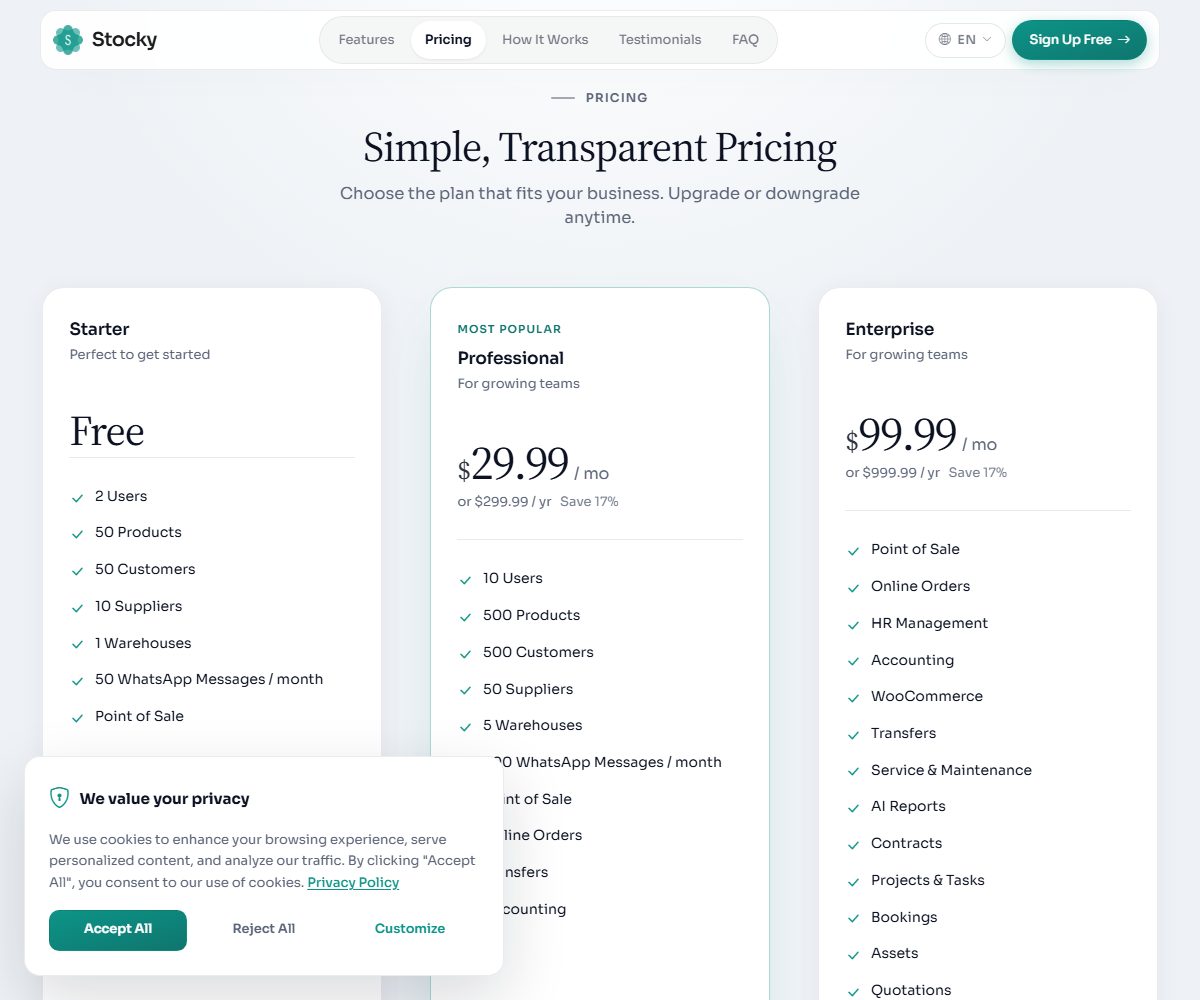
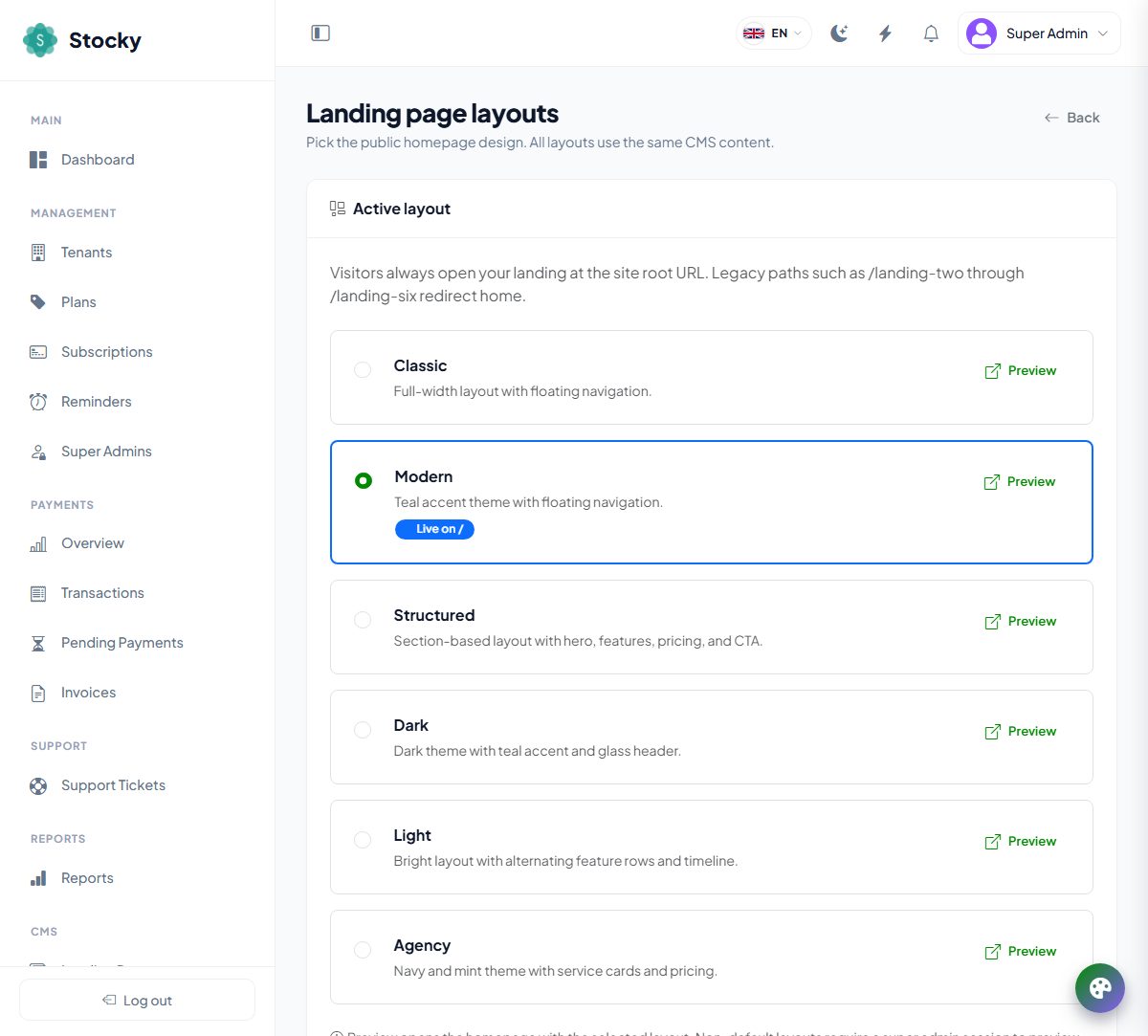
The public site at the root of your domain is built entirely from the panel. Six layouts draw the same content, so you can switch designs without rewriting a word.
/; the others can be previewed while signed in.| CMS page | What you edit |
|---|---|
| Landing layouts | Which of the six designs visitors see. Legacy addresses such as /landing-two redirect home. |
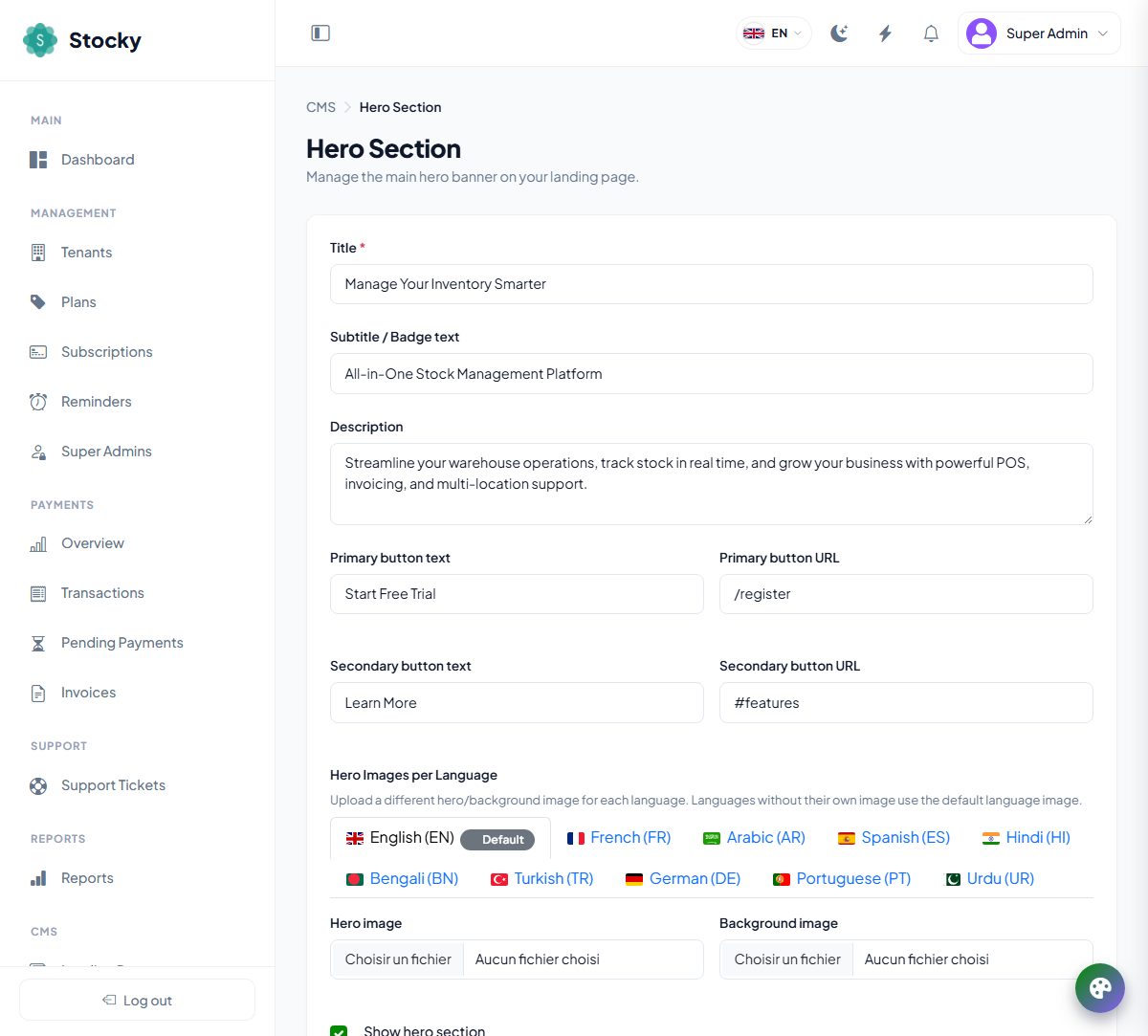
| Hero section | Title, badge text, description, two buttons with their URLs, the hero image and a background image — with a different image per language if you want — and a show/hide switch. |
| Features | A section title and subtitle, then feature cards: title, description, a Bootstrap icon class or an uploaded image, drag to reorder. |
| Pricing section | Title and subtitle; show monthly, yearly or both; Load plans from database so the cards follow Plans. |
| Stats / trust bar | The numbers under the hero: a value (10K+, 99.9%), a label and an icon. |
| How it works | A section label, title and subtitle, then steps with an icon and colour. |
| Testimonials | Client name, company, review, star rating, avatar. |
| FAQ | Questions and answers, in order. |
| CTA section | The call-to-action strip: title, subtitle, button, background image. |
| Footer | About text, copyright line, contact email, phone and address, social links, and whether the super admin login link shows. |
| SEO settings | Meta title, description and keywords with length counters, the Open Graph image for social sharing, the favicon, and a preview of the Google result. A sitemap.xml of the landing page and blog is generated automatically. |
| Privacy policy, Terms & conditions | Eight sections each, a last updated date, and a switch to publish the page at /privacy-policy and /terms-conditions. |
| Translations | Every string above in every other panel language. The default language is edited in the sections; the translations here. |
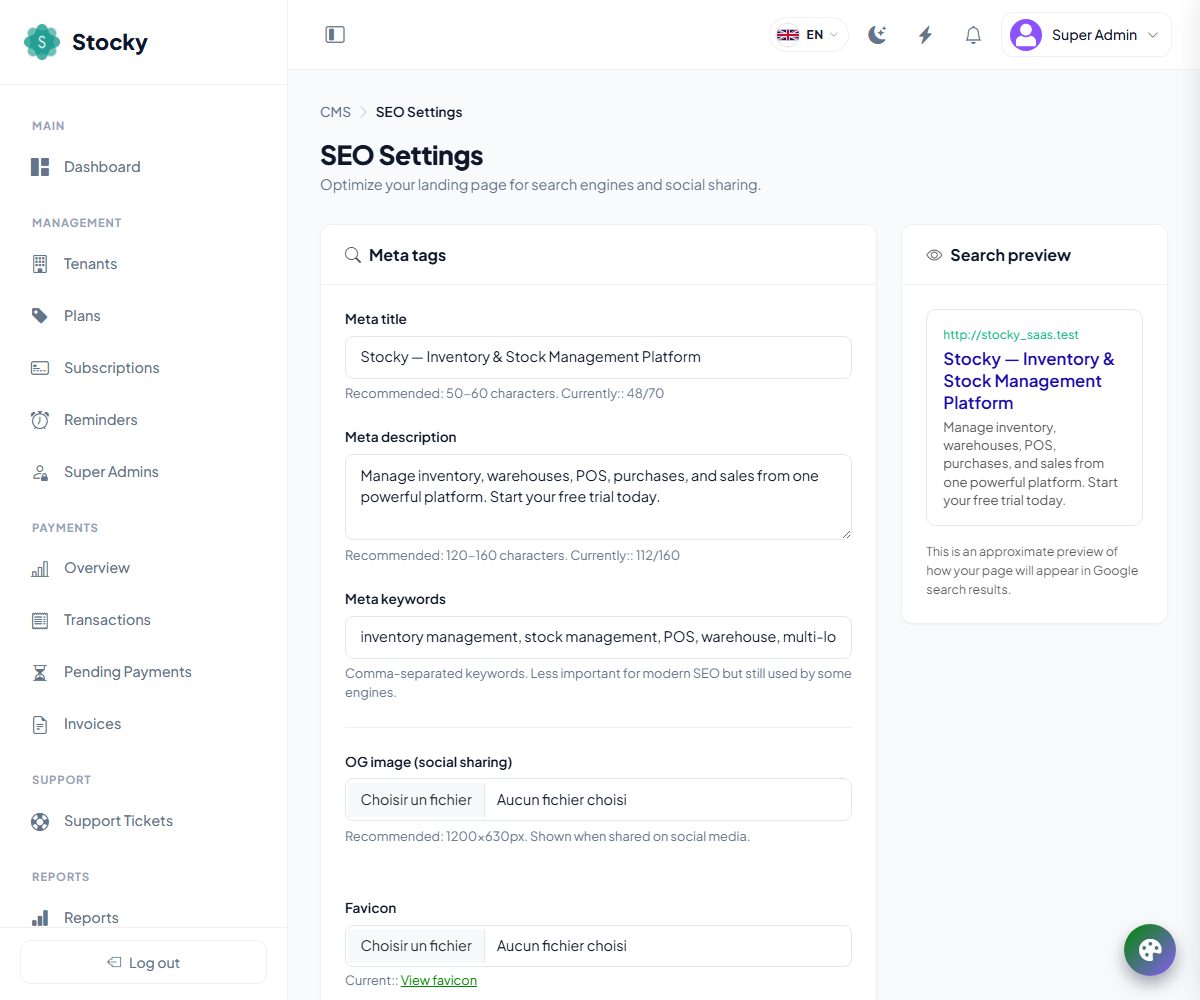
Three switches elsewhere shape the site. General Settings → Landing
Page can disable the landing page altogether and send visitors to
another URL — your company site, say — while sign-ups still work at
/register; it also sets the body and heading fonts, from a
list or a font file you upload. General Settings → General chooses the
default language guests see and which languages the switcher offers. And
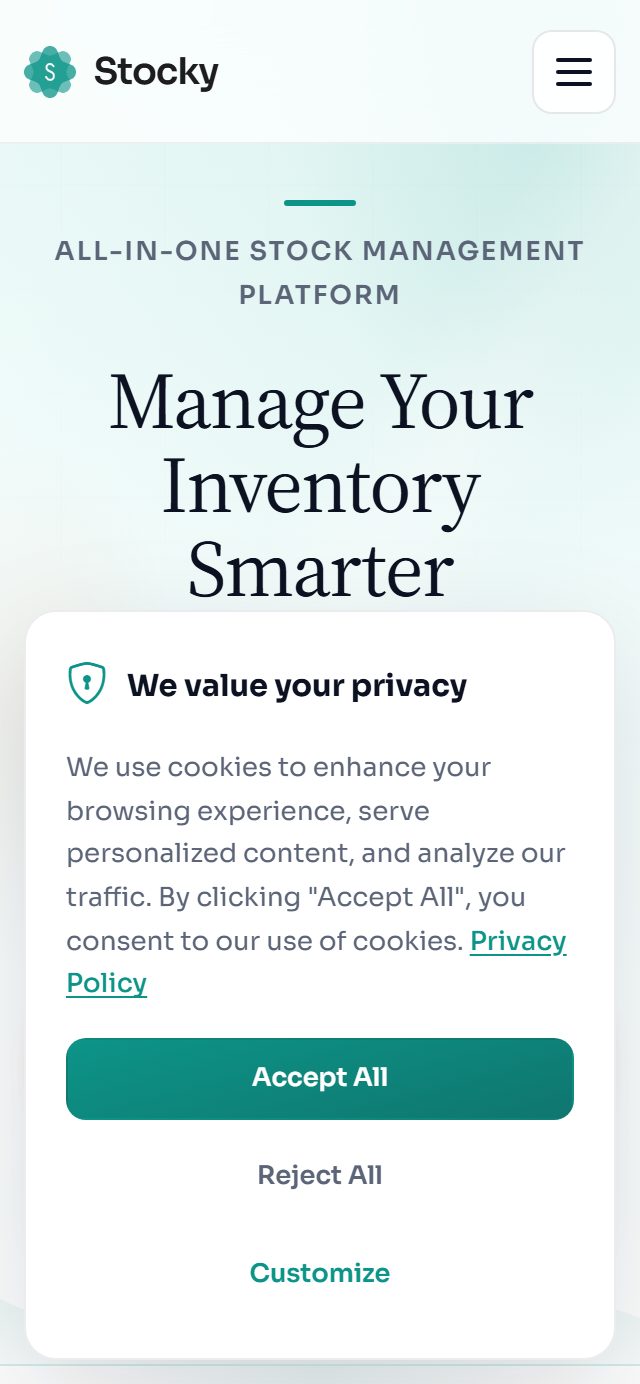
the cookie-consent banner (necessary, analytics, marketing) is built in
and follows the privacy page.
Blog & knowledge base
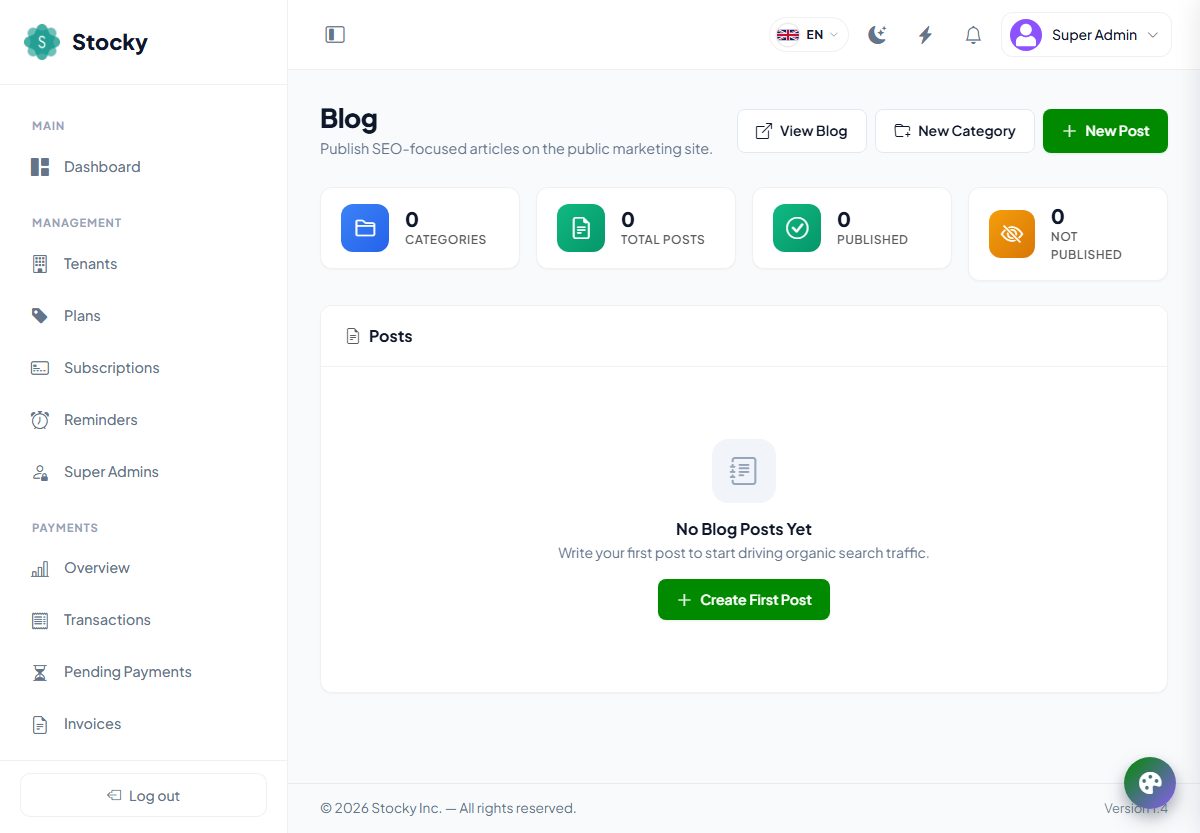
Blog (Help → Blog) publishes articles on the public
site at /blog for search traffic: categories, then posts with a title, slug,
excerpt, HTML content, cover image, meta title and description, and a publish date — a
future date schedules the post. Posts are listed newest first with related posts, and
appear in the sitemap.
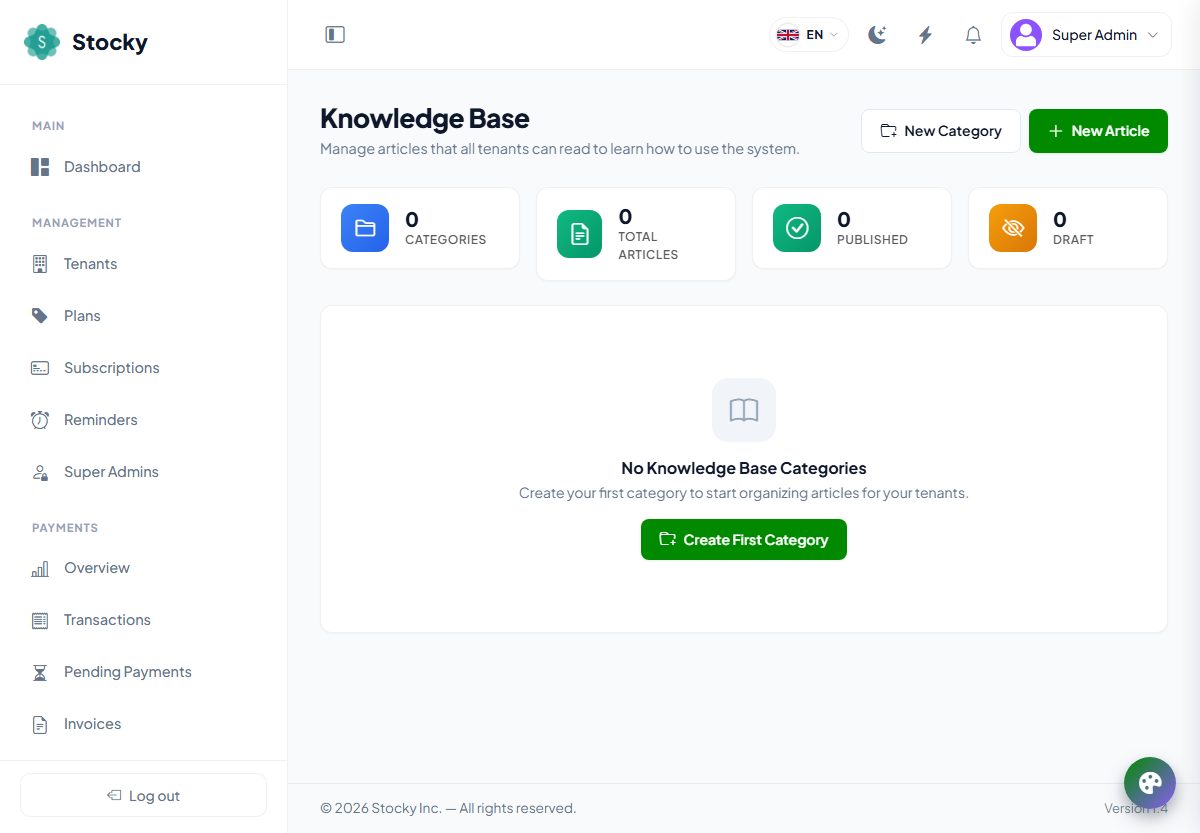
Knowledge base (Help → Knowledge Base) is for your tenants, not the public. Categories with an icon and order hold articles written in HTML; published articles appear inside every workspace under Knowledge Base, where tenants can read them and leave feedback. Write the how-tos once here rather than answering the same ticket twice.
Email & SMS templates
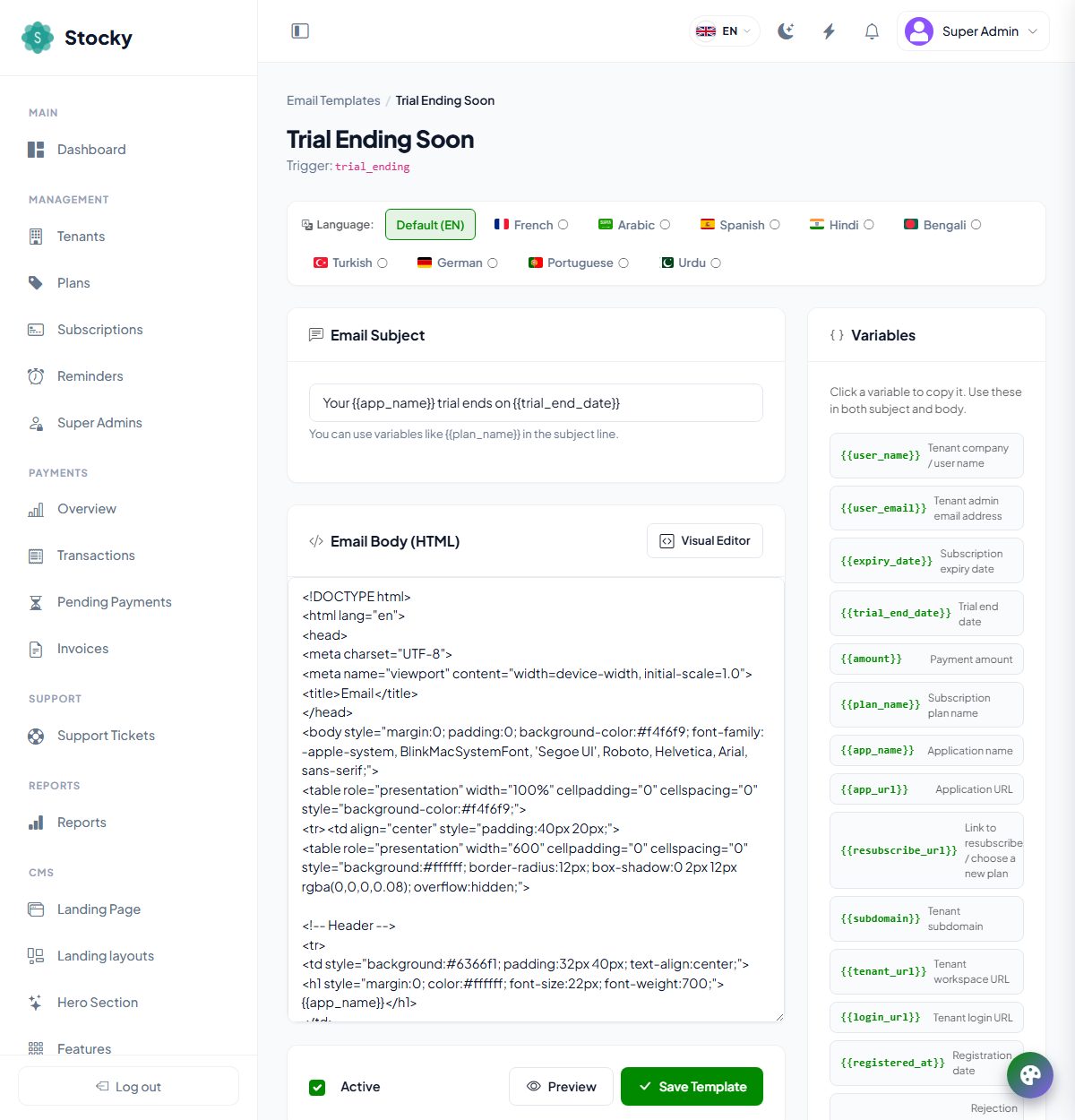
Settings → Email Templates. Thirteen emails the platform sends on its own, each with a subject, an HTML body, an on/off switch, a translation per panel language and a send test button:
| Trigger | Sent when |
|---|---|
| Tenant pending, Tenant under review | A registration is waiting for approval (to you, and to the registrant). |
| Tenant approved, Tenant rejected | You approve or reject it. The approval carries the workspace URL. |
| Payment success, Payment failed | A subscription payment is confirmed or refused. |
| Expiring soon, Trial ending | The reminder days before the end. |
| Subscription expired, Plan ended | The end date passes; a cancelled plan reaches the end of its period. |
| Support ticket created, reply, status | The support desk. |
Variables such as {{plan_name}}, the company name, the workspace URL and
the amount are listed beside the editor; click one to copy it. SMS Templates
holds the same set as short texts, per language, sent through the SMS gateway in
SMS Settings. Tenants have their own email and SMS
templates inside the workspace for invoices and receipts; these are the platform's.
General settings
Settings → General Settings. The one page most of the panel reads from, split into tabs; each saves its own fields.
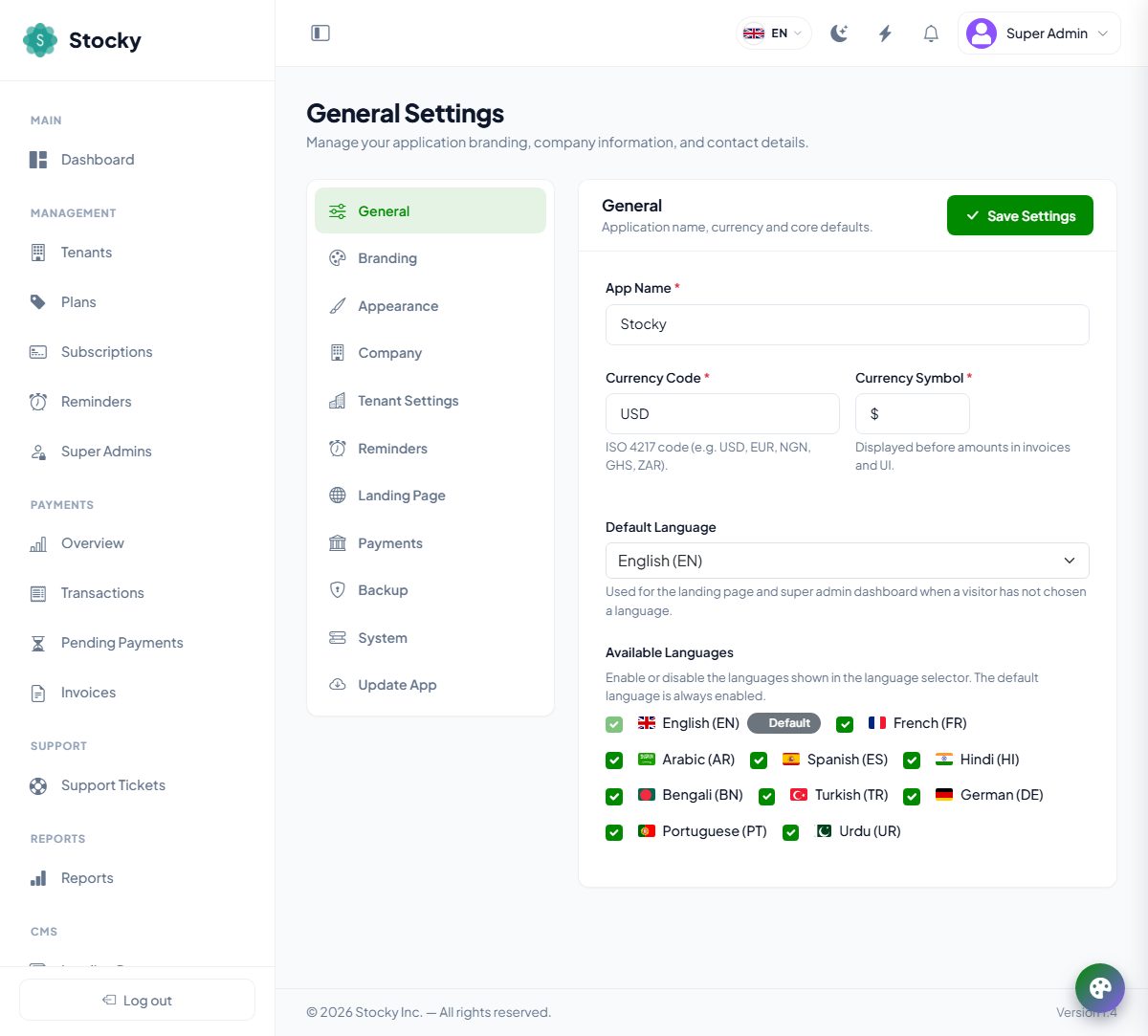
| Tab | What lives there |
|---|---|
| General | App name; the billing currency code and symbol (must match what your gateways support); the default language for guests and the panel; which languages the switcher offers. |
| Branding | Logo and favicon for the panel, the landing page and emails; whether the site name shows next to the logo. |
| Appearance | The theme customiser button and the footer text on every panel page. |
| Company | Company name, phone, email, website and address — printed on invoices and in the landing footer. |
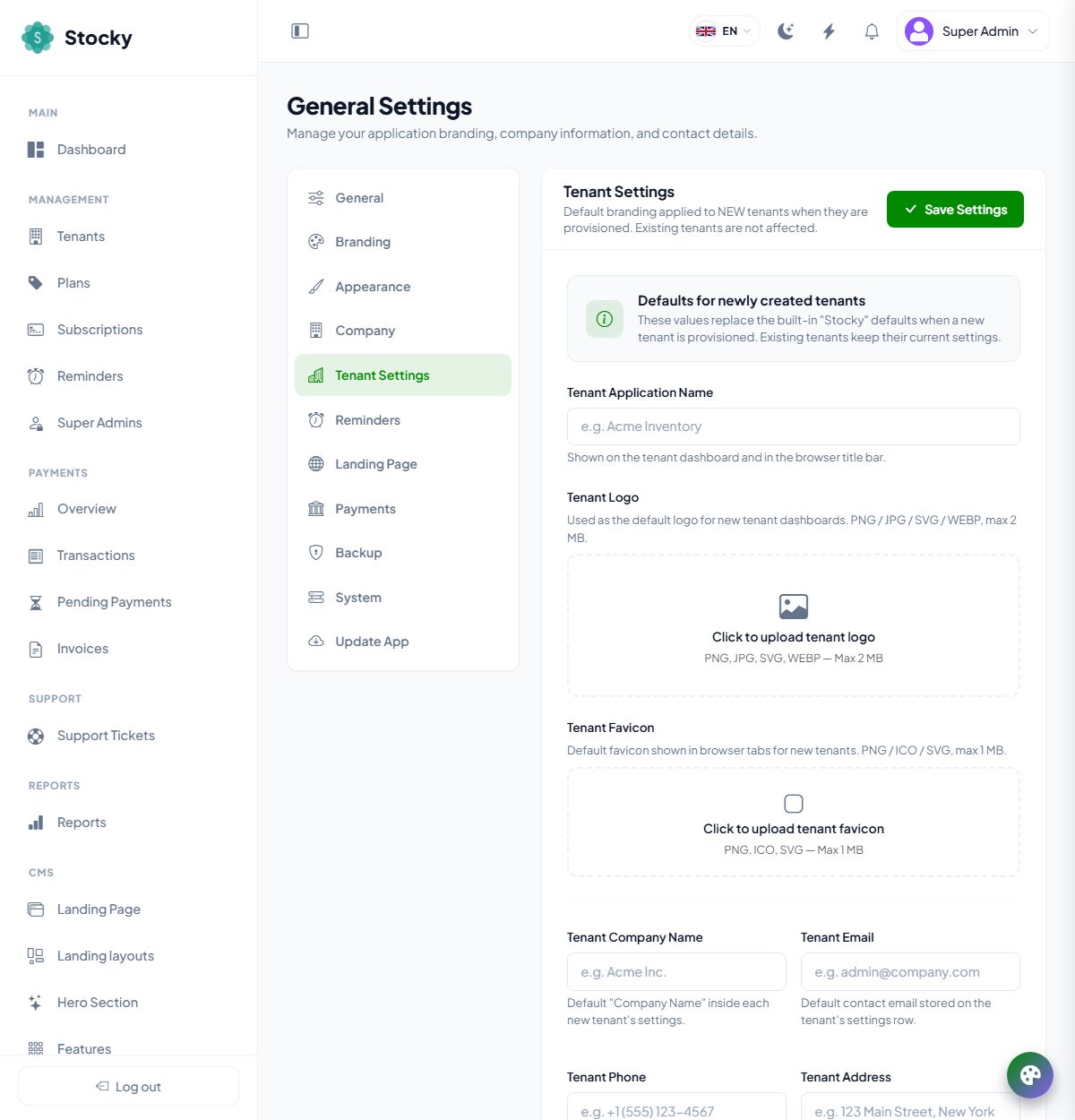
| Tenant Settings | Defaults applied to new workspaces when they are provisioned: application name, logo, favicon, company name, email, phone, address, currency, default language, footer text, page-title suffix and the developed by credit. Existing tenants are not changed. Also the reserved subdomains list (common system names — www, admin, api, mail and the like — are always reserved) and the Demo Tenant Generator. |
| Landing Page | Enable or disable the public landing page, the URL to redirect to while it is off, the admin login link in the footer, and the body, heading and custom fonts. |
| Payments | Bank details and instructions for offline payments. |
| Reminders | Expiry and trial reminders — see Subscriptions & reminders. |
| System | The hosting mode, and Clear central cache (config, routes, views and cached data) for after a configuration change or an update. |
| Backup | Central database backups: create, download, delete. Files are kept outside the public folder and served only to signed-in super admins. |
| Update App | The manual update guide described under Updating. |
The central backup is the central database only — plans, tenants, subscriptions,
payments, the CMS. Each tenant's data is in its own database and its own
Settings → Backup. For a full platform backup, dump every database the
MySQL server holds and copy public/images and storage/app.
Mail, SMS & WhatsApp
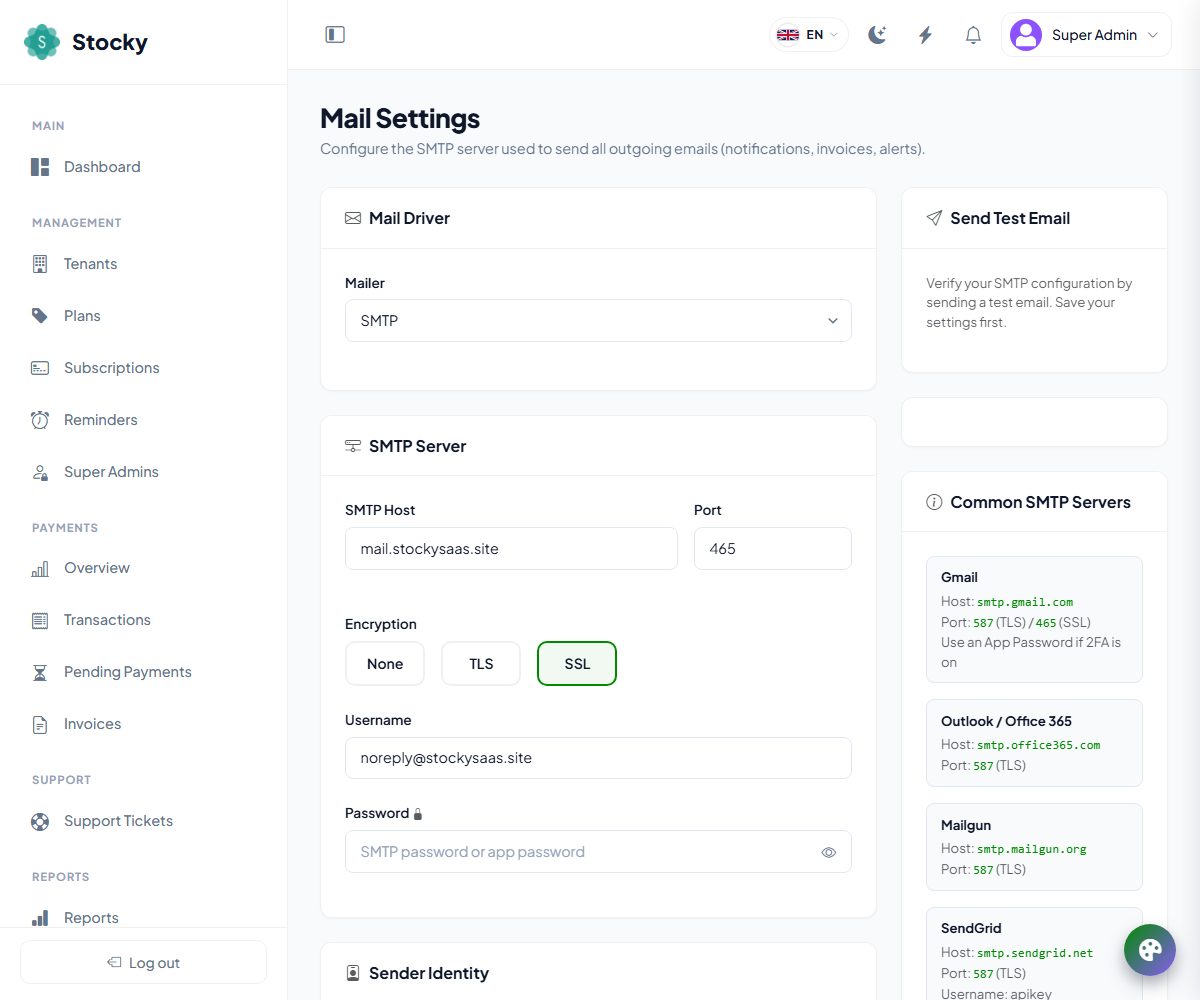
- Mail settings — SMTP host, port, encryption, username and password (stored encrypted), sender address and name, and a test email. Every platform email — registrations, approvals, payments, reminders, support — goes through it. Tenants configure their own SMTP inside the workspace for their invoices.
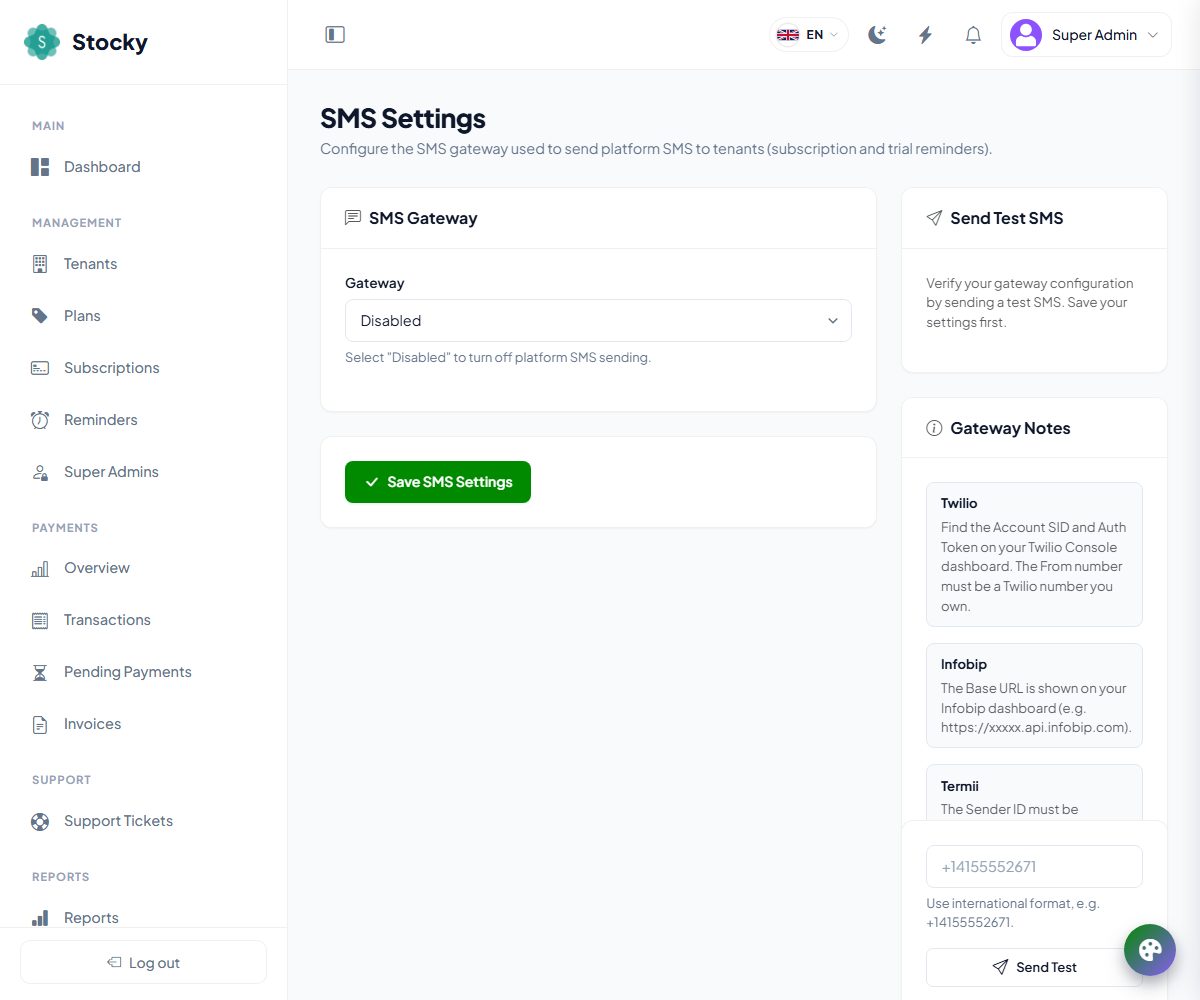
- SMS settings — Twilio, Infobip, Termii, or a custom gateway you describe with a URL, an HTTP method, a form or JSON body and headers. Used for the SMS reminders and the SMS templates; test from the page.
- WhatsApp settings — the platform-level WhatsApp provider and the
default message templates (invoice created, payment received, order confirmation, order
status) that new workspaces start with. Tenants send WhatsApp from their own
Integrations → WhatsApp, within the monthly message limit of their plan;
incoming webhooks arrive at
/whatsapp/webhook/{tenant}on the central domain.
Super admins
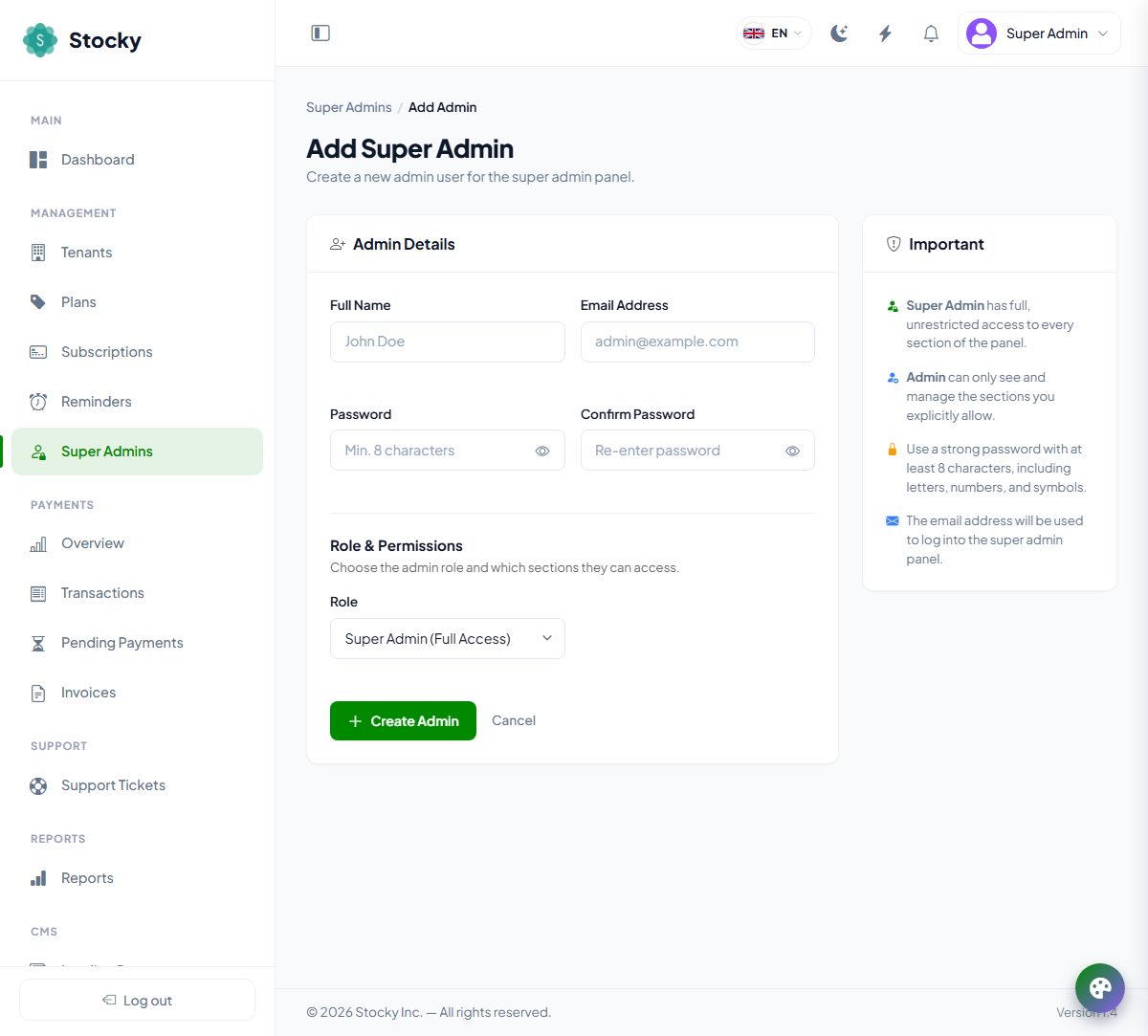
Management → Super Admins. Two roles. A Super Admin has every section. An Admin sees only the sections you tick — dashboard, tenants, plans, subscriptions, reminders, admins, payments, support, reports, knowledge base, blog, how it works, CMS, email templates, SMS templates, logs and health, settings, WhatsApp — so a support agent can have Support Tickets and Tenants without Payment Gateways. Passwords are at least eight characters; each admin changes their own under My Profile.
Logs, health & audit
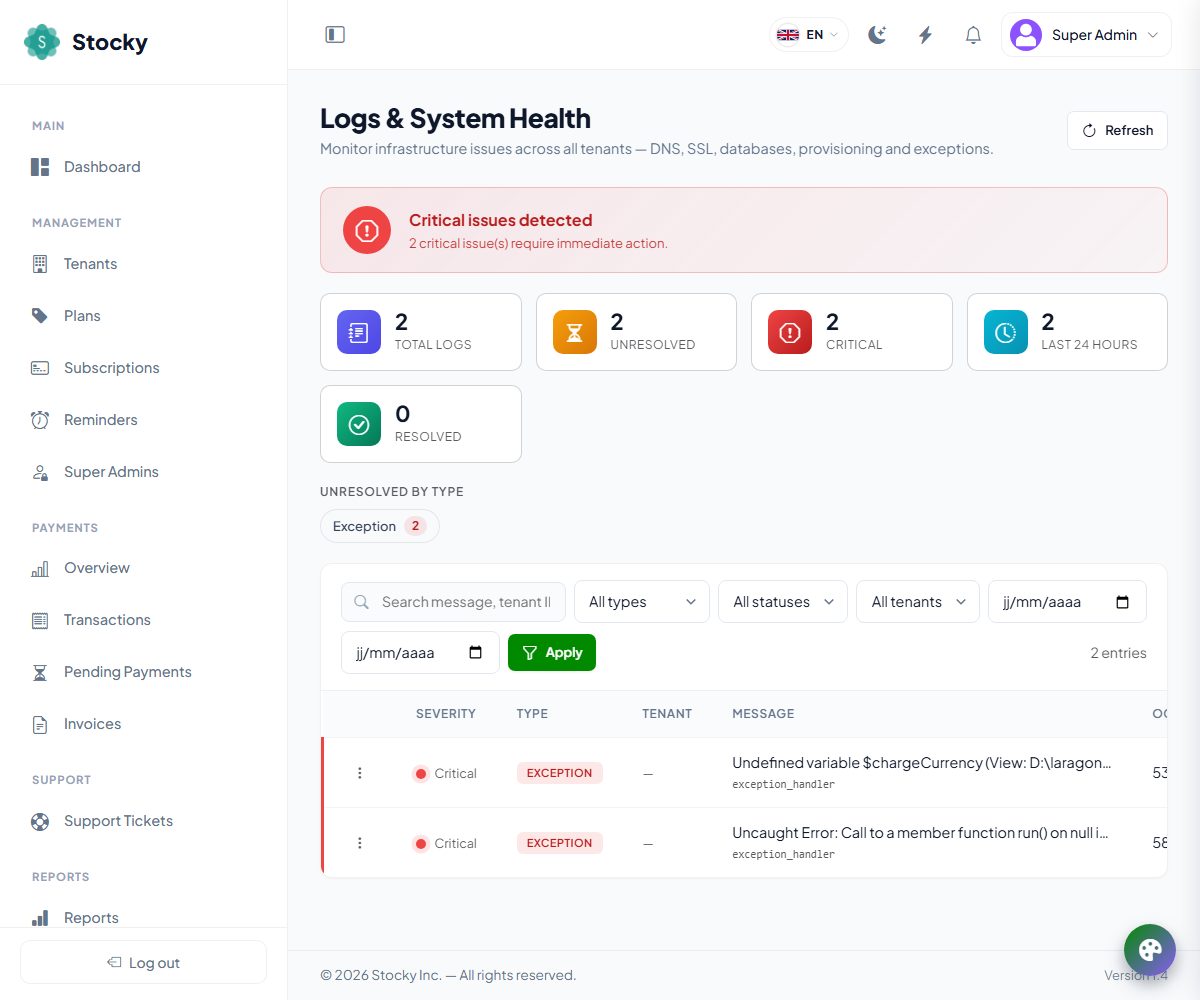
Logs & System Health collects what goes wrong on the infrastructure side, per tenant: DNS and SSL problems on custom domains, databases that cannot be reached, provisioning failures and unhandled exceptions, each with a severity (info, warning, critical), the message, a suggested cause and the context. The banner at the top says All systems healthy, Attention required or Critical issues detected. Filter by type, severity, status, tenant and date; open a log to mark it resolved with a note, reopen it, re-check the underlying DNS or database, or delete it. Each tenant page links to that tenant's history.
Impersonation Logs is the record of every Login as User session: which admin, which tenant and user, when it started and ended, and the actions taken while impersonating. It cannot be edited from the panel.
Cron & queue
The platform serves pages, takes sign-ups and payments and runs the workspaces without any background process. A single cron entry unlocks everything scheduled:
* * * * * cd /path/to/stocky-saas && php artisan schedule:run >> /dev/null 2>&1| When | What |
|---|---|
| Every minute | Meeting reminders and scheduled marketing campaigns for every tenant; one pass of the queue worker over the default, webhooks and WooCommerce sync queues (emails, outgoing webhooks, Slack and Telegram alerts, marketplace syncs, Xero and Mailchimp auto-sync); a dated dump of the database kept one per day. |
| Daily | subscriptions:check-expiry — reminders, expiry and the reminder log. tenant:cleanup-inactive — suspend seven days after expiry, delete after ninety days of inactivity. assets:check-validation-due for the assets module. integrations:keep-alive to refresh Salla and Xero tokens across all tenants. |
| 02:30 | google-sheets:auto-export for tenants that opted in. |
Queued work — emails, webhooks, syncs — runs inline with the request by default
(QUEUE_CONNECTION=sync), which is fine for a small platform and needs no
worker. For a busy server set QUEUE_CONNECTION=database: the scheduler's
minute pass then drains the queue, or run a persistent worker with Supervisor using the
configuration shipped in deploy/supervisor/; the two coexist safely. Each
tenant has its own jobs table and one worker process serves all of them.
Signing up
From here on this guide describes the workspace — what a tenant sees. It starts where a tenant starts: the registration form on the landing page.
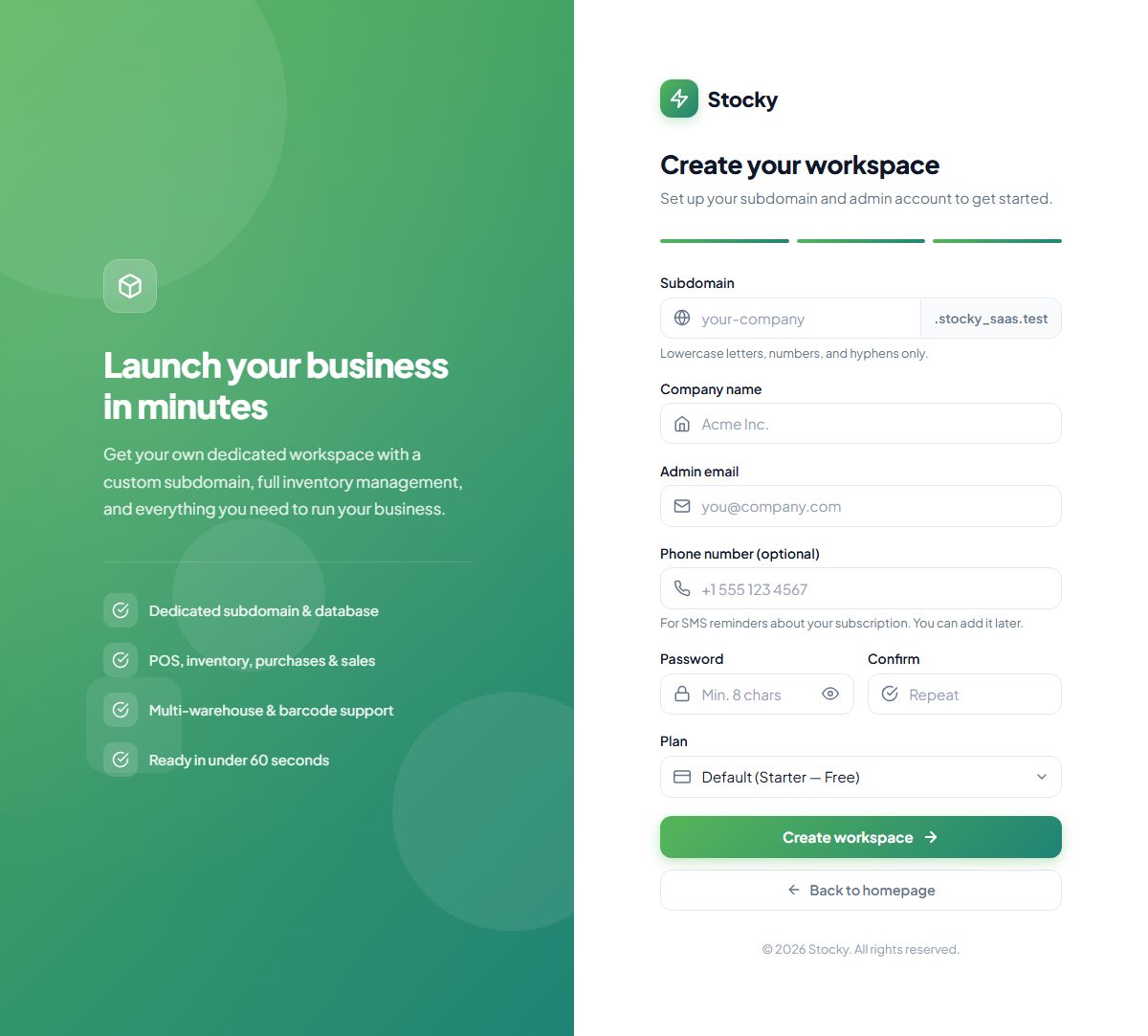
-
Choose a subdomain
Lowercase letters, digits and hyphens. It becomes the workspace address —
shop.yourdomain.com— and cannot be one already taken, reserved by the platform, or held by a registration still in progress. -
Company and admin account
The company name, the administrator's email and password (eight characters or more), and an optional phone number for SMS reminders. The email must not belong to another workspace.
-
Plan and cycle
Any public plan, monthly or yearly. Leaving the plan blank picks the free Starter plan when one exists.
-
Free or trial plans
Press Create workspace. On a VPS the Preparing your workspace page ticks through payment verification, creating the workspace and setting up the database, then Workspace ready shows the URL, the admin email and — once only — the password. On shared hosting the page says Registration under review and an email follows when the administrator approves.
-
Paid plans
The form leads to Checkout: an order summary and the payment methods the platform offers. A card or wallet gateway redirects and comes back; Bank transfer shows the bank details and asks for a proof of payment (image or PDF, up to 5 MB), after which the registration waits for approval. The workspace is created when the payment is confirmed — by the gateway's webhook or by the administrator.
-
Sign in
At
https://shop.yourdomain.com/loginwith the email and password from registration. The address without a path opens the dashboard when signed in and the login page when not.
If the workspace is later suspended or cancelled, every page answers This workspace is suspended — access is currently disabled, please contact support. If the subscription expires, the workspace sends every page to Billing → Change Plan until a plan is paid for; nothing is deleted.
Around the workspace
The workspace is Stocky. A few things sit outside the modules and are worth knowing before you start.
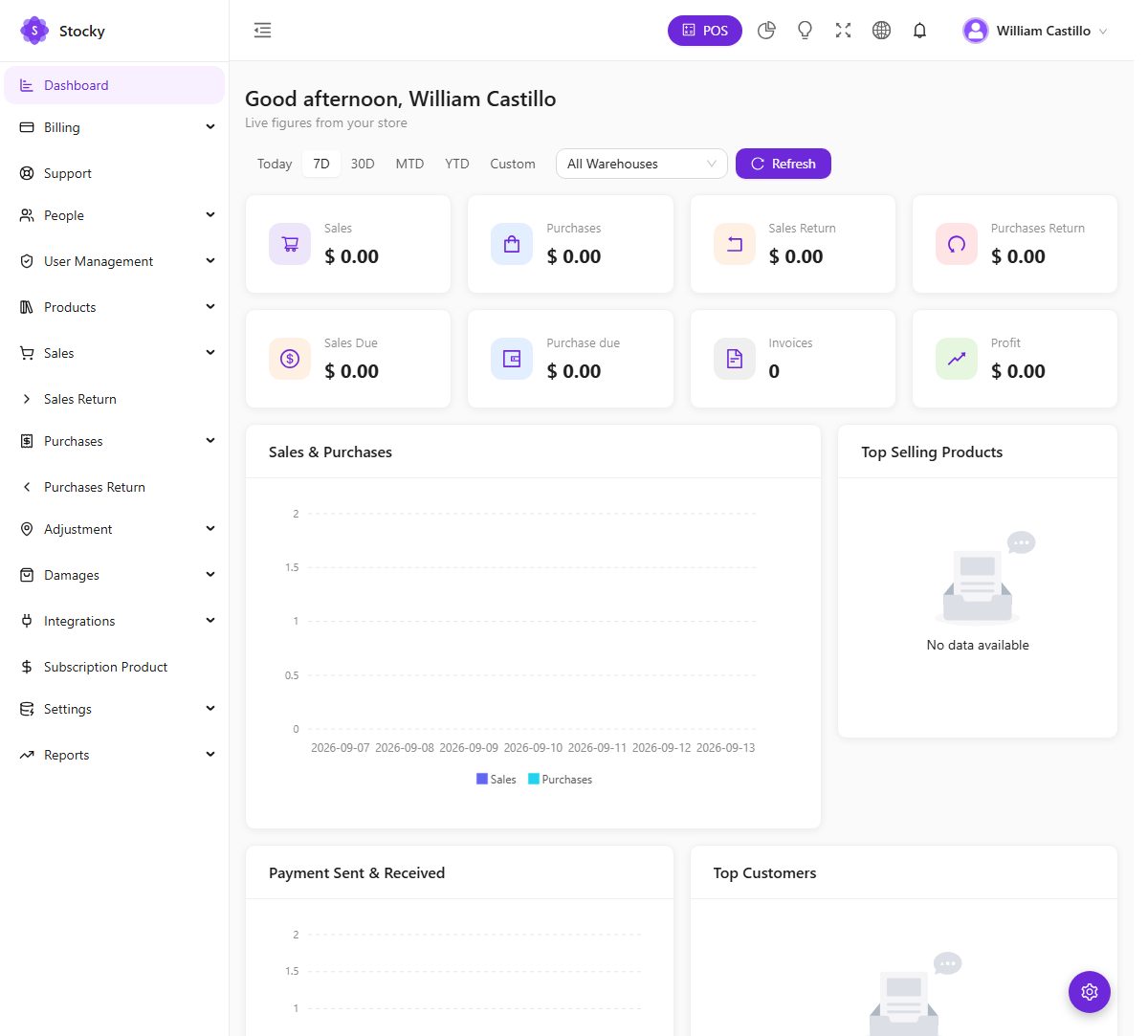
| Where | What it does |
|---|---|
| POS, the purple button in the header | Opens the register full-screen. It is its own application: the sidebar disappears and comes back when you leave. |
| Today's summary, the pie-chart icon | A drawer with today's sales, payments and stock alerts without leaving the page you are on. |
| Light / dark, the bulb | Flips the theme for your browser. The customiser (below) also offers auto, which follows the operating system. |
| Full screen | Hides the browser chrome for a till or a wall-mounted screen. |
| Language, the globe | Switches the whole workspace to any language enabled in Settings → Languages. Arabic and Urdu flip the layout right-to-left. |
| The bell | In-app notifications — stock alerts, new online orders, kitchen tickets, sync results, support replies — newest first, with the unread count on the badge. |
| The user menu | Your profile (name, email, password, avatar) and sign out. |
| The gear, bottom right | The appearance customiser: sidebar layout, theme mode and colours. Saved for your browser; it changes nothing for anybody else. |
| Billing and Support, top of the sidebar | The subscription and the help desk — see the next two sections. Both stay reachable even when the subscription has lapsed. |
| The subscription banner | Appears across the top when the subscription or trial ends within the window the platform sets, with a link to renew. |
| Install app | On HTTPS, an Install App button installs the admin as a PWA on a desktop or a phone. The POS, the store, the customer display and the portal each have their own manifest. |
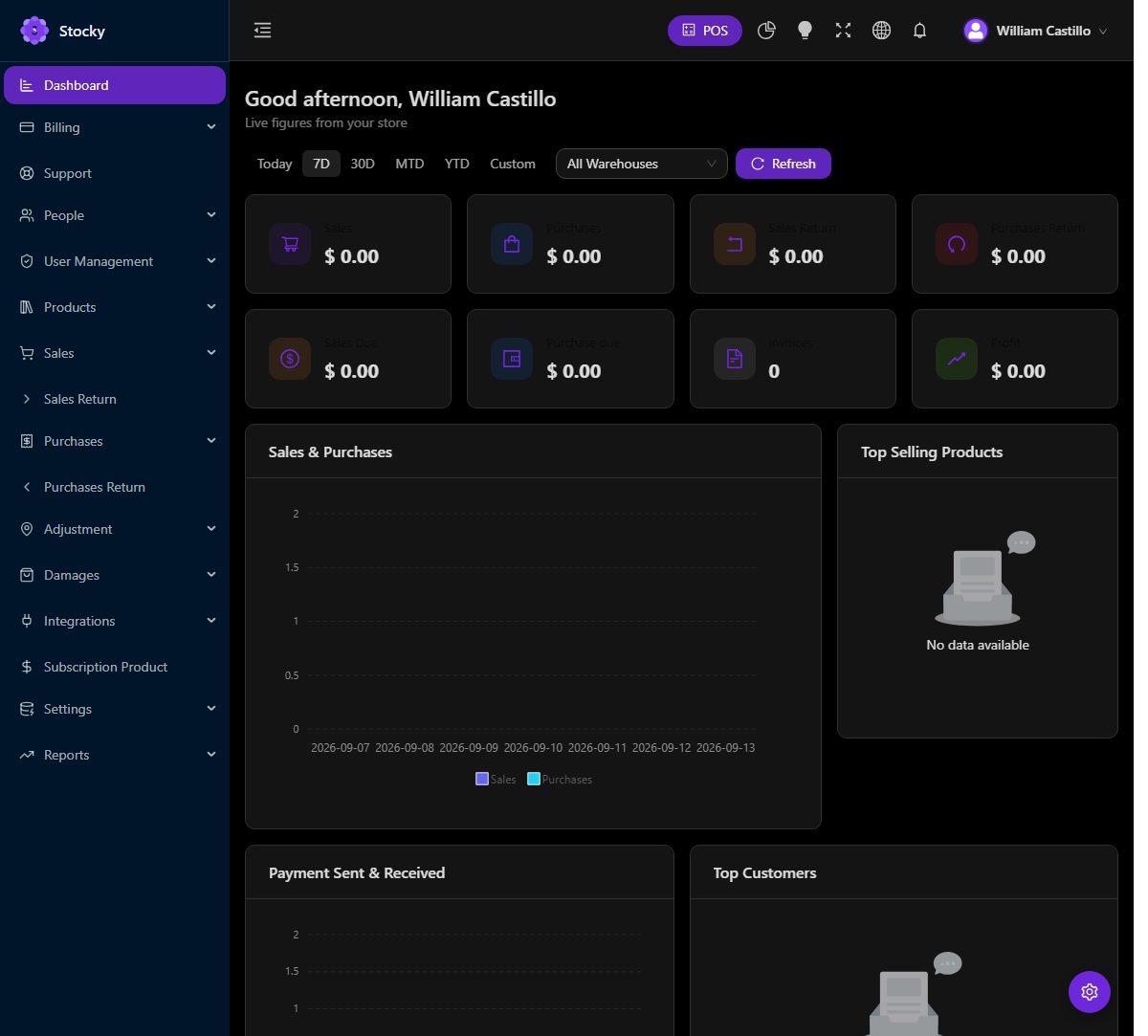
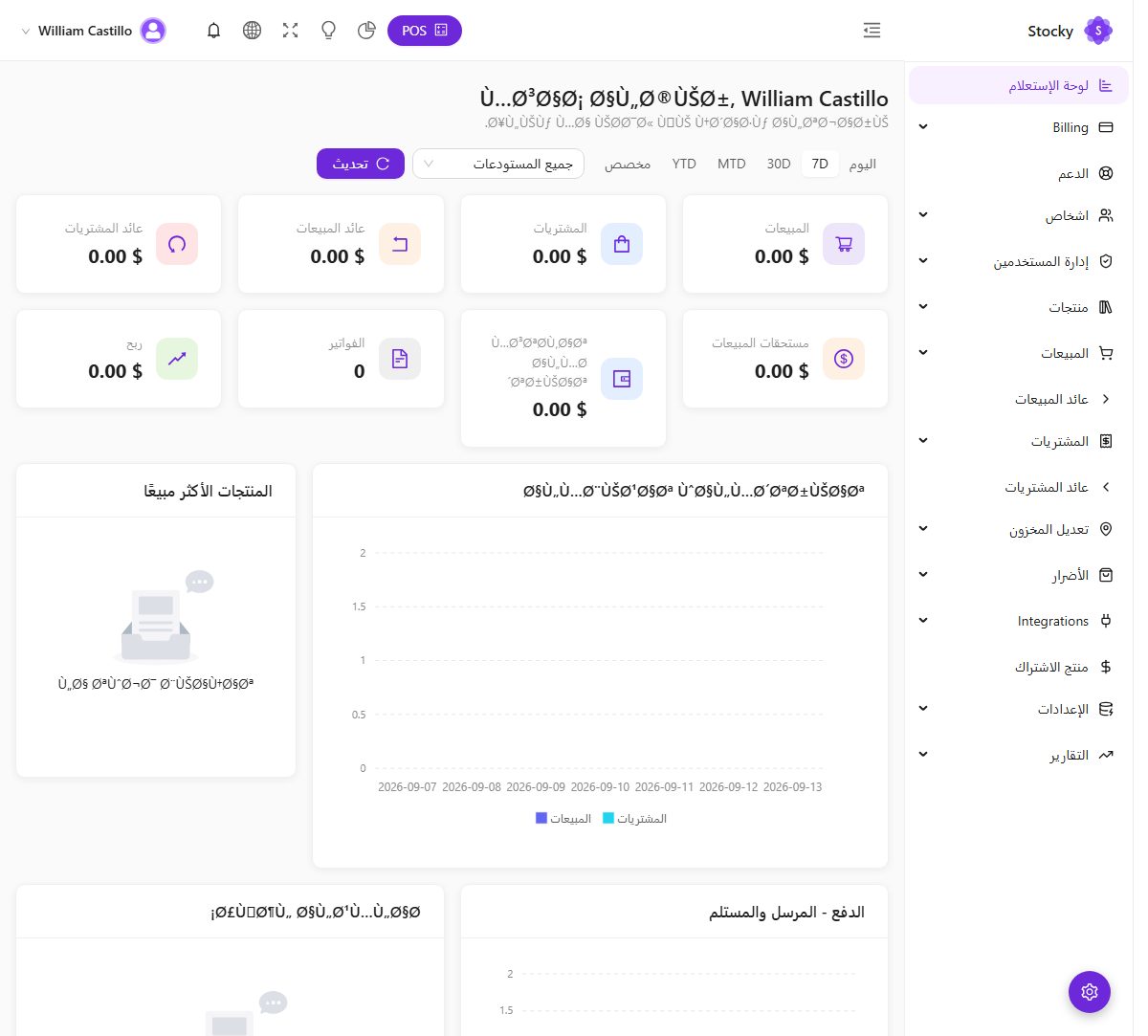
The sidebar shows only the modules your plan includes and only the pages your role may open. A tenant on a plan without HRM never sees the HRM group; a cashier with POS-only permissions sees a very short sidebar. Both are by design: modules are switched on by the platform per plan (there is no modules page inside the workspace), roles are yours to define under User Management. The version number in the bottom corner is the platform version.
Plan limits are enforced as you work. When your plan's ceiling on users, products, customers, suppliers or warehouses is reached, the create button answers with a message naming the limit and the current count; existing records are never removed. The usage against each limit is on Billing → Current Plan.
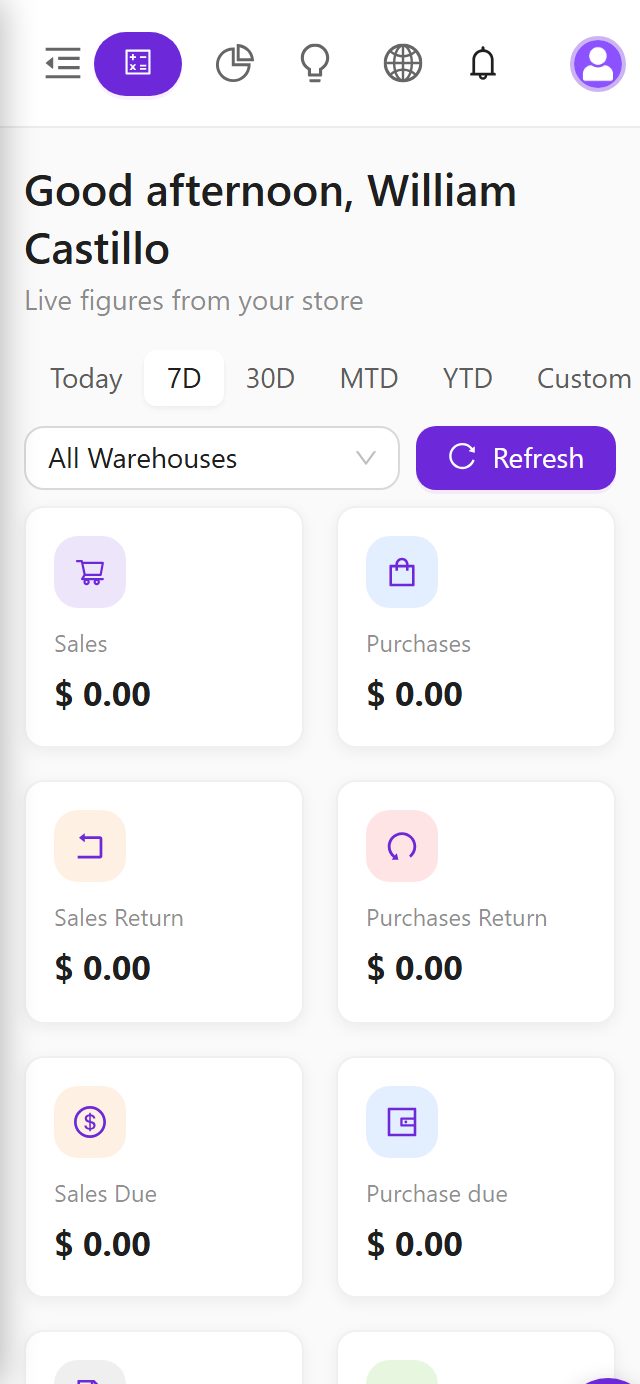
Billing
Billing. Three pages that manage the subscription without leaving the workspace. They need the billing permission, which the Owner role has.
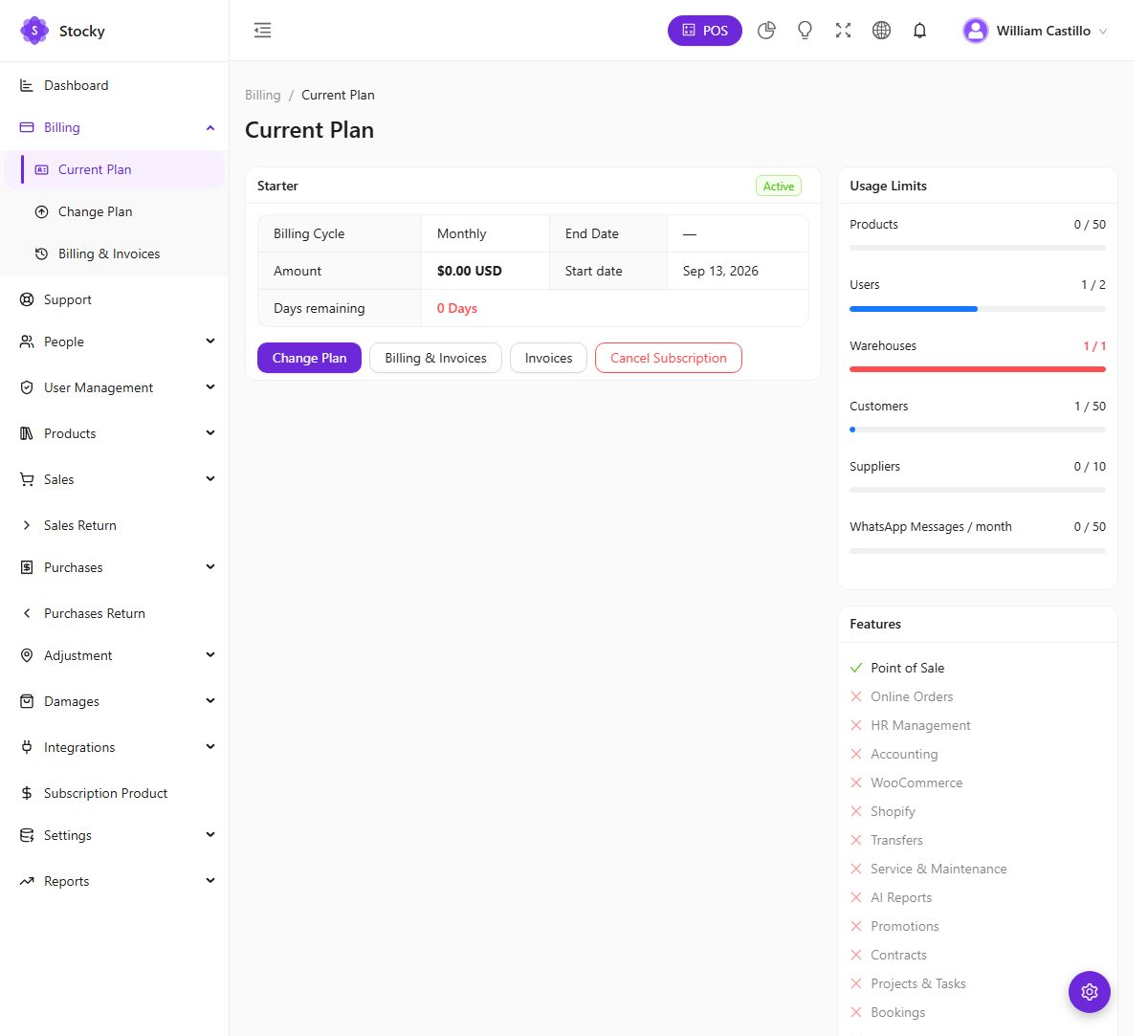
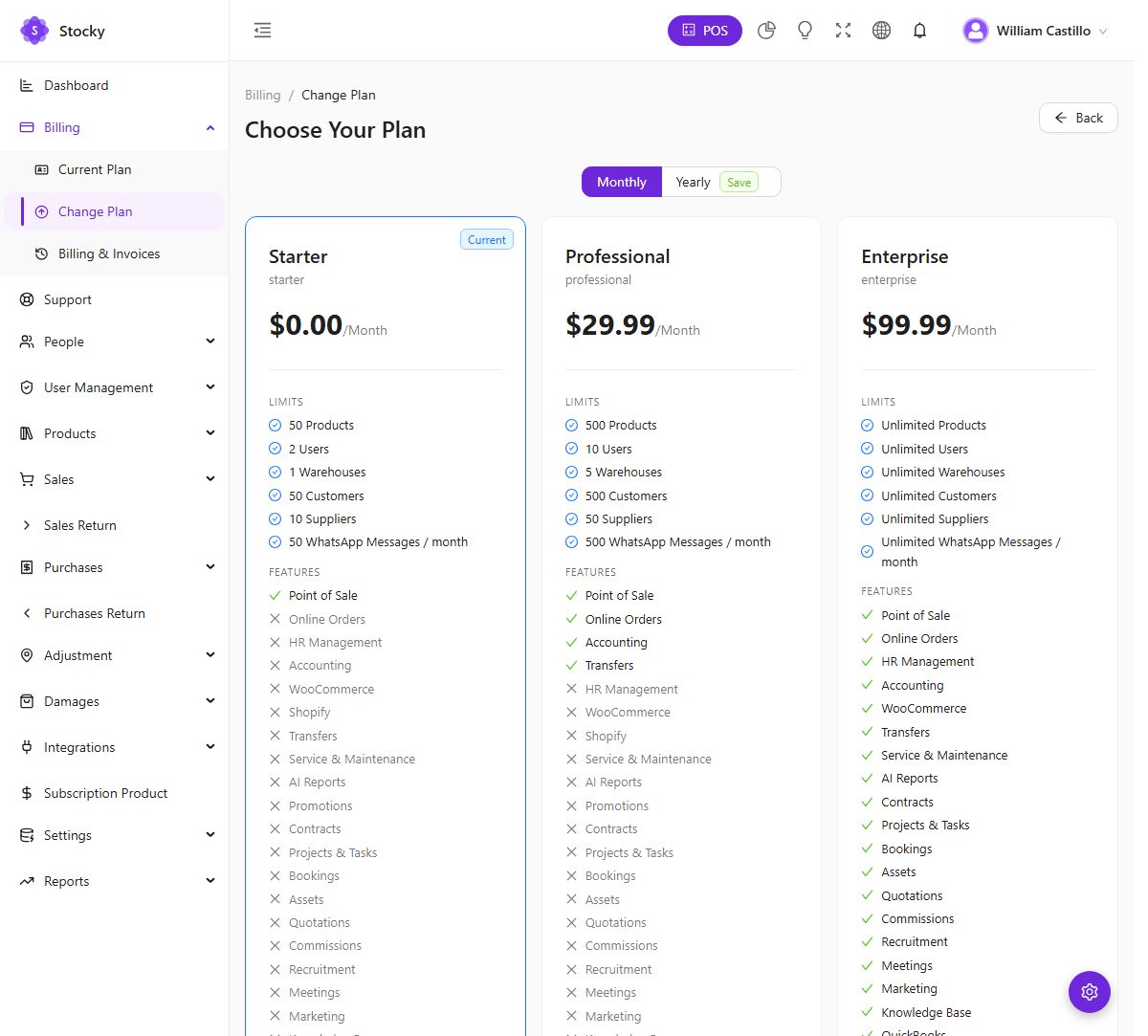
| Page | What you can do |
|---|---|
| Current Plan | See the plan, the billing cycle, the amount, when it renews or when the trial ends, the days remaining, usage against each limit, and the feature list. Cancel keeps the workspace until the end of the paid period; Resume before that date restores it. A pending upgrade waiting for an offline payment can be cancelled here too. |
| Change Plan | Pick another plan or another cycle. The change takes effect the moment the payment is confirmed, and a fresh billing period starts from that day — upgrades and downgrades alike. The price shown is the plan's current price. |
| Checkout | The order summary — plan, cycle, subtotal, tax, total — and the payment methods the platform has enabled. A gateway redirects you to pay and brings you back to a Verifying payment page that confirms with the provider. Bank transfer shows the bank details; upload the proof of payment and the plan activates when the platform approves it. Only one bank-transfer payment can be pending at a time; cancel it to submit another. |
| Billing History | Every payment with its date, plan, cycle, gateway, amount and status, and the invoice PDF for each. A failed payment offers Retry. |
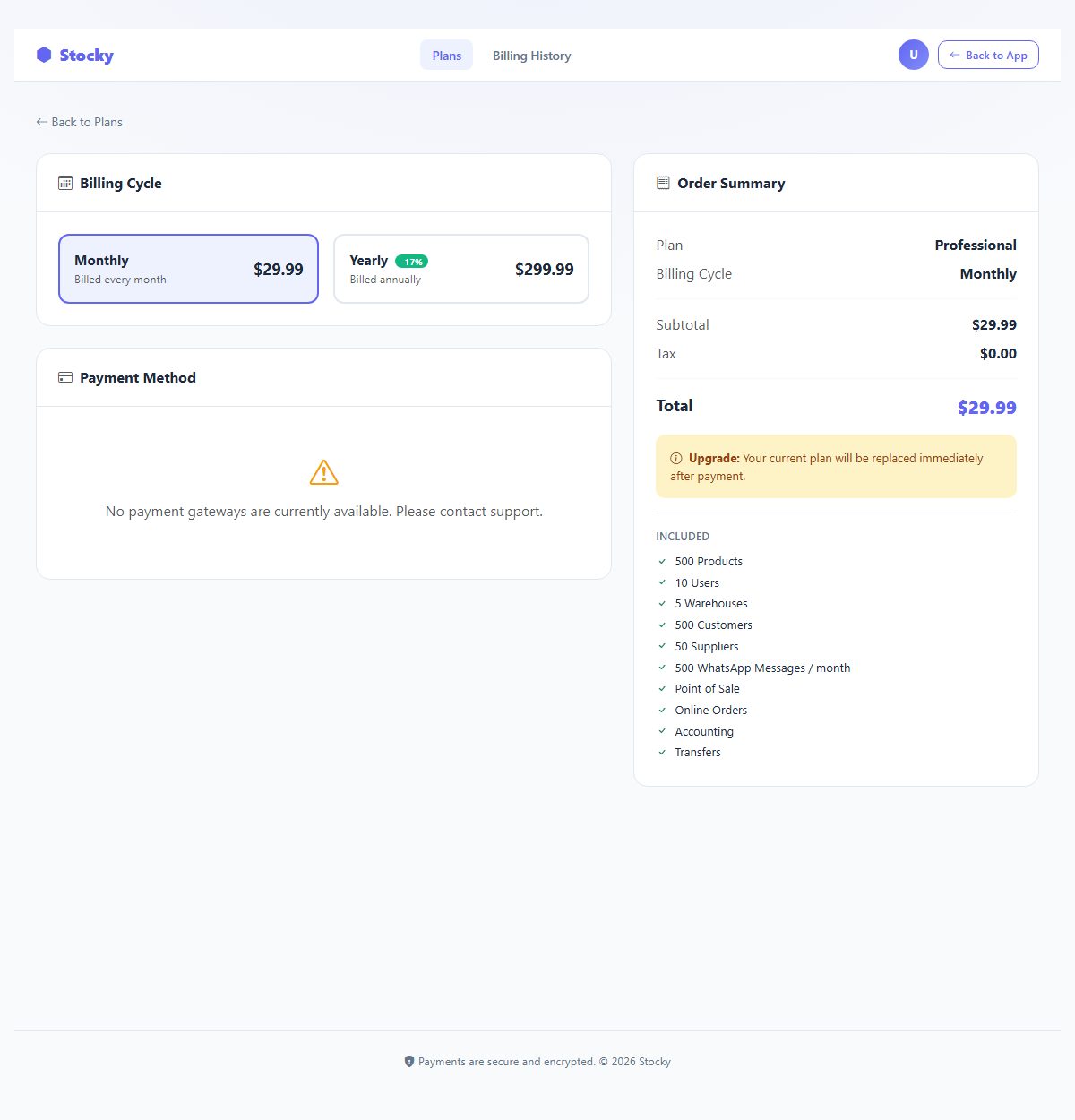
A plan change or renewal is charged in full at the new plan's price; there is no proration. When a subscription expires the workspace redirects to Change Plan until a payment is made, and data is kept for the platform's retention period. Reminders arrive by email — and by SMS if a phone number was given at registration — on the days the platform sets, with a banner in the workspace in the final days.
Support centre
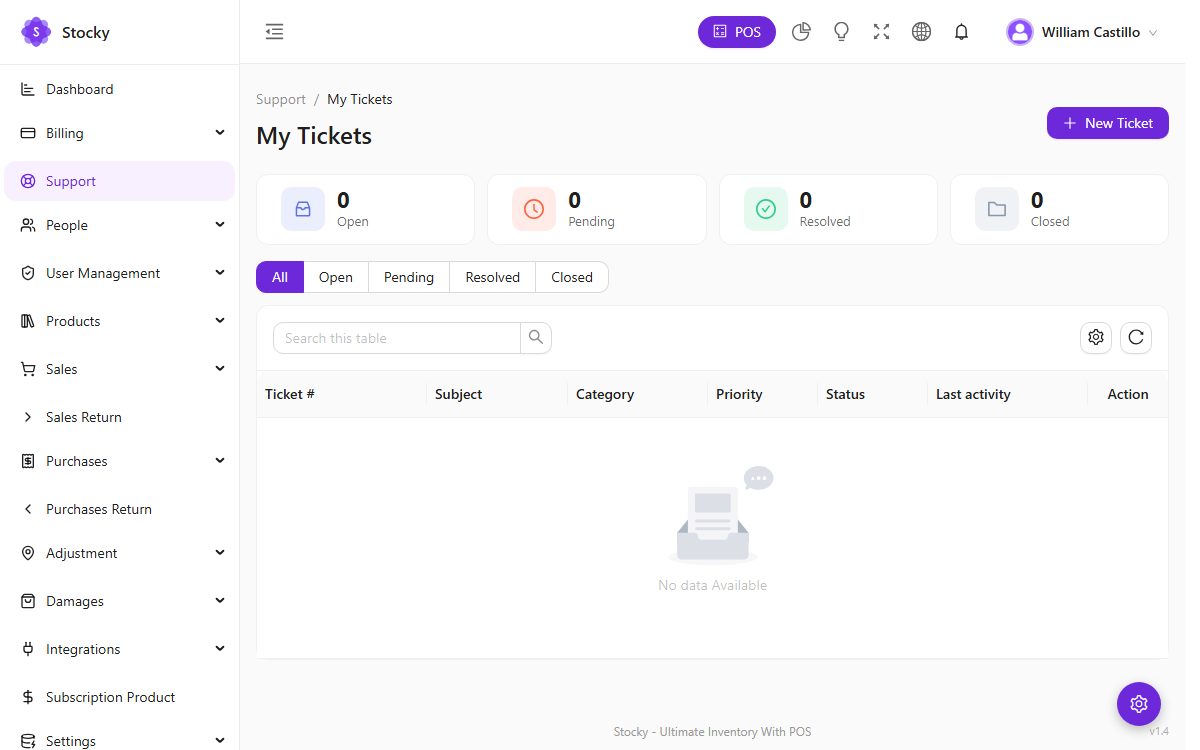
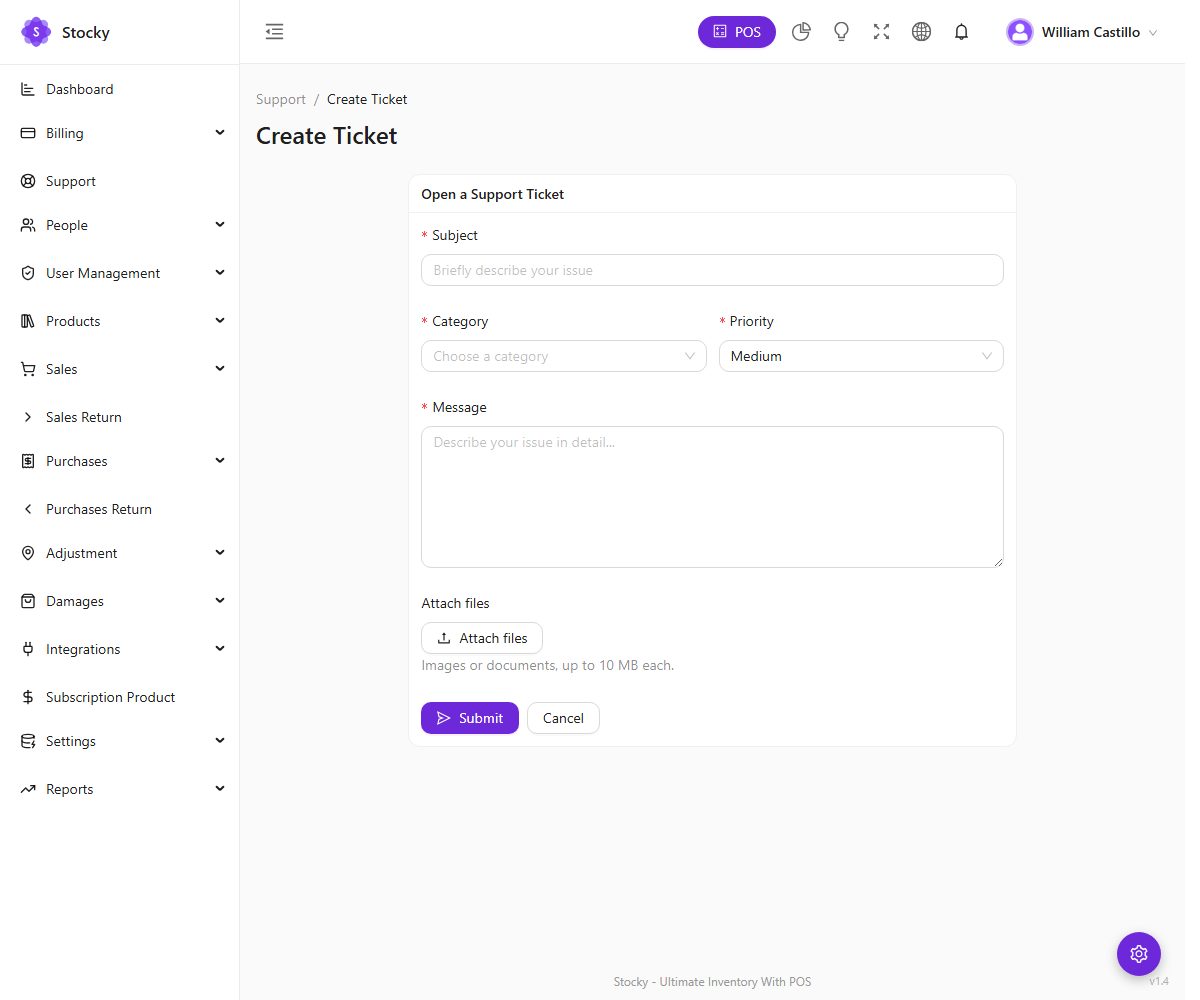
Support. Open a ticket to the platform's support team with a subject, a category (bug, technical, billing, feature request, account), a priority, a message and attachments; follow the conversation and reply from the ticket page. You are emailed on every reply and status change, and the bell in the header shows them too. The platform's Knowledge Base — the articles it publishes for every workspace — is the place to look first.
System settings
Settings → System Settings. The one page nearly every other screen reads from. It is split into tabs; each saves only its own fields. A new workspace starts with the name, logo, currency and language the platform set as defaults — change them here.
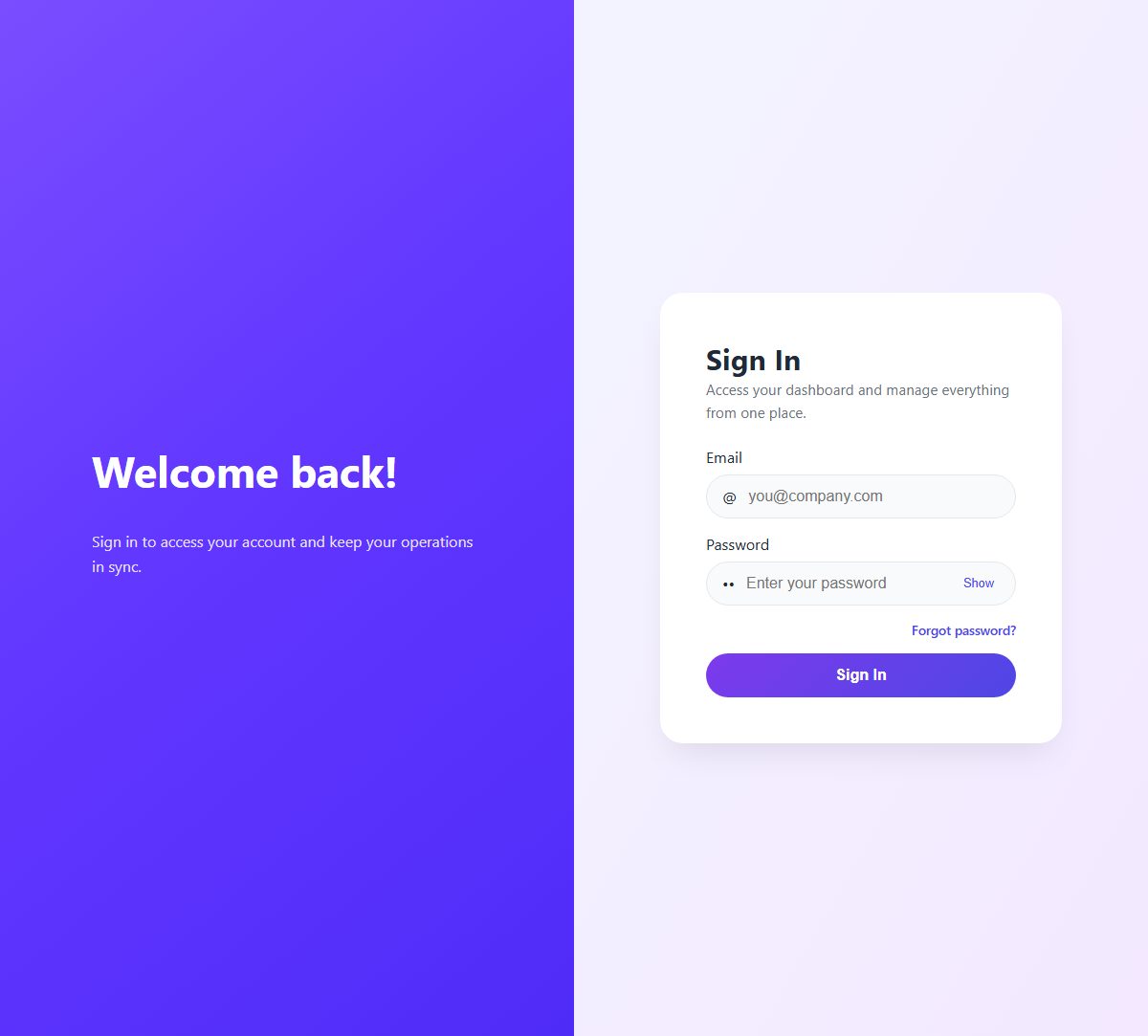
| Tab | What lives there |
|---|---|
| General | Company name, logo, phone, email and address. The footer line and the developed by credit. |
| Defaults | Default warehouse, default customer, default payment method, default account and default tax for new documents; the default dashboard date range and widget order. |
| Localization | Default currency, default language, timezone, date format and price format. |
| Prefixes | The reference prefixes for sales, purchases, quotations, returns and the rest. |
| Maintenance | The offline sync switch for the POS (see Offline mode), overselling control and the other behaviour switches. |
| Features | The feature switches. |
| Pharmacy | Batch and expiry tracking: pharmacy mode, the expiry warning window, blocking the sale of expired stock, printing expiry on receipts. |
| Dashboard | Font family and size, which widgets show and in what order. |
| Datatable | Table density, striped rows, cell borders, sortable columns and column visibility — the feel of every list. |
| Export, Calendar | Defaults for Excel and PDF exports; Google Calendar credentials for the bookings module. |
| Security | Login-device rules and session limits. |
| POS Settings, POS Receipt, Integrations | Shortcuts to those settings pages so the whole configuration is reachable from one place. |
| Backup | A shortcut to Settings → Backup. |
The timezone decides which day an evening sale belongs to and when the scheduled jobs run. The default currency is the base currency for every report and stock valuation — if you turn on multi-currency later, other currencies convert into this one. Set both before you trade.
Feature switches
Settings → System Settings → Features. These change how the whole workspace behaves, so they live together rather than hidden in the module they affect.
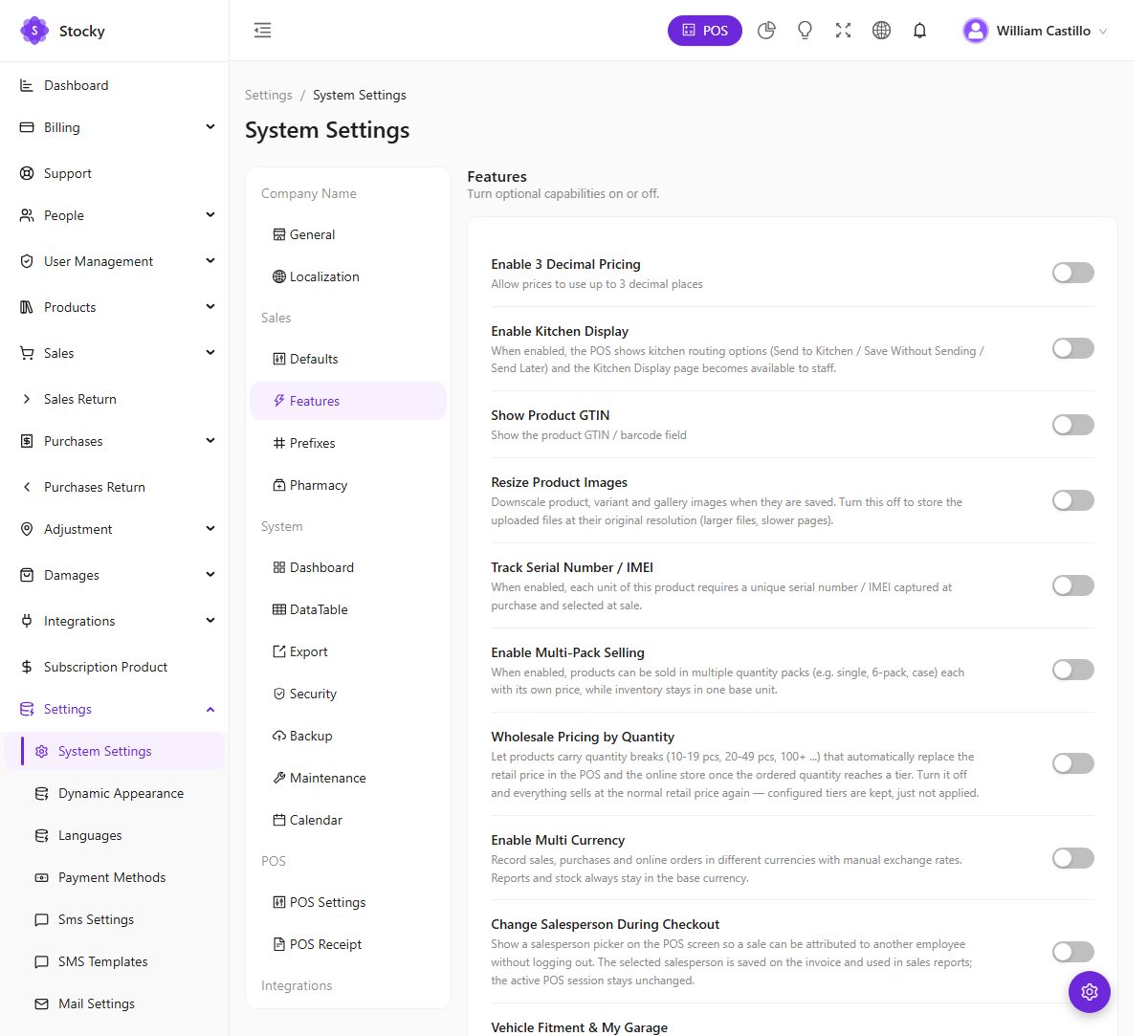
| Switch | What it does |
|---|---|
| 3-decimal pricing | Prices, costs, discounts, taxes and POS totals keep three decimals (0.066) instead of rounding to two. For currencies such as the dinar. |
| Kitchen display | The POS shows Send to Kitchen and the Kitchen Display page becomes available. |
| Show product GTIN | Shows the GTIN / UPC / EAN / ISBN field on the product form, separate from your own product code. |
| Resize product images | Downscales uploads to the max size (default 800 px on the longest edge). Turn off to keep originals — larger files, slower pages. |
| Track serial number / IMEI | Lets a product require a unique serial per unit, captured at purchase and picked at sale. See Serial numbers. |
| Track batches & expiry | Batch numbers and expiry dates on purchases, first-expiry-first-out at the POS, the expiry report. See Batches & expiry. |
| Multi-pack selling | A product can be sold as single, 6-pack or case, each with its own price, while stock stays in one base unit. |
| Wholesale pricing by quantity | Products carry quantity breaks (10–19, 20–49, 100+) that replace the retail price in the POS and the store once the ordered quantity reaches a tier. |
| Multi-currency | Record sales, purchases and online orders in other currencies with manual exchange rates. See Multi-currency. |
| Change salesperson during checkout | A salesperson picker on the POS so a sale can be credited to another employee without logging out; used by the seller report and commissions. |
| Auto journal entries | Post an accounting journal automatically when a sale, purchase, expense, return or payment is recorded. See Accounting. |
| Vehicle fitment & my garage | Products carry the makes, models and years they fit; the store lets a shopper pick their vehicle and filters the catalogue to what fits. |
| Show items tax, create quotation with stock | Whether line taxes print on documents, and whether a quotation checks stock availability. |
Modules themselves — the store, HRM, accounting, the business modules, the connectors — are not on this page: they come with your plan, and the sidebar shows exactly what the plan includes.
Warehouses & locations
Settings → Warehouses. A warehouse is any place stock physically lives: a shop, a stockroom, a van, a market stall. Every stock quantity, every alert and every sale, purchase, transfer and adjustment is tied to one. The number of warehouses may be capped by your plan.
Internal locations
Settings → Warehouse Locations holds aisle, rack and bin positions inside a warehouse. Products can be assigned to a location so the picker knows where to walk; the Internal Location report lists what sits where.
Who sees which warehouse
Each user is assigned the warehouses they may work in (User Management → Users). The POS, the lists and the reports then only offer those. A cashier in the downtown shop never sees the airport store's stock; a manager assigned to all of them can switch. The default warehouse from System Settings is where the POS opens.
Users & roles
User Management → Users. A user is anyone who signs in to the workspace or the POS. Each has a role, a status (inactive users cannot sign in but keep their history), an avatar and the warehouses they may see. Your plan sets how many users a workspace may have.
A new workspace ships one role, Owner, which holds every permission — the account created at registration has it. Create a role per job, not per person: Cashier, Stock keeper, Accountant, Store manager. Then give people the role.
Users can be signed out remotely from Settings → Login Devices, and every sign-in is listed in the Login Activity report. The platform's support team may also block a user or reset a password for you from their side, and — with your knowledge — sign in as one of your users to reproduce a problem; those sessions are recorded.
Permissions
User Management → Group Permissions. A role is a named set of permissions. The editor lists more than 300 of them, grouped by module, with a search box and a select-all per group. Modules your plan does not include are not offered.
Most groups follow the same pattern — View, Create, Edit, Delete — with extras where a module has a sensitive action: override FEFO / sell quarantined under batches, Pay due, report-level permissions, billing and support, and the settings pages one by one, so a manager can be given POS Settings without Payment Gateway.
A cashier role
The minimum for somebody who only runs the till: POS, Sales → View and Create, Customers → View and Create (for quick-add at the counter), and nothing under Settings, Billing, Purchases or Reports. Add Sales → Edit only if they should be able to change a completed sale, and Cash Register Report if they close their own drawer.
Permissions apply to the API as well as the menu. A page hidden from the sidebar is also refused when typed into the address bar.
Categories, brands, units & currencies
Short reference lists under Products and Settings. Get them roughly right before importing products, because the import matches on their names.
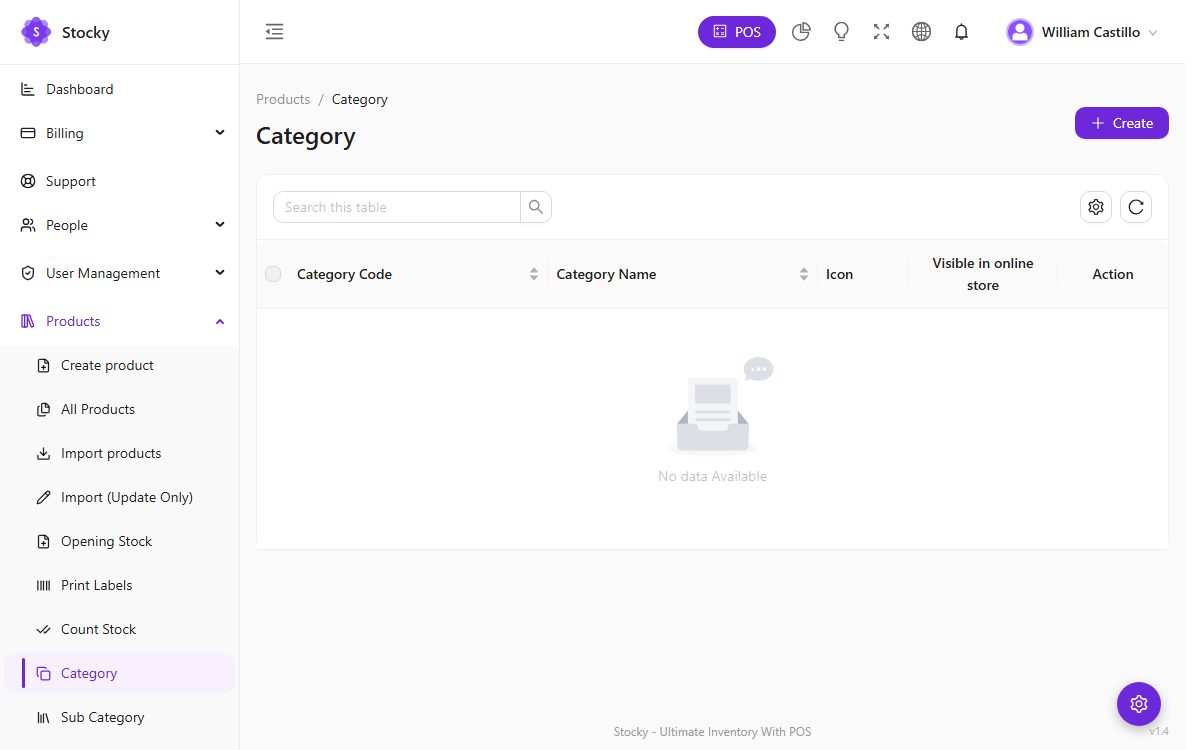
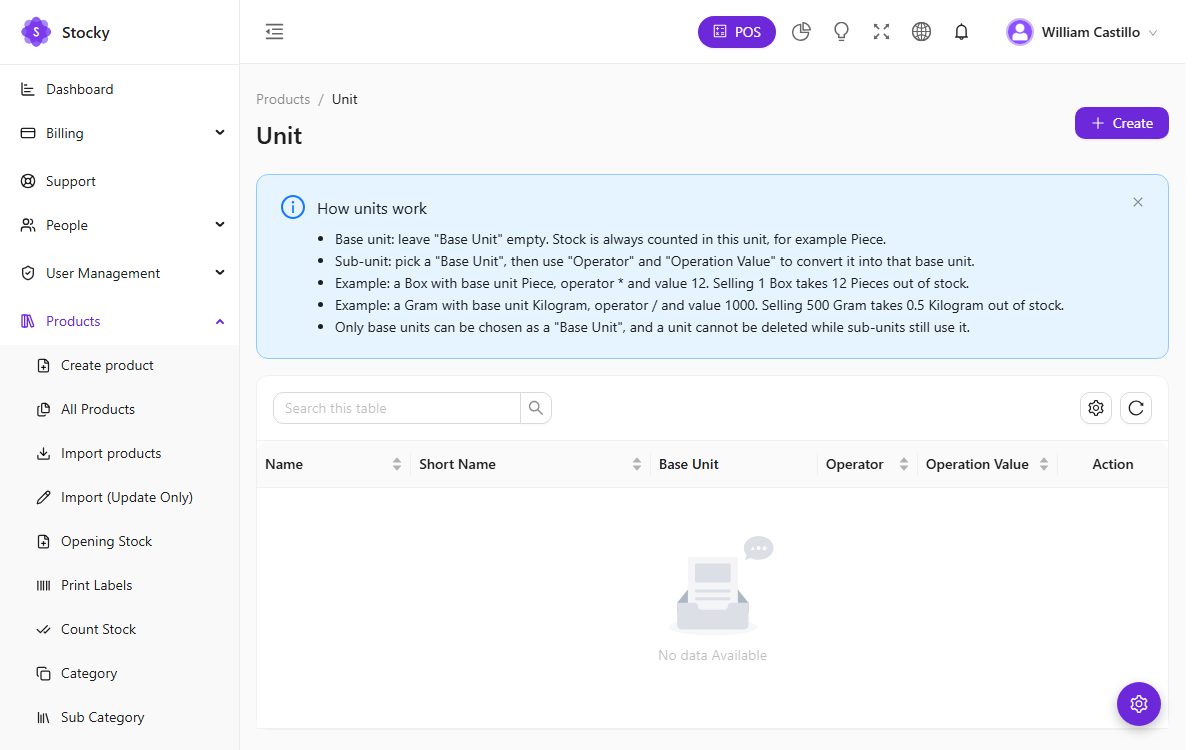
| List | Notes |
|---|---|
| Categories and Sub-categories | Two levels. The POS filters by category; the store builds its menus and filters from them; a product may belong to several. |
| Brands | A name and a logo. The POS has a brand filter; the Electronics theme shows a brand row. |
| Units | A base unit (piece, kg, litre) and derived units with an operator and a value — a carton is × 12 pieces. Products have a stock unit, a purchase unit and a sale unit, so you can buy by the carton and sell by the piece. |
| Currencies (Settings → Currencies) | Code, symbol and — with multi-currency on — an exchange rate against the base currency. The store's currency switcher offers whichever you enable. |
Payment methods & accounts
Settings → Payment Methods. The ways money arrives: the workspace seeds Cash, Credit Card, Check, TPE, Western Union, bank transfer and other. Rename, add or deactivate them; the POS payment screen and every payment form offer the active ones.
Accounts (Accounting → List accounts) are where the money is kept: the till, the bank account, the mobile-money float. Every payment, deposit and expense may name an account, and the account balance moves with it. The default account in System Settings is pre-selected on new payments. See Accounts, deposits & expenses.
Payment gateways are separate: Settings → Payment Gateway holds the Stripe keys the POS uses for card payments; the online store's gateways are under Store → Payment Gateway. Neither has anything to do with how you pay for the workspace itself — that is Billing.
Products
Products → All Products. The catalogue. One row per product with its image, code, category, brand, cost, price, unit and the stock across the warehouses you may see. The list filters by warehouse, category and brand, exports to Excel and PDF, and opens the Print Labels sheet for any selection. Your plan may cap the number of products.
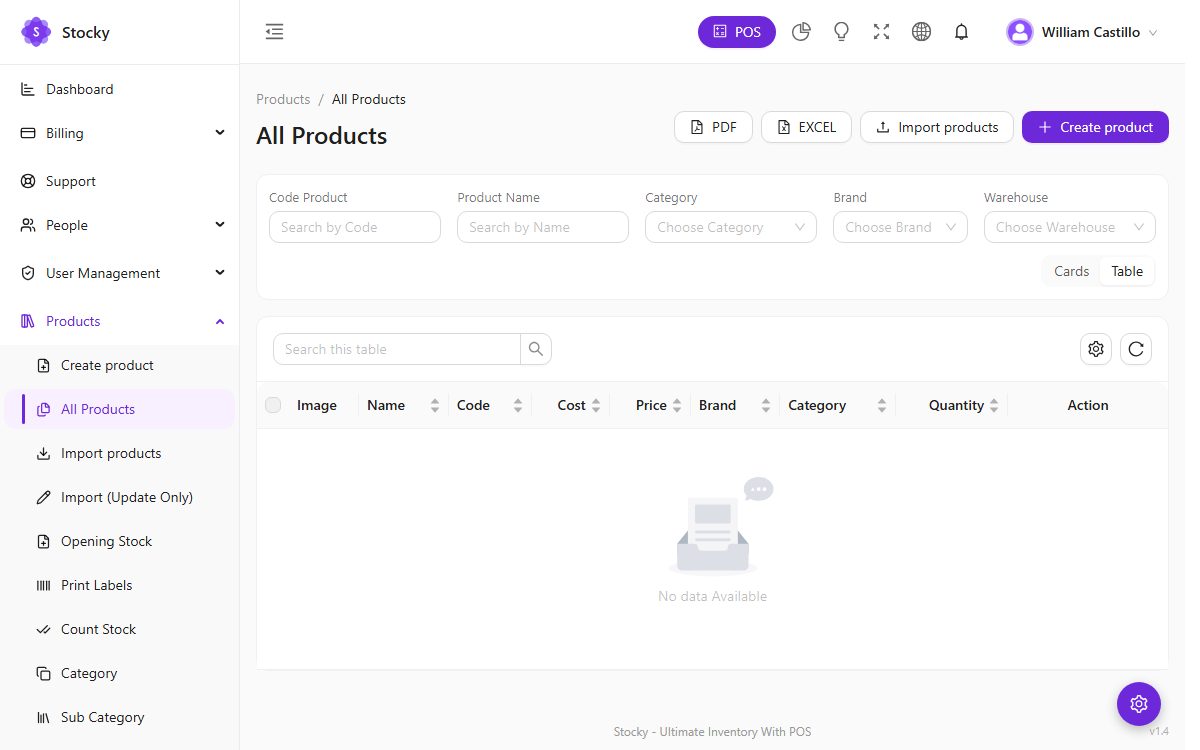
The product form
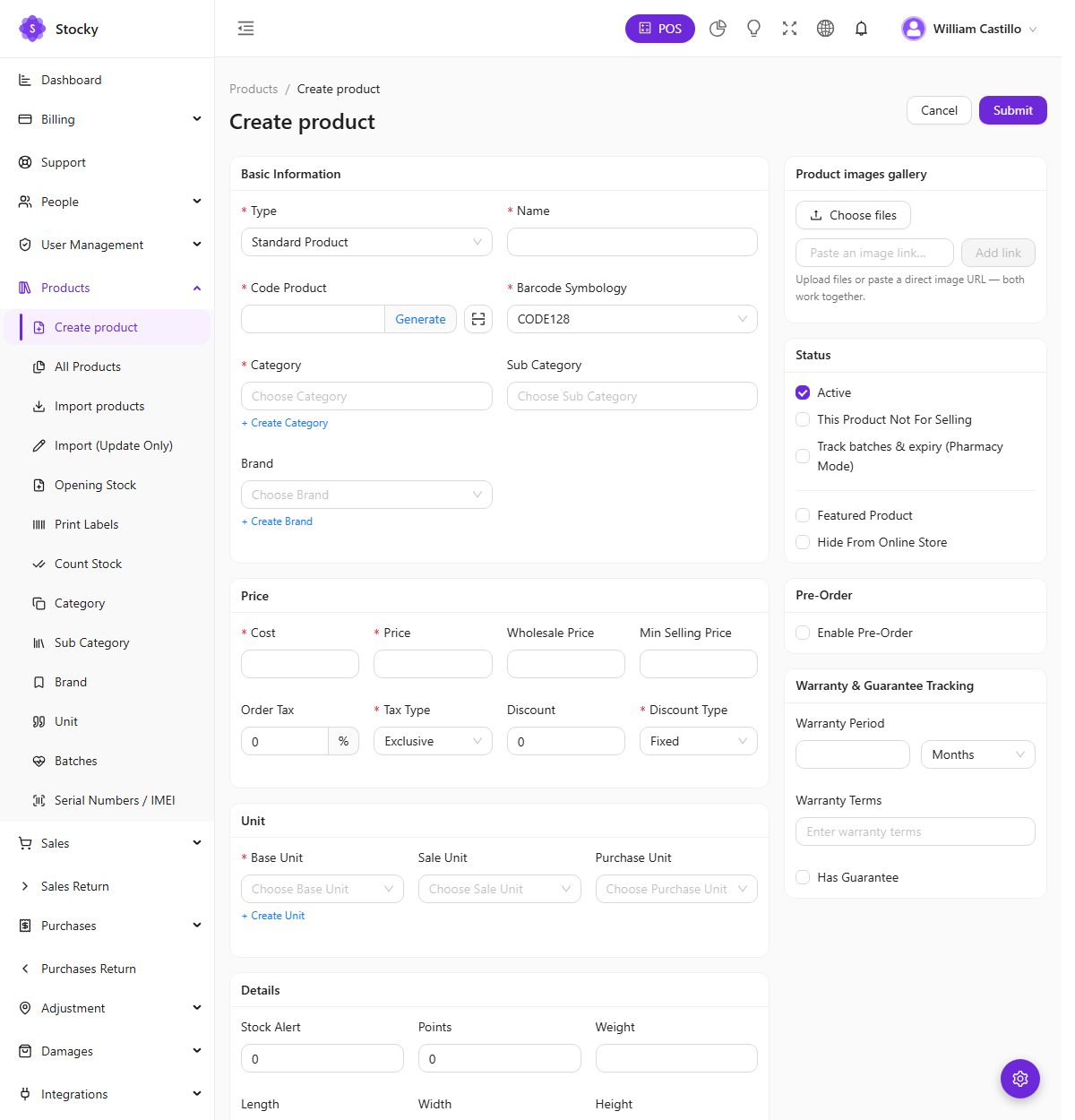
| Field group | What to put there |
|---|---|
| Identity | Name, code (generated if you leave it blank), barcode symbology (Code 128, EAN-13, UPC-A, …), optional GTIN, brand, categories and sub-categories. |
| Units | The stock unit, and optionally different purchase and sale units with a conversion; multiple selling units with their own prices. |
| Money | Cost, price, tax rate with inclusive or exclusive, and a default discount. With the wholesale switch on, a table of quantity tiers; with multi-pack on, the pack sizes and prices. Prices keep three decimals when that option is on. |
| Stock | The stock alert quantity, opening stock per warehouse, an internal location, and whether the product tracks batches or serial numbers. |
| Media & text | Images — upload several, or paste a hosted URL — with one chosen as the main image; a note, a warranty period, and any custom fields defined in Settings → Custom Fields. |
| Online store | Whether the product is visible in the store, the collections it belongs to, the storefront description and SEO text, whether it can be returned, and quote-request options for services. |
The product page
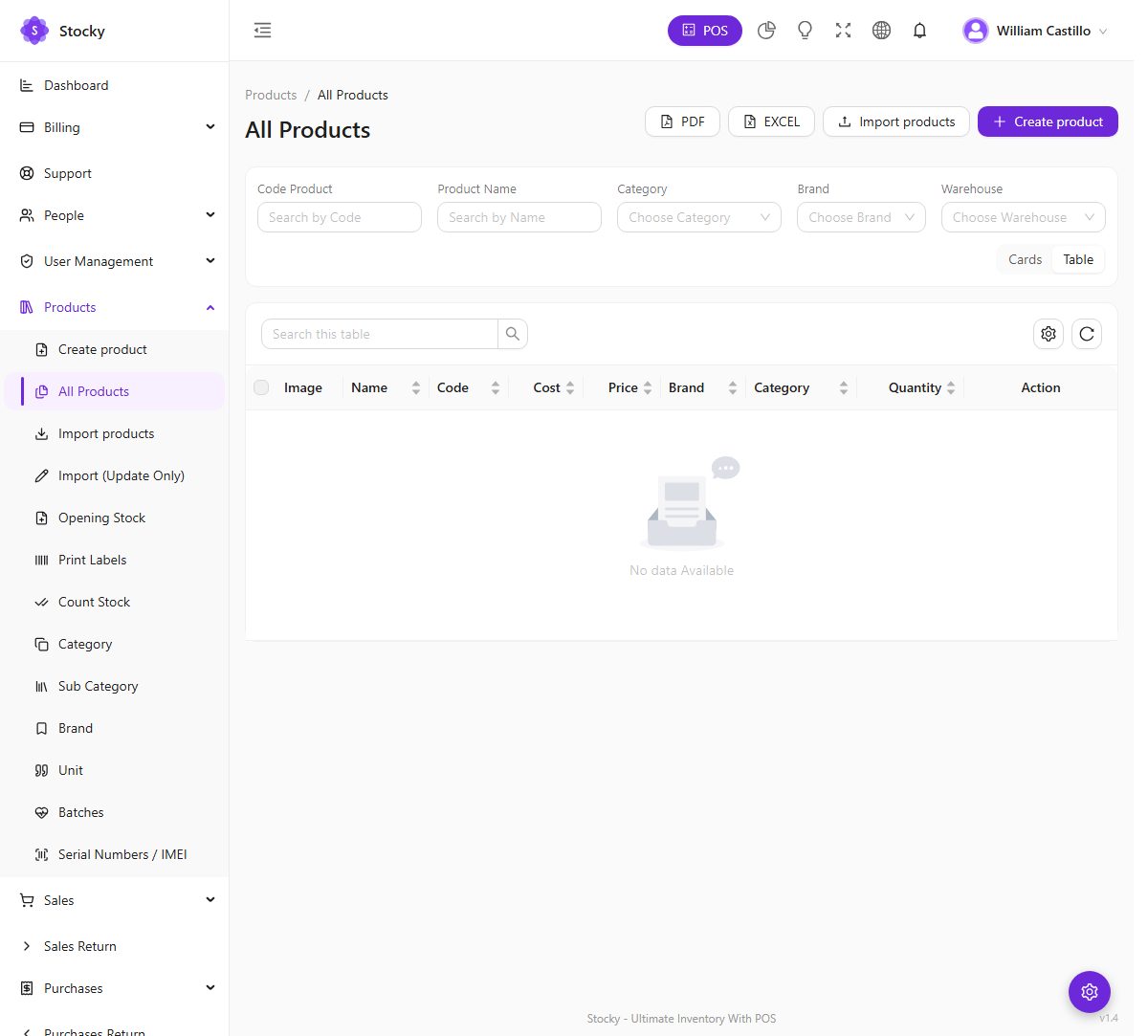
Every product has a detail page with its stock per warehouse, a movement history — every sale, purchase, return, transfer and adjustment that touched it, in order — and the sales and purchase lines it appeared on. The Product Report under Reports is the same view with a date range and export.
Variants, combos & services
The type at the top of the product form decides how stock behaves.
Single
One code, one price, one stock figure per warehouse. Most products.
Variable
A parent with variants — size, colour, capacity. Each variant has its own code, price, cost, image and stock. The POS and the store show the parent and let you pick the variant.
Service
No stock at all. Repairs, delivery, labour, consultations. Can carry a price and a tax like any product; the store can offer request a quote instead of a price.
Combo
A bundle sold as one line at one price. Selling it deducts each component's stock; the combo itself has none.
Subscription products (their own module, see Subscription products) add a billing cycle to any product. Packs and wholesale tiers are pricing on top of a single or variable product, switched on under Feature switches.
Importing
Every import page has the same shape: a drop zone, a Download example button that gives you a template with the right columns, a table explaining each column and which are required, and Import now. Rows that fail are reported by line number; rows that pass are saved. Imports respect the plan's limits — a file that would take you past the product or customer ceiling stops at the ceiling.
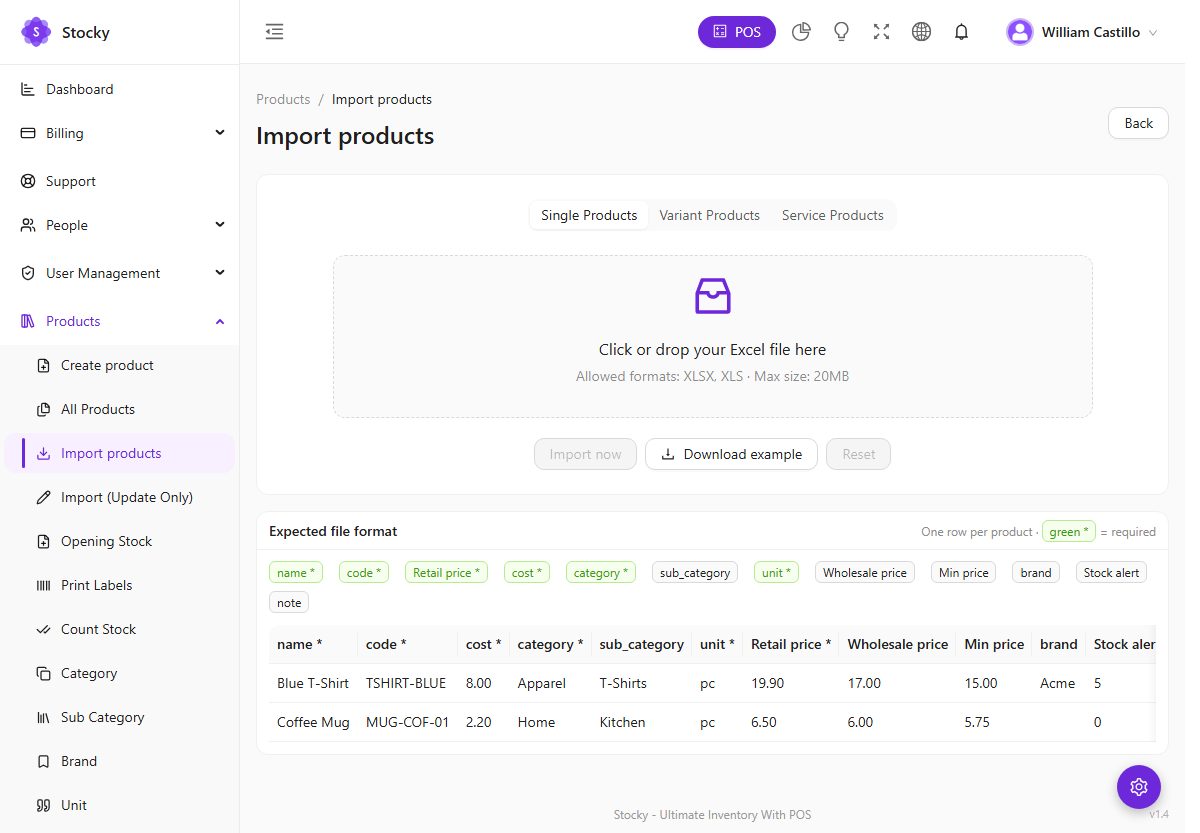
| Import | Where | Notes |
|---|---|---|
| Products | Products → Import products | Three tabs — single, variant and service products — each with its own template (.xlsx). Category, brand and unit are matched by name and created when missing. |
| Products, update only | Products → Import (Update Only) | Matches existing products by code and patches price, cost and stock. Never creates a product — safe for a supplier price list. |
| Opening stock | Products → Opening Stock | Code, warehouse and quantity, for single products and for variants. Recorded as an opening adjustment so the movement history starts cleanly. |
| Customers, suppliers | People → Import Customers / Import Suppliers | Name, email, phone, address, tax number, opening balance. |
| Sales, purchases | Sales → Import Sales, Purchases → Import Purchases | CSV with one row per line item; the reference groups rows into a document. For migrating history from another system. |
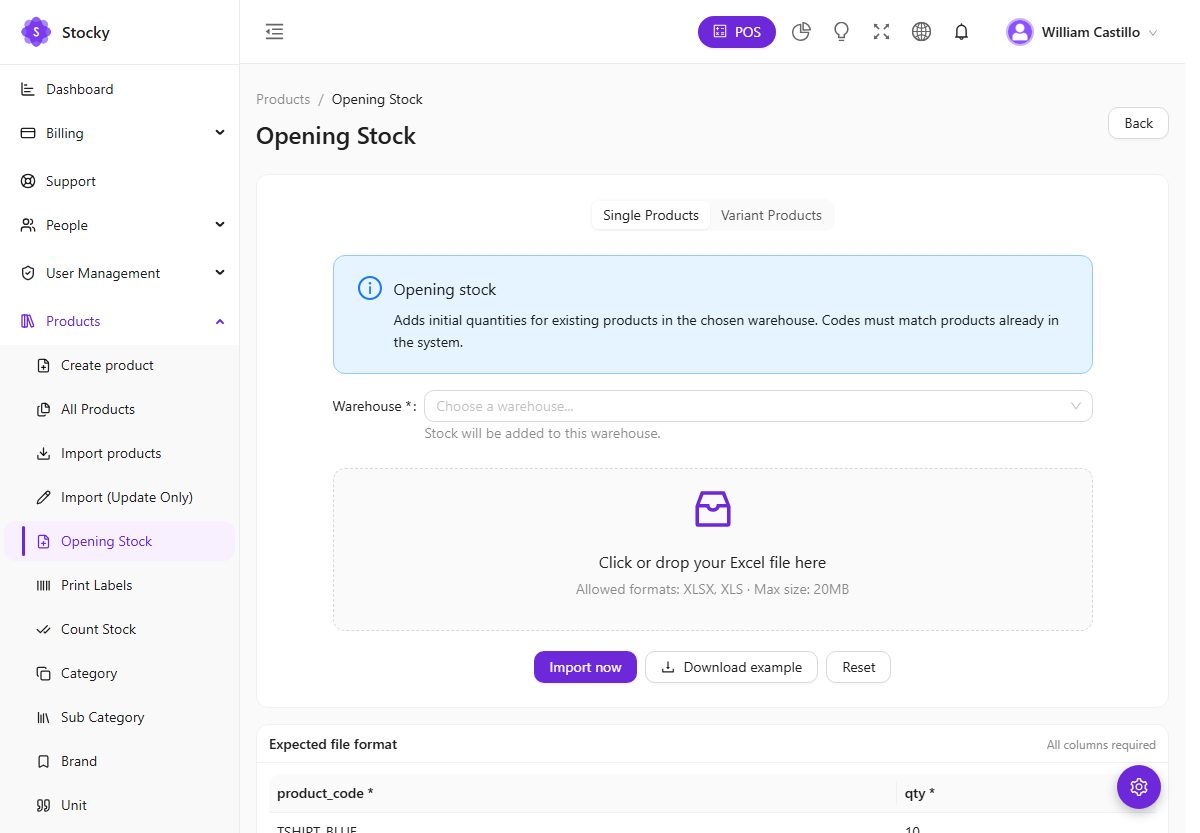
Import in this order: categories, brands and units by hand; then products; then opening stock; then customers and suppliers; then history if you want it. Product codes must be unique — a duplicate code is the most common rejected row.
Barcode labels
Products → Print Labels. Pick products (or a whole purchase), set a quantity per product, choose a label template and what prints on it — shop name, product name, price, barcode number — and print. The preview is true to size.
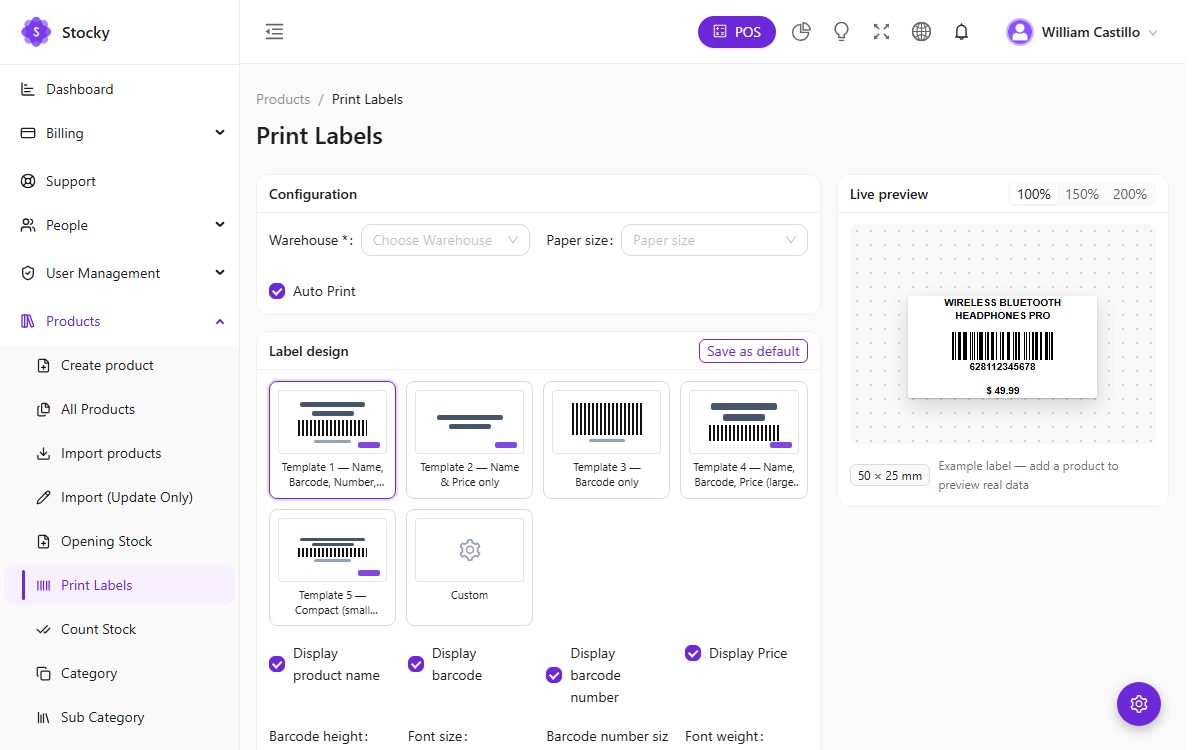
Labels go to a normal printer as a sheet, or directly to a TSPL label printer over USB or the network. Products without a barcode of their own are printed with their product code, which the POS scanner reads just the same. GTIN, EAN and the other formats are supported and sync to WooCommerce.
Batches & expiry
For food, pharmacy, cosmetics and anything with a shelf life. Turn batch tracking on in System Settings → Pharmacy and per product; from then on every purchase line asks for a batch number and an expiry date, and stock is kept per batch.
Sales allocate first-expiry-first-out: the POS takes from the batch that expires soonest. Expired or quarantined batches are skipped unless the user holds the override FEFO / sell quarantined permission, and block expired sale can refuse them outright. The Expiry report lists what expires in the coming days by warehouse; the Batch Register report shows where each batch went.
Serial numbers
With the Track serial number / IMEI switch on (Feature switches) a product can require one serial per unit. Receiving a purchase asks for the serials; selling asks you to pick which units leave; returns bring a specific unit back. Phones, laptops, appliances, tools with a warranty.
Four reports cover them: Available Serial Numbers, Sold Serial Numbers, Serial Movement Log and Product Serial Inventory. The Warranty & Guarantee report combines the serial with the product's warranty period to show what is still covered.
Count, adjust, transfer, damage
Four operations move stock without a sale or a purchase. Each is a document with a date, a warehouse, lines and a note, and each shows up in the product's movement history and in its own report. Transfers need the Stock transfers module in your plan.
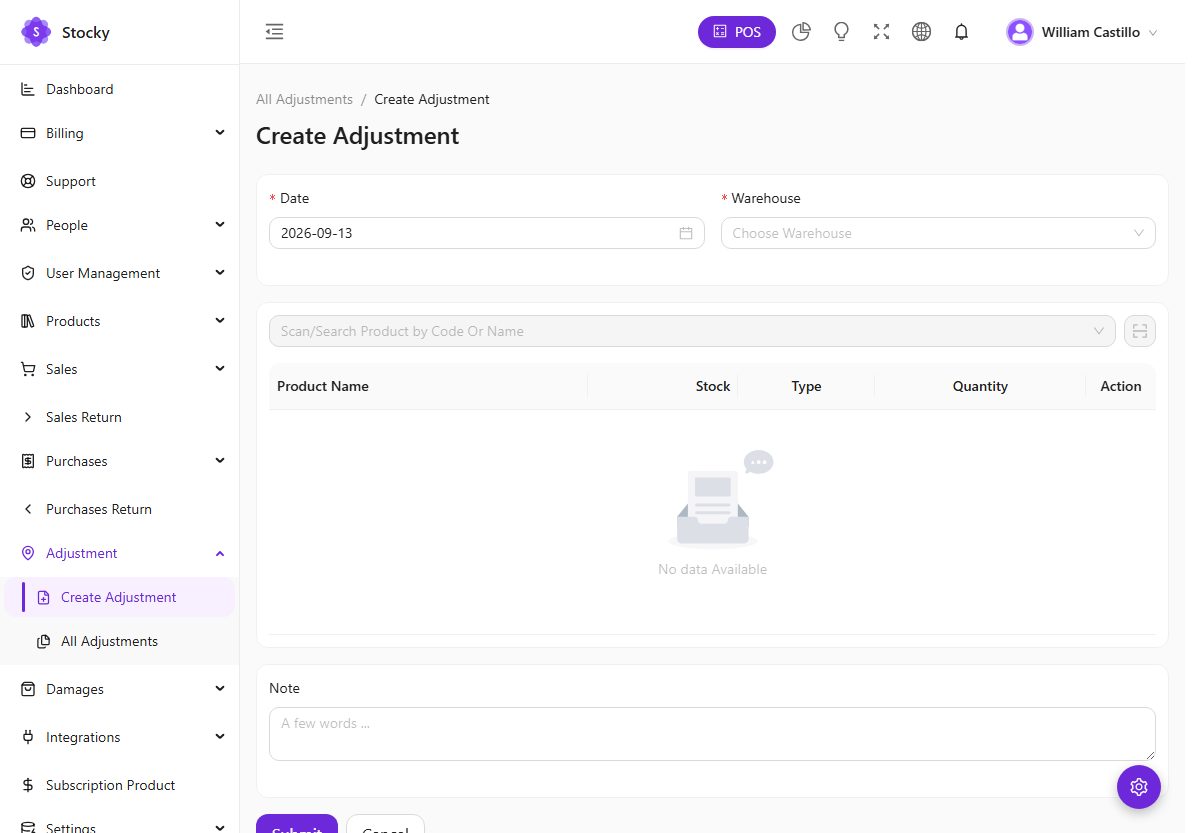
| Operation | Where | What it does |
|---|---|---|
| Count stock | Products → Count Stock | Generates a downloadable count sheet for a warehouse (and optionally a category) with the system quantity on a given date, to be counted on paper or a tablet. Enter the differences as an adjustment. |
| Adjustment | Adjustment | Adds or subtracts a quantity per product with a reason: found, lost, sample, correction. The Stock Adjustment report totals them. |
| Transfer | Transfers | Moves quantities from one warehouse to another, with a status (pending, sent, completed) and an optional shipping cost. Stock leaves the source at once and arrives when completed. |
| Damage | Damages | Writes off broken or unsellable units with a note and a value, so the loss is visible in the reports rather than hidden in an adjustment. |
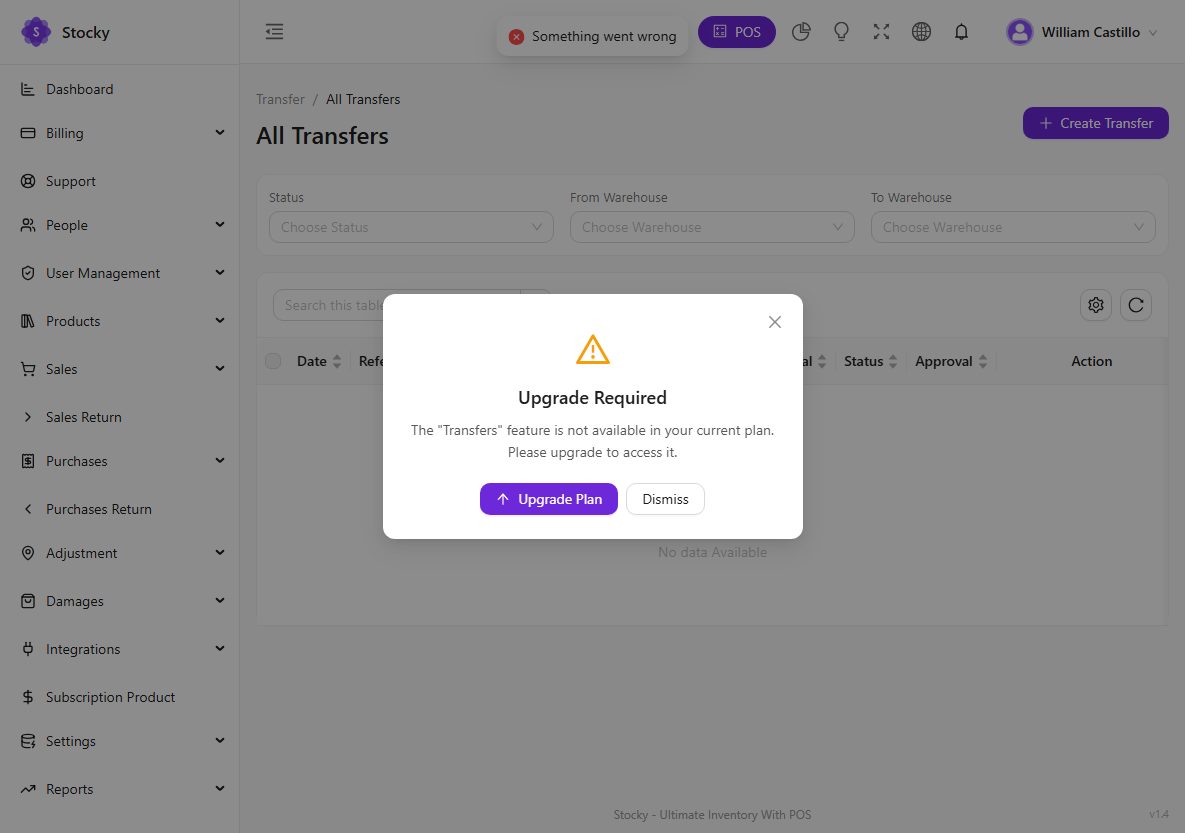

The Negative Stock, Quantity Alerts, Dead Stock, Zero Sales, Stock Aging and Inventory Valuation reports are the places to look for what needs counting, reordering or clearing.
The register
The purple POS button in the header opens the register full-screen. It is built for a touch screen and a scanner: large product tiles with image, code, stock and price; category and brand filters; a search box that also takes a scanner; and a cart on the left with a running total. It is part of every plan.
Opening the register
With registers enabled, the top-left pill reads CLOSED until you open one. Press it, enter the opening float, and the register is yours for the shift. Every sale, payment and hold is stamped with the register and the cashier. At the end of the shift press the pill again, enter the counted cash and a closing note, and the Cash Register report shows the float, the cash sales, the counted amount and the difference — per register and per cashier.
Warehouse and customer
The warehouse chip picks which stock you are selling from — the POS opens on the default warehouse from System Settings, limited to the warehouses your user may see. The customer chip defaults to walk-in-customer; search for a named customer to attach the sale to their ledger, or press the person-plus icon to create one without leaving the screen.
Building the cart
- Tap a tile or scan a barcode. A USB or Bluetooth scanner types into the search box; the scan icon opens the phone or tablet camera as a scanner (HTTPS required). A weight-embedded barcode from a scale adds the product with the weight as the quantity.
- Variants ask which one; batch products allocate first-expiry-first-out; serial products ask you to pick the unit; packs ask single, 6-pack or case.
- Each line has a quantity, a unit, a per-line discount, a tax and a price level — Retail or Wholesale. With wholesale tiers on, the price drops itself when the quantity reaches a tier and the line says so.
- Below the lines: an order tax, an order discount, shipping, a promo code box and the promotions that apply.
- Hold parks the sale under a reference so you can serve the next person and recall it; Recent Drafts lists what is parked. Drafts survive a page reload and, with offline mode, a lost connection.
- A sale can also be saved as a quotation and turned into an invoice later, and a return can be processed from the register against an earlier sale. The built-in calculator is a tap away.
Live sales counter
Sales → Real-time Sales Counter is a board for a back-office screen: the count and value of today's sales, refreshed by polling every few seconds with a chime when a new sale arrives. It needs no websocket server.
Taking payment
Pay Now opens the payment screen. The total is pre-filled; pick a method and press Complete Payment, or split it.
- Split payments. Add Payment Method adds a second line — part cash, part card, part bank transfer. The breakdown on the left shows what is paid, the balance and the change.
- Quick cash. The buttons on the right enter the exact total or a round note; the change is computed.
- Partial payment and credit. Pay less than the total and the sale is saved as partial with a due balance on the customer's ledger. A customer with a credit limit cannot go past it. Pay due on the sales list settles it later.
- Card through Stripe. With keys in Settings → Payment Gateway, the card method charges through Stripe from the register.
- Kitchen routing. With the kitchen display on, the sale can be sent to the kitchen, saved without sending, or sent later.
- Overselling control. The System tab decides whether a line may exceed the stock on hand or is refused.
Completing the payment saves the sale, moves the stock, posts the journal (if auto journals are on), prints the receipt (if auto-print is on) and, if a cash drawer is configured, kicks it open.
POS settings & receipts
Settings → POS Settings decides how the register behaves; Settings → POS Receipt decides what it prints.
| Setting | What it does |
|---|---|
| Invoice format | Thermal prints the receipt layout on roll paper; A4 prints the full invoice. |
| Auto-print receipt | Prints as soon as a sale completes instead of waiting for the button. |
| Enable hold sales | Shows or hides the Hold button and the drafts list. |
| Cash drawer auto-open | When a sale completes with cash, sends an ESC/POS pulse to the receipt printer named here, which kicks the drawer connected to it. Requires QZ Tray running on the cashier's computer. |
| Direct network printing | Sends receipts straight to a printer at an IP address and port (usually 9100), bypassing the browser dialog. Good for a tablet till with a shared printer. |
| Barcode scanning sound | A beep on every successful scan. |
| Products per page, show categories | How many tiles load at once and whether the category filter appears. |
| Keyboard shortcuts | The switch and the cheat sheet — see Keyboard shortcuts. |
The receipt
Paper size (58, 80 or 88 mm); the layout; logo and its size; font family and size; and which blocks print: the customer, the tax breakdown, the previous dues and net balance, a note to the customer, the expiry date of batch products, and — with ZATCA phase 1 or FBR on — the QR code those receipts require.
Printing
| Method | When to use it |
|---|---|
| Browser print | The default. Works with any printer the operating system knows; the dialog appears each time unless the browser is set to skip it. |
| QZ Tray | A small free program on the cashier's computer. Prints silently, raw ESC/POS, and kicks the drawer. Install it, allow the site once, and set the printer name in POS Settings. |
| Network printer | A receipt printer with an Ethernet or Wi-Fi port. The server sends the job directly; nothing to install on the till. The platform server must be able to reach the printer's IP, so this suits a printer with a public or VPN address. |
| Label printer | TSPL printers over USB or the network take the barcode sheets without a dialog. |
Keyboard shortcuts
Turn them on in Settings → POS Settings; the switch is per device and saves as soon as you flip it, so a touch till can leave them off while the counter PC has them on. Press Shift + ? on the register for the cheat sheet; the same list is under View Shortcuts in POS Settings.
The shortcuts cover what a cashier does a hundred times a day: focus the search or scan box, open the payment screen, complete a cash payment, hold the sale, open the drafts, clear the cart, change the customer, open the drawer and close the register. They are ignored while you are typing in a form field, except the function keys and Esc, so a barcode typed by a scanner is never misread as a command.
Offline mode
The register keeps selling when the internet does not. Switch it on with offline sync in Settings → System Settings → Maintenance.
-
The register caches
While online, the POS keeps a copy of the catalogue and the customers in the browser, and refreshes it as you work. The status pill bottom left reads Online · synced.
-
The connection drops
The pill turns red and reads Offline. Tiles, search, the cart, holds and drafts keep working from the cache. Sales you complete are queued in the browser with their payments, and the pill shows how many are waiting.
-
It comes back
The queue uploads itself, oldest first; each sale gets its reference and moves the stock as if it had been taken online. If a queued sale is refused — a product deleted meanwhile, say — it stays in the queue with the error so nothing is silently lost.
What offline cannot do. Opening or closing the register, card payments through Stripe, kitchen tickets, customer-display updates and anything that needs the server to answer. Stock figures on the tiles are as of the last sync, so two offline tills can both sell the last unit. The queue lives in that browser's storage — do not clear site data while sales are waiting.
Customer display
A second screen facing the customer — a tablet on a stand, a monitor, an old phone — that mirrors the cart as the cashier works: the lines, the totals, and a thank-you when the sale completes. It is a web page, so any device with a browser will do.
-
Generate a token
Sales → Customer Screen → Generate New Token. The page shows the display URL —
/customer-display?token=…on your workspace's domain — and a QR code for it. -
Open it on the display device
Scan the QR or type the URL. The page installs as a PWA and runs full-screen. It supports light and dark themes and needs no login — the token is the credential.
-
Sell
The display updates as items are added. Tokens expire after 24 hours; generate a new one to rotate access, and the old link stops working at once.
If the display does not connect, check that the device uses the full URL including the token. If items stop updating, make sure the POS is still open on the cashier's side — the display shows the last cart the register broadcast.
Kitchen display
For restaurants, cafés and anywhere an order is prepared after it is taken. Switch it
on under Feature switches; the POS then offers Send to
Kitchen on every sale and the kitchen display opens at /kitchen-display
for users with the kitchen permissions.
- Tickets carry the items with special instructions, the customer and the source (POS or online). Start preparation, check items off one by one, Mark completed. A ticket whose sale was deleted shows Voided.
- Kitchen mode is full-screen for a wall-mounted TV; chits print at 72 mm.
- Online orders can create a ticket when confirmed.
Sales
Sales → All Sales. Every invoice, from the POS or from the back office, in one list: date, reference, customer, warehouse, status, grand total, paid, due, payment status and shipping status. Filter by any of them, export, and act from the row — Pay due, print, PDF, email, SMS, WhatsApp, edit, return, delete.
Creating a sale in the back office
The form is the POS in a page: customer, warehouse, date, lines with discount, tax, unit and batch or serial, an order tax, discount and shipping, a status (pending, ordered, complete), a sales agent, a note, and a payment you can record at once. Stock moves when the sale is completed. With multi-currency on, pick the sale currency and the base-currency equivalent shows alongside.
The sale page
Payments are recorded against the sale with a date, a method and an account; each one updates the paid and due figures and the customer's ledger. Attach a file — a signed delivery note, a purchase order from the customer — under documents. Email, SMS and WhatsApp use the templates from Settings, merged with the sale.
Quotations
Quotations (a plan module). A priced offer that moves no stock. Same form as a sale; same lines; a status of pending or sent. Print or PDF it, email it, and when the customer agrees press Create sale — the quotation's lines become a sale in one click, and the quotation is marked as converted.
Shoppers can send a quote request from the store for service products; it arrives under Store → Quote Requests and is answered with a quotation.
Returns
A return is always against an original document, so the stock, the money and the reports agree on what came back.
- Sale return — from the sale's row or page, or from the POS. Pick the lines and quantities coming back (a serial product asks which unit); stock returns to the warehouse; the refund is recorded as a payment on the return, by any method, or left as a credit on the customer's ledger.
- Purchase return — the mirror image, against a purchase, with the supplier's refund recorded the same way.
- Store returns — shoppers request a return from their account within the return window; you approve it under Store → Returns Requests and it becomes a sale return.
The Return Ratio report shows what comes back most, by product and by customer.
Shipments
Sales → Shipments. One shipment per sale that needs delivering: the carrier, a tracking number, the delivery address and a status — packed, shipped, delivered, cancelled. The shipping status shows on the sale and on the sales list, and the store's customer account shows it to the shopper.
Suppliers & purchases
People → Suppliers holds who you buy from — name, contact, tax number, address, opening balance — with a detail page listing every purchase, return and payment. Purchases is how stock arrives with a cost behind it. The plan may cap the number of suppliers.
Receiving a purchase
Supplier, warehouse, date, lines with the unit cost, the purchase unit, a discount and a tax; per line a batch number and expiry for batch products and the serials for serial products; an order tax, discount and shipping. The status is pending, ordered or received — stock moves when it is received. Record the supplier payment at once or later from the row. A purchase can also open the label printer for everything it contains.
The product's cost is what you paid; Inventory Valuation uses it, and the profit reports subtract it from the sale price. Purchases can be imported from CSV to bring in history; see Importing.
Customers & ledger
People → Customers. Name, email, phone, address, tax number, an opening balance and a credit limit. The POS creates them on the spot; the store creates them when a shopper registers; the import brings them in bulk. The plan may cap how many you hold.
The ledger
Every invoice, return and payment for a customer on one statement, with the opening balance, the sales due, the returns due, the payments and the outstanding total. Download PDF produces the statement you send them. Pay due takes a payment against the oldest open invoices. The credit limit — No limit by default — stops the POS and the sale form from going past it.
Two further lists under Store split customers by store access: Customers with Login can sign in to the online store; Customers without Login cannot. The Client Portal link under People opens the portal itself.
Client portal
A separate front door at /portal on your workspace's domain for business
customers — the ones who buy on account and want their invoices and statement without
phoning. It is not the online store: no cart, no checkout, no catalogue.
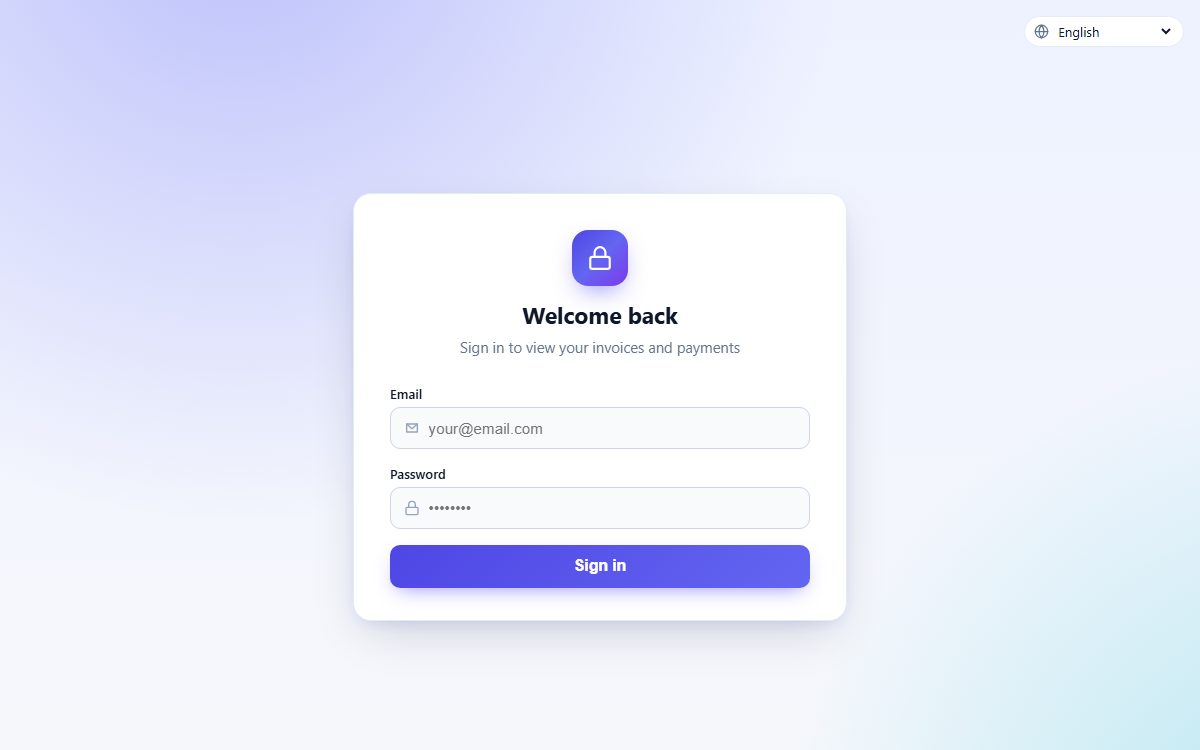
Inviting a customer
People → Customers. Open the row's actions and choose Portal Client. Confirm the email address the invitation goes to and press Enable: an email with a set-password link is sent, and until they use it the customer shows as invitation pending. Disable revokes access without deleting anything.
| Portal page | What the client can do |
|---|---|
| Dashboard | Outstanding balance, recent invoices and payments. |
| Invoices | Every sale, with status, paid and due, and a PDF of each. |
| Payments, Statement | Payments received and the running statement. |
| Profile | Change the password and switch language. |
The portal installs as a PWA on a phone and follows the languages you enable.
Promotions & commissions
Promotions
Promotions (a plan module). Rules that apply themselves at the POS checkout: a percentage or a fixed amount off, on chosen products, categories or the whole cart, within a date range, optionally behind a promo code, with a usage limit. The register lists the promotions that matched; the Discount Summary report shows what they cost.
The online store has its own coupons and flash sales; they are separate from POS promotions on purpose, because a web coupon and a counter promotion rarely have the same rules.
Commissions
Commissions (a plan module). For salespeople paid on what they sell. A program sets the rule — a percentage of the sale, of the profit, or a fixed amount per line — and which products it covers; agents are the users or employees in it; rules add tiers and exceptions. Every sale with a sales agent accrues, receipts record what was paid out, and the report reconciles the two.
Setting up the store
The online store sells the products you mark visible, from the warehouses you choose,
with the same prices, stock and customers as the counter. It comes with the
Online store module of your plan and lives at /online_store on your
workspace's domain — shop.yourdomain.com/online_store, or your own domain
once the platform has verified it. Configure it from Store → Settings.
-
Basics
Store name, the theme, the warehouses it sells from (or all), the default language and the display currency. Online store enabled is the master switch; off, the storefront answers with a closed page.
-
Stock and prices
Show stock or not, hide out-of-stock products, allow or prevent overselling, show or hide categories, and hide prices for guests — a wholesale catalogue that shows prices only after sign-in.
-
Registration
Public registration on or off; require an invite code with a referral, admin approval, email verification, or any combination. See Customer accounts.
-
Returns and reviews
The return window in days, whether shoppers may cancel unshipped orders, and whether reviews publish at once or wait for moderation.
-
Make products visible
A product appears in the store only when its online store switch is on. Set it per product, or in bulk from the product list.
Real estate
With the Real Estate theme the store becomes a listings site: Store → Real Estate holds properties (for sale or rent, price, beds, baths, area, photos, map), their categories and the inquiries the form sends. Products and the cart are not used.
Themes
Five themes on one catalogue. Switching is a dropdown in Store → Settings → Basics; each theme has a tab of its own for the blocks it draws, and every theme shares the same product page, cart, checkout and account.
Default
Collections and homepage blocks you arrange yourself: hero, best sellers, you may like, newsletter.
Electronics
Hero slider, promo banners, category tiles, top picks / best rated / on sale tabs, brand row, testimonials. For electronics, PC and laptop stores.
Toys & Baby
Playful palette, four promo tiles, a welcome coupon bar.
Grocery
Delivery-time badge, weekly deals with a countdown, category circles, popular-now row, aisles.
Real Estate
Listings with sale/rent, price, beds, baths, area, a map and an inquiry form. No cart.
Each theme tab holds its own slides, tiles, banners, section headings, featured products per tab, deals and testimonials. What you fill in for Electronics is kept when you try Grocery, so switching back loses nothing.
Collections, banners, pages & menus
Everything a shopper sees that is not a product is managed under Store.
| Page | What it is for |
|---|---|
| Collections | Named groups of products — New arrivals, Gifts under 20, Summer — with an image and a slug. The Default theme's home page is built from them; every theme offers them as a filter. |
| Banners | Images with a title, a link and a position for the hero and promo slots. |
| Pages | Static content — about, delivery, terms, privacy — with a rich-text editor, translations per language and a slug at /pages/…. |
| Menus | The header and footer navigation: links to pages, collections, categories or any URL, in the order you drag them. |
| Popup messages | A one-time announcement or newsletter prompt, with a schedule. |
| Product reviews | Ratings and text left by verified buyers; approve, reply or hide. Auto-approval is a store setting. |
| Subscribers, Messages | Newsletter sign-ups from the footer form, and what the contact page sends. |
Shipping, tax & payment
Checkout quotes are computed on the server from these three lists, so the shopper's total is the same one that lands on the sale.
- Shipping methods carry a name and a price — Standard, Express, Pickup in store — and are offered everywhere unless you restrict one to a list of countries. When no shipping is configured the checkout does not ask for a delivery address.
- Tax rates apply by zone at checkout; product-level tax from the catalogue still applies to the POS.
- Coupons are codes with a percentage or fixed value, a minimum order, a validity period and a usage limit. Flash sales put chosen products on a timed discount with a countdown on the store's flash-sales page.
Payment gateways
| Kind | Methods | Notes |
|---|---|---|
| Offline | Cash on delivery, cash on pickup, bank transfer, mobile money, GCash | No keys. Bank transfer shows your account details; you confirm the order when the money arrives. |
| Card & wallet | Stripe, PayPal, Paystack, Flutterwave, Razorpay, XPay | Public and secret keys, an optional webhook secret, and a sandbox switch for testing. The order is marked paid when the gateway confirms. |
| Regional | bKash, SSLCommerz, PayFast, LigdiCash, Dodo Payments, WaafiPay | Bangladesh, South Africa, West Africa, Somalia and global alternatives, each with its own credential set. |
Orders & requests
Store → Online Orders. A web order is a sale with a source of online: it appears here and in Sales, moves stock from the store's warehouse, and can be shipped, returned and refunded like any other. Confirm it, set the shipping status, print the invoice; with the kitchen on, confirmed orders can become tickets. The sidebar badge counts what is new.
| Page | What arrives there |
|---|---|
| Returns requests | A shopper's request to return or cancel, from their account, within the return window. Approve to create a sale return; refuse with a reason. |
| Quote requests | A shopper's request for a price on a service or quote-only product. Answer with a quotation. |
| Messages | The contact form. |
| Product reviews | Ratings awaiting moderation. |
| Pending customers | Registrations awaiting your approval, when approval is required. |
Customer accounts
A shopper can check out as a guest or with an account. The account is the same customer row the POS and the ledger use.
Who may register
Store → Settings → Basics → Registration access control. Four switches that combine:
- Public registration — anyone may create an account. Off, only accounts you create in the admin can sign in.
- Require an invite code — codes you issue under Store → Invite Codes, each with a usage limit and an expiry. For a members-only or trade-only shop.
- Require admin approval — new accounts wait under Pending Customers until you approve them.
- Require email verification — a link is emailed and must be clicked before the first sign-in.
In their account a shopper sees their orders with the invoice PDF and tracking, can request a return or cancellation within the window, review what they bought, and keep their address. Sign-in, registration and password reset pages live under the store's address.
Branding, SEO & PWA
Store → Settings → Branding, Contact, SEO, Social. Logo and tagline, favicon, primary and secondary colours, font family, whether shoppers get a dark-mode toggle, the top bar and footer text, contact details, social links, and the cookie-consent banner.
SEO: a title template, a default description, per-product and per-page
SEO fields, and an automatic sitemap.xml. Languages and
currency: the store switcher offers the languages enabled in Settings and shows
prices in the display currencies you enable; orders are still recorded in the base
currency unless multi-currency is on.
PWA: Settings → PWA holds the name, icons and colours for each installable surface — the admin, the store, the customer display and the portal. On HTTPS the store shows an install prompt and works as an app on a phone's home screen. Icons are generated from your logo when the workspace is provisioned and whenever you change it.
Accounts, deposits & expenses
The simple books most shops start with, under Accounting (a plan module). They work with or without the double-entry ledger described in the next section.
| Page | What it records |
|---|---|
| List accounts | The till, the bank, the mobile-money float — each with a number, an opening balance and a running balance moved by every payment, deposit, expense and transfer that names it. |
| Deposits | Money in that is not a sale: an owner's injection, a refund from a supplier, interest. Categorised under Deposit Category. |
| Expenses | Money out that is not a purchase: rent, wages, electricity, fuel. A category, an account, a date, an amount, a note and a receipt attachment. The Expense Report totals them by category and period. |
| Transfer money | Moves a balance between two accounts — banking the till, funding the float. |
The Cash Flow report reads all four together with sales and purchase payments to show what came in and went out of each account over a period.
Accounting
Accounting → Dashboard, Chart of Accounts, Journal Entries and the financial reports. Proper double-entry books that post themselves: with the auto journal entries switch on (Feature switches), every sale, purchase, return, payment, expense, deposit and money transfer writes a balanced journal against the chart of accounts. Nothing has to be keyed twice.
Chart of accounts
A standard chart is created for you — cash and bank, receivables, inventory, payables, sales, cost of goods sold, expense accounts, tax accounts. Rename, renumber or add accounts to match your accountant's chart; the automatic journals map onto the accounts you mark for each purpose.
Journal entries
Automatic journals are posted as the document is saved and carry its reference. Manual journals — an accrual, a depreciation charge, an owner's drawing — are entered as draft, must balance, and are posted when you are sure. Posted journals are not edited; reverse them with a new entry.
The statements
Trial balance, profit and loss, balance sheet and tax summary, each for any period, each exportable to Excel and PDF. If you began trading before turning the switch on, the journals for existing documents are not created retroactively — post an opening-balance journal as of the start date instead. QuickBooks and Xero can take the invoices and payments if your accountant works there.
Multi-currency
Off by default. Turn it on under Feature switches, then give each currency in Settings → Currencies an exchange rate against the base currency. From then on a sale, a purchase or an online order can be recorded in another currency: the document keeps its own currency, rate and totals, and the base-currency equivalent is shown alongside and used everywhere else.
Rates are manual — you type them and update them; nothing is fetched. Reports, stock valuation, the ledger and the accounting journals stay in the base currency, so a euro sale and a dollar sale add up in one figure. The store's currency switcher is a separate, display-only feature that works even with this switch off. The currency you pay your subscription in is the platform's, not this one.
ZATCA & FBR e-invoicing
Two national e-invoicing schemes, each a plan module with its own settings page.
ZATCA (Saudi Arabia)
- Phase 1. One switch: Enable ZATCA QR on sales receipts. Every receipt then carries the TLV QR code with the seller name, VAT number, timestamp, total and VAT. Fill in the company's Arabic name and VAT number first.
- Phase 2. Company details (VAT number, CRN, national address, business category), the EGS unit details, the environment — sandbox, simulation or production — and onboarding with the OTP from the ZATCA portal, which generates the CSR and runs the compliance checks. Once onboarded, sales are reported or cleared with ZATCA; auto submit does it as each sale is created, otherwise submit from the Documents tab, which lists every invoice, credit note and debit note with its status and ZATCA's messages.
FBR (Pakistan)
Settings → FBR E-Invoicing. The seller's NTN and registration details, the FBR token and environment, and the product-level fields (HS code, tax rate) the scheme needs. Sales are submitted to FBR's digital invoicing service and the receipt prints the FBR invoice number and QR code.
Changing the ZATCA environment resets the credentials and requires onboarding again. Test in the sandbox with a test OTP before touching production.
Company structure
The HRM module (a plan module) starts with the shape of the organisation, under HRM:
| List | Notes |
|---|---|
| Companies | One or more legal entities; employees belong to one. |
| Departments, Designations | The org tree and the job titles. |
| Office shifts | Working hours per weekday. Attendance is measured against the employee's shift. |
| Holidays | Public holidays per company; attendance and leave skip them. |
| Leave types | Annual, sick, unpaid and so on, with the days allowed per year. |
Employees, attendance & leave
Employees carry personal details, the company, department, designation and shift, the joining date, documents with expiry, and the basic salary the payroll starts from. An employee may or may not be a system user — a warehouse picker without a login is still on the payroll and does not count against the plan's user limit.
Attendance is a row per employee per day: clock in, clock out, the hours and whether they were late against the shift. Enter it by hand, import it, or let staff record it. The Attendance Summary report totals days, hours and lateness per employee for a month.
Leave requests name a type, a period and a reason, and wait for approval. Approved leave counts against the type's allowance and shows on the attendance grid.
Payroll
HRM → Payroll. A payroll entry is a payment to an employee: the employee, the date, the amount (pre-filled from the basic salary on their record), the account it is paid from, the payment method, a reference and a status. The list is the record of what was paid to whom and when, filterable by month and exportable. Stocky does not compute income tax or social contributions for you, because those differ by country and year — enter the net amount you actually pay.
Because a payroll names an account, it moves that account's balance and reaches the cash-flow report; with auto journals on it is posted to the ledger as well.
Recruitment & meetings
Two small modules of their own, each switched on by the plan.
Recruits and Jobs: job openings by category, candidates, their applications with a status, interviews with a date and an interviewer, and a report of the funnel. Meetings: a meeting with attendees, an agenda and a time, on a calendar, with reminders sent by the platform's scheduler and a report of attendance.
Projects & tasks
Projects Management. Projects with a client, a budget, dates and members; tasks with an assignee, a priority, a due date and a status, in a list or on a drag-and-drop board; milestones; timesheets of hours per task; and reports of hours and progress per project.
Bookings
Booking Management. Appointments and reservations: a customer, a service or a resource, a date and time, a status and a note, in a list and on a calendar. Trays hold the items prepared for a booking — a hamper, a cake, a hire kit — so the shop knows what to have ready. With the Google Calendar connection in System Settings, bookings appear in a Google calendar too.
Service & maintenance
Service & Maintenance. For repair shops, phone and computer clinics, appliance servicing, workshops. A service job is a device or an item brought in by a customer, and it moves through a fixed path:
intake → diagnostic → quoted → in progress → ready → delivered
- Technicians are the people work is assigned to; checklist categories and items are the inspections a technician ticks off — the Checklist Completion report shows how thoroughly.
- A job carries the parts used (from stock) and the labour (service products), a quote the customer approves, photos, a warranty period and the payments.
- Maintenance history lists every job per customer and per item, so the second visit starts with the first one's notes. The Service Jobs and Customer Maintenance History reports cover turnaround and revenue.
Subscription products
Subscription Product. Recurring sales of a product or service to your own customers: a customer, the product, a billing cycle (weekly, monthly, yearly), a start date and the next billing date. Each cycle produces a sale; the list shows what is due next and what has lapsed. For water deliveries, maintenance contracts, memberships and software seats. Not to be confused with your own subscription to the platform, which is under Billing.
Manufacturing
Manufacturing (MRP). For businesses that make what they sell. A bill of materials lists the components and quantities that make one unit of a finished product; a production order asks for a quantity of it, reserves the components, and on completion consumes them from stock and adds the finished goods. Work centres are the machines or stations; the shop floor page is the work orders in progress; quality control records inspections and rejects; planning compares demand with stock and open orders to say what to make and buy; the reports cover output, cost and yield.
Assets & fleet
Asset Management: the things the business owns and does not sell — laptops, tills, tools, furniture — by category, with a purchase date and value, verification dates, and a Due Assets list of what needs checking. A daily scheduled task flags assets whose validation is due and notifies by email and in-app, using templates you can edit.
Fleet Management: vehicles with registration and documents, fuel logs with cost per litre and consumption, maintenance with reminders, assignments to drivers, and reports of cost per vehicle.
Documents, contracts & knowledge base
- Document Archive — folders and files with versions, tags and access by role: licences, certificates, supplier agreements, scanned invoices.
- Contracts (under HRM) — an agreement with a customer or an employee: parties, value, start and end dates, renewal, attachments.
- Knowledge Base — the how-to articles the platform publishes for every workspace, read here with a search and grouped by category; leave feedback on an article to tell the platform whether it helped.
Marketing
Marketing. Campaigns by email, SMS or WhatsApp to a customer segment — everyone, top spenders, inactive for 90 days — using a template with placeholders, sent now or scheduled. The dashboard and the reports show sends, deliveries and the sales attributed to a campaign. Templates for each channel and the gateway defaults live under Marketing Settings.
Scheduled campaigns are sent by the platform's scheduler every minute. WhatsApp sends count against the monthly message allowance of your plan. For large email lists connect Mailchimp and let it do the sending.
Hospital & school
Two vertical modules for businesses that also run a clinic or a school alongside the shop — a pharmacy with a consulting room, an academy with a bookshop. Both come with the plan and use the same customers, users and accounting.
Hospital Management: patients, doctors and departments, appointments, consultations, admissions with wards and beds, a lab test catalogue with orders, billing and reports. School Management: students, teachers, academic setup (classes, sections, subjects), enrolment, attendance, a timetable, exams and results, fees and reports.
WooCommerce
Ecommerce Platforms → WooCommerce (a plan module). Two-way sync between the workspace and a WordPress shop: products, stock, orders, categories, brands and customers. The workspace stays the source of truth for stock; WooCommerce sends the orders.
-
Create API keys in WooCommerce
WooCommerce → Settings → Advanced → REST API → Add key, read/write. Copy the consumer key and secret. For categories, brands and media you also need a WordPress application password for an administrator.
-
Connect
On the Settings tab enter the store URL, the consumer key and secret, the WordPress username and application password, and press Test connection. The status tile turns Connected.
-
Sync
Each tab — Products, Stock, Orders, Categories, Brands, Customers — shows what is unsynced and offers a push or a pull. Run categories and brands first, then products, then stock; orders pull on their own from then on. Batch sizes are tunable on the Settings tab.
Syncs run as background batches on the platform's queue, so a large catalogue keeps going after you leave the page. The Logs tab keeps every run with its outcome.
Shopify
Ecommerce Platforms → Shopify. One or more Shopify stores, each connected with an Admin API access token from a custom app in the Shopify admin. The Sync Centre pushes products and stock and pulls orders; Mappings pairs products, locations and customers with their Shopify counterparts when the codes differ; Logs keeps the history.
Salla, Jumia & PrestaShop
Integrations. The hub lists every connector with its state; each has a page of its own and each is a plan module.
| Connector | What it syncs | How it connects |
|---|---|---|
| Salla | Products, stock and orders with a Salla store (Saudi Arabia and the Gulf). | OAuth: press Connect, sign in to Salla, approve. The platform's daily keep-alive refreshes the token. |
| Jumia | Price and stock push, order import from the Jumia marketplace (Africa). | Seller Center API user and key. |
| PrestaShop | Products, stock and orders with a PrestaShop store. | The store URL and a webservice key. |
QuickBooks & Xero
If your accountant works in QuickBooks Online or Xero, push the books there instead of exporting spreadsheets.
- QuickBooks (Integrations → QuickBooks): create an app at developer.intuit.com, enter the client ID and secret, set the redirect URI shown on the page — it is on your workspace's domain — press Connect and authorise. Customers, invoices and payments are then pushed on demand.
- Xero (Integrations → Xero): the same OAuth flow with an app from developer.xero.com. Auto-sync pushes each new sale as it is created; the platform's daily keep-alive refreshes the connection.
Google Sheets, Mailchimp, Slack & Telegram
| Connector | What it does |
|---|---|
| Google Sheets | Exports sales, products, customers and stock to a spreadsheet you own. Connect with OAuth, pick the sheet, export on demand; opt in to the nightly auto-export the platform runs at 02:30. |
| Mailchimp | Pushes customers to an audience. Auto-sync adds each new customer as they are created. |
| Slack | Posts alerts to a channel through an incoming webhook: new sales, low stock, new online orders. |
| Telegram | The same alerts to a Telegram chat through a bot token and chat ID. |
| Google Calendar | Mirrors bookings into a calendar. Credentials in System Settings, then connect. |
| Stripe | Card payments on the POS (Settings → Payment Gateway) and in the store. |
WhatsApp & Zapier
WhatsApp (Integrations → WhatsApp): the provider and its credentials, Templates for invoices, payments, order confirmations and status updates — seeded from the platform's defaults, editable per language — and Message Logs of what was sent. Documents offer a WhatsApp button next to email and SMS. Sends count against the plan's monthly WhatsApp allowance; the settings page shows how much is left.
Zapier (Integrations → Zapier): generate an API key and paste it into the Zapier app; new sales, customers and products become instant triggers, and Zaps can create records back. Zapier is the route to the thousands of tools this guide does not name.
Webhooks
Integrations → Webhooks (a plan module). For systems this guide has not heard of. A webhook is a URL of yours that the workspace calls with a JSON payload whenever a chosen event happens, signed with a secret so your side can verify where it came from.
Events cover the documents: sale.created / updated / deleted,
sale_return.*, purchase.*, purchase_return.*,
expense.*, payment.created / deleted and the payment events for
purchases and returns, plus product.updated / deleted,
client.created and order.created / updated from the store. Each
delivery is logged with the payload, the headers, the response body and a status —
pending, retrying, success, failed — so a failed call can be read and resent.
Deliveries go through the platform's queue.
Dashboard
The first page after sign-in. A date range — today, 7 days, this month, this year or a custom period — and a warehouse filter at the top; everything below follows them.
- Tiles: sales, purchases, sales returns, purchase returns, dues, invoices, profit.
- Charts: sales and purchases over the period, top-selling products, top customers, payments sent and received, sales by payment method, stock value.
- Lists: recent sales and the products under their stock alert.
Which widgets show and in what order is set in System Settings → Dashboard — drag them there or on the dashboard itself — and the default range too, so a stock keeper can open on alerts and a manager on profit. The Today's summary drawer in the header is the short version, available from any page.
Reports
Reports. More than sixty screens, each the same shape: a date range with quick picks (today, 7 days, 30 days, 90 days, this year), a warehouse filter where it applies, a chart where one helps, a table, and Excel and PDF export. Reports default to today; pick a range first.
| Group | Reports |
|---|---|
| Sales & purchases | Sales, Purchases, Sales Return, Purchases Return, Product Sales, Products Sold Summary, Product Purchases, Sales by Category, Sales by Brand, Discount Summary, Draft Invoices, Return Ratio, Transactions. |
| Payments | Payments on sales, purchases, sales returns and purchases returns; Cash Flow; Cash Register. |
| Profit | Profit and Loss; profit by product, category, unit, customer, date and warehouse. |
| Stock | Stock, Warehouse, Quantity Alerts, Negative Stock, Dead Stock, Zero Sales, Stock Aging, Inventory Valuation (summary and detail), Stock Transfer, Stock Adjustment, Internal Location, Expiry, Batch Register, the four serial reports, Warranty & Guarantee. |
| People | Customers, Top Customers, Inactive Customers, Loyalty Points, Suppliers, Top Suppliers, Sellers, Users, Login Activity; per-customer, per-supplier and per-user detail reports. |
| Money | Expenses, Deposits, Tax Summary. |
| Modules | Attendance Summary, Service Jobs, Checklist Completion, Customer Maintenance History, and the reports inside each business module. |
| System | Error Logs — the workspace's application log, readable without a shell. |
Analytics, 3D & AI reports
Analytics is a one-page summary — revenue, margin, growth against the previous period, best sellers, best customers — for a manager who wants one screen. The 3D sales dashboard is the same data drawn for a wall screen.
AI Reports (a plan module) answers a fixed list of business questions — what sells best on weekends, which customers are slipping, which products are about to run out — from your own database. Nothing is sent to a third-party model and no API key is needed; the name describes the questions, not a chatbot. See Deliberately not here.
Email, SMS & notifications
Settings → Mail Settings. Mailer (SMTP), host, port, encryption, username, password, sender name and address — your own, not the platform's. Send a test before relying on it. Everything the workspace emails — invoices and quotations from a document, portal invitations, store verification and password resets, order confirmations — goes through this. Emails about your subscription come from the platform and are not affected.
SMS and WhatsApp
Settings → SMS Settings: Twilio, Termii, Infobip or a custom HTTP gateway (URL, method, parameter names), with the default gateway in System Settings. SMS Templates hold the text sent for a sale, a purchase, a quotation, a return and a payment, per language, with placeholders such as the customer name, the reference and the amount. Email Templates do the same for email, per language too. WhatsApp templates live under Integrations → WhatsApp.
In-app
The bell in the header collects stock alerts, new online orders, kitchen tickets, sync results, asset reminders and support replies. Slack and Telegram can receive the alerts too (see integrations). Settings → Custom Fields adds your own fields to products, customers, suppliers and documents, and they appear on the forms, the PDFs and the templates.
Languages & translations
Settings → Languages. Twenty-four languages ship with every workspace: English, French, Arabic, Turkish, Thai, Hindi, German, Spanish, Italian, Indonesian, Simplified and Traditional Chinese, Russian, Vietnamese, Korean and more. Enable the ones you want offered; set the default in System Settings. Arabic runs the workspace, the POS and the store right-to-left. The starting language of a new workspace is the platform's tenant default.
Strings live in your workspace's database, not in files, so Translations edits them from the panel: search a key or a phrase, type the translation, save. A language you add starts as a copy of English and is translated the same way. Product names and store pages can be translated per language for the storefront; the customer portal and the store each have their own language switcher.
Appearance & PWA
Settings → Appearance: the login page and sidebar branding, the accent colour picked from the palette, the sidebar style, the default theme mode, and the sidebar menu manager, which hides, renames and reorders entries for everyone (permissions and the plan still apply on top). Reset to default undoes it. Google Fonts can be chosen for the dashboard in System Settings.
Each user's own choice — light or dark, sidebar layout — is the gear button bottom right and is saved in their browser. Settings → PWA holds the install manifests described under Branding, SEO & PWA.
Backups
Settings → Backup. Generate backup dumps your workspace's database; the list shows every dump with its date and size, to download or delete. The platform takes its own dumps on a schedule as well, but a copy on your own disk is yours to keep.
Cloud backup copies each dump off the server: Amazon S3 (or any S3-compatible bucket — key, secret, region, bucket, endpoint, path) or Google Drive (client ID and secret, refresh token, folder ID).
The dump is your database only. Product images and attachments are stored on the platform in your workspace's own folder. There is no restore button in the workspace, on purpose: restoring overwrites everything. Ask the platform's support to restore a dump, or use it to migrate to a self-hosted Stocky.
System health & security
System Health: the platform version, the database size, storage usage, the queue status, the last backup date, and a PDF of it all for a support ticket.
Login Devices: every active session with its device, address and last activity; sign out any of them, or all but this one. The Login Activity report keeps the history. Passwords are reset from the login page by email; the storefront's request-safety middleware rate-limits and screens form submissions. Your data sits in a database of its own; nobody on the platform other than its support team, with an audited impersonation session, can see it.
Troubleshooting
For the platform owner
| Symptom | Cause and fix |
|---|---|
| A new subdomain shows the hosting provider's page or a certificate error | The wildcard DNS record, the wildcard on the virtual host or the wildcard certificate is missing. All three are needed for VPS mode; on shared hosting create the subdomain by hand before approving. |
| Provisioning fails with database access issue | The MySQL user cannot CREATE DATABASE. Grant it, or switch to shared-hosting mode and create databases yourself. The exact error is under Logs & System Health. |
| A paid registration stays processing | The gateway's webhook never arrived. Check the webhook URL and events in the gateway dashboard and that the server is reachable from the internet; then open the payment under Transactions and mark it paid to release the workspace. |
| Reminders are not sent; abandoned tenants are never cleaned up | The cron entry is missing. See Cron & queue. |
| Route [central.welcome] not defined, or the landing page shows the installer | The seal file storage/app/public/installed is missing. Recreate it (any content). |
| The panel or a workspace is blank after an update | The browser is serving old files. Hard-refresh, or Clear Central Cache under General Settings → System. |
| A tenant reports pages that answer 403 | The tenant is suspended or cancelled, or the daily cleanup suspended it after expiry. Reactivate it from the tenant page. |
| A tenant cannot open a module they paid for | The module switch is off on their plan, or their subscription is on a different plan than you think. Check Plan limits & features on the tenant page. |
| Emails are not sent | Settings → Mail Settings → Send test. Most hosts require the sender address to be on your own domain and port 587 with TLS. Tenants have their own mail settings for their own emails. |
Inside a workspace
| Symptom | Cause and fix |
|---|---|
| Every page redirects to Change Plan | The subscription has expired or is pending. Pay for a plan, or wait for the platform to approve a bank-transfer payment. |
| Limit reached when creating a product, customer or user | The plan's ceiling. Delete what you no longer need, or upgrade under Billing → Change Plan. |
| A module is missing from the sidebar | It is not in your plan, or your role lacks its permissions. Check Billing → Current Plan and User Management → Group Permissions. |
| Images do not upload or show | The file is larger than the upload limit, or the browser blocked it. Product images default to a maximum of 800 px unless resizing is off. |
| The camera scanner or the install prompt does not appear | The workspace is not on HTTPS. Browsers only allow both on a secure origin. |
| The POS says Offline while the internet works | The server is not answering the POS heartbeat — a firewall, a proxy timeout or platform maintenance. Check that the admin loads in another tab. |
| Receipts print with a dialog every time | That is browser printing. Use QZ Tray or direct network printing for silent printing; see POS settings. |
| The customer display does not update | The token expired (24 hours) — generate a new one — or the POS tab is not open on the cashier's side. |
| Stock differs between the store and the POS | The store sells from the warehouses chosen in Store Settings; the POS from the warehouse selected on the register. Compare the same warehouse. |
| WooCommerce shows Disconnected | Re-test the connection. The application password may have been revoked, or the WordPress site blocks the REST API for non-logged-in requests. |
| The wrong day on evening sales | The timezone in System Settings does not match the shop. Change it; existing documents keep their stored time. |
Deliberately not here
Every link in the panel and the workspace opens a real screen. A few things a system like this could plausibly do are absent on purpose, and this guide would rather name them than let you find out:
- No modules page inside a workspace. Which modules a tenant has is decided by the plan, in the panel. Tenants switch behaviour (kitchen, serials, batches, multi-currency) under Feature switches, not modules.
- No proration. A plan change is charged at the new plan's full price and starts a new period. Refunds are issued in the gateway and recorded by hand.
- No customer wallet or loyalty module in the workspace, and no wallet payments in the store.
- No native mobile app in this package. The workspace, POS, store, customer display and portal are installable PWAs.
- No AI model calls. AI Reports answers a fixed list of business questions from the tenant's own data. Nothing is sent to a third-party model, and no key is needed.
- No certificate issuance. The platform verifies a custom domain's DNS and reports SSL status; the certificate itself comes from Let's Encrypt on the server or from your proxy.
- No tax engine. Tax rates are what tenants enter. ZATCA and FBR cover Saudi and Pakistani e-invoicing only.
- No payroll tax tables, no live exchange rates, no bundled hardware, no restore button. The same deliberate absences as in Stocky.
Changelog
1.4
- Platform — Razorpay, PayFast, XPay, LigdiCash, WaafiPay, Dodo Payments, bKash, SSLCommerz, Paymob, Moyasar and MyFatoorah gateways; a blog module for SEO; Login as User impersonation with an audit log; a switch to disable the default landing page.
- Workspace — the admin rebuilt on Vue 3 and Ant Design; multi-currency; Pakistan FBR digital invoicing; Google Fonts; the document archive; manufacturing (MRP), projects, bookings, fleet, hospital and school modules; profit reports by product, category, unit, customer, date and warehouse and a products-sold summary; today's summary drawer; multi-sidebar; dark mode and RTL refined.
- Integrations hub — Salla, PrestaShop, Jumia, Xero, Google Sheets, Mailchimp, Zapier, Slack and Telegram; Xero auto-sync for new sales, Mailchimp auto-sync for new customers, nightly Google Sheets export, keep-alive for Salla and Xero; plan features and permissions for each.
- Online store — Electronics, Toys & Baby and Grocery themes; the Real Estate theme redesigned and the Default theme upgraded; product images by link.
- Reports brought level with the latest Stocky; per-tenant cache isolation fixed; background queue processing on shared hosting fixed.
1.3
- Urdu; SMS settings and SMS templates in the panel; per-plan module management.
- Workspace: show or hide categories in the store; ZATCA phase 2; Shopify two-way sync; promotions with full sales integration.
1.2
- Panel: default branding for new tenants; reserved subdomains; automatic subscription and trial reminders; the demo tenant generator; the support system; Mollie; per-language landing images; custom fonts; terms and conditions page; enable or disable languages.
- Workspace: batches and expiry; PWA; email and SMS templates per language; cash drawer through QZ Tray; direct network printing; custom SMS gateway; system health; drag-and-drop dashboard; real-time sales counter; internal locations; hide prices for guests; client portal; assets; commissions; knowledge base; multiple product images; Stripe and cash on delivery in the store; multi-category products; private registration with invite codes and approval; theme colour; POS shortcuts; overselling control; auto journal entries; webhooks; supplier opening balances; Google Calendar for bookings; the 3D sales dashboard; 3-decimal pricing; kitchen orders; POS returns; GTIN barcodes; recruitment, meetings and marketing modules; POS calculator; the Real Estate theme; serial numbers; multiple selling units.
1.1
- Custom domains with DNS verification and SSL status; central database backups; logs and system health; default language for visitors; pending payments.
The full history is in README.md in the package.
Credits & support
Stocky SaaS is built on Laravel with stancl/tenancy for the per-tenant databases and Laravel Passport for API tokens; the panel and the landing page are Blade with Bootstrap; the workspace, POS, customer display and portal are Vue 3 applications with Vue Router, Pinia and Ant Design Vue, charts by ApexCharts and ECharts, icons by Lucide, built with Vite; the storefront is Blade with Alpine.js and Tailwind CSS; silent printing through QZ Tray. Thanks to everyone who maintains them.
Getting help
When you write in, three things turn a slow answer into a fast one: the platform
version from the panel footer, the exact steps that produced the problem, and the entry
from Logs & System Health or the last few lines of
storage/logs/laravel.log. For a tenant's problem, the tenant ID from their
page and the PDF from their Settings → System Health. A screenshot of the
screen you were on helps more than a description of it. Support runs for six months from
purchase; updates are free for life.
Stocky SaaS documentation · version 1.4
Thank you for buying it.